 While I have used Glance in the past to do webinars and to do screen sharing, I have never had the opportunity until yesterday to use it to remotely control someone's computer. One of my students called me on my cell phone and shared with me that she was having trouble doing APA formatting in Microsoft Word. I suggested that we do a session using Glance and that I would take control of her computer. I quickly shot off an email with the log-on link to her colelege email address and within seconds we were up and running. I was able to take control of her PC and show her how to use the Reference Tools within Microsoft Office 2007 to create her citations and bibliogrpahy. My student, to say the least was fascinated by the support and my ability to remotely take control of her computer. The whole support call lasted about 10 minutes but after we were through we resolved all of her technical issues and she was then able to focus on her Action Research project. Having tools like Glance at your disposal was a god send.
Showing posts with label screensharing. Show all posts
Showing posts with label screensharing. Show all posts
Glance to the Rescue
While I have used Glance in the past to do webinars and to do screen sharing, I have never had the opportunity until yesterday to use it to remotely control someone's computer. One of my students called me on my cell phone and shared with me that she was having trouble doing APA formatting in Microsoft Word. I suggested that we do a session using Glance and that I would take control of her computer. I quickly shot off an email with the log-on link to her colelege email address and within seconds we were up and running. I was able to take control of her PC and show her how to use the Reference Tools within Microsoft Office 2007 to create her citations and bibliogrpahy. My student, to say the least was fascinated by the support and my ability to remotely take control of her computer. The whole support call lasted about 10 minutes but after we were through we resolved all of her technical issues and she was then able to focus on her Action Research project. Having tools like Glance at your disposal was a god send.
Putting eLearning on the Map
 I just got finished reading in Education Week, Swine-Flu Plans Put E-Learning in the Spotlight and was thinking that with the potential for the H1NI virus to close schools across the United States this Fall, it is time for administrators, technology directors and teachers to consider some stop gap measures so there is continuity in instruction. Over the past couple of years business has relied more and more on the internet for the presentation of information. Using services like Glance, Adobe Connect Pro, Adobe ConeectNow, Webex, Elluminate, GotoMeeting, and Dimdim businesses have saved millions of dollars and have been able to effectively provide high quality professional development. I know from my own participation in many webinars how much I have learned over the past two years. It is time that schools begin to invest in these services so that the school day can be extended beyond 3.00 pm. When looking at the potential for many school closing because of the H1NI virus it would prudent for schools to invest and learn how to deliver instruction using these powerful technologies. Yes- I know not everyone has access to the internet in their home's but there are opportunities for community centers and libraries to be able to host the sessions, if needed. Using these aforementioned technologies with built-in Voice Over Internet Protocol, teachers can reach out to their students and continue to provide instruction.
Teachers may also want to look into using Skype to keep in touch with their students using the
 video-conferencing feature or audio features. With an inexpensive webcam it is possible to deliver instruction to small groups of students at no cost! Students would be able to see their teacher and ask questions as if they were in their classroom. I can remember growing up in New York City during one of the longest teacher strikes and having my teachers meet in the basement of one of our home's to teach us. Now with the advent of Skype and similar technologies teachers could deliver instruction without leaving their home.
In the interim what can schools do to provide continuity of instruction if school closings become an inevitability? For one, there are a number of free or inexpensive resources that could help schools provide teacher materials to their students. Teachers can begin to look at creating a wiki (PBWiki) that would allow them a central point to communicate and store files or start a blog (Blooger) with linked resources to stay in touch with their students. Teachers can also create materials using Google Docs and post links from the school website so that students can access them. It would also be a good idea for teachers to begin to collect student or parent's emails so that in the event that there needs to be communication-teachers could send out an email with information.
Some schools have already implemented Blackboard or Moodle which can provide a great
 learning environment for students with access to materials, discussion boards, links and resources. For teachers who do not have access to the aforementioned services you may want to take a look at creating a Google Site which is free. Google Sites are free and relatively easy to set up. Google Sites provide the ability to set permissions and control access while providing tools to create engaging learning environments.
One of the technologies that I have been using for some time in the courses that I teach is screencasting. This technology allows you as the teacher to capture anything that is on your computer screen including the audio. Imagine for a moment being able to solving a math problem and show your students how to do it step by step as if they were in your classroom. Well in fact using screencasting technology it is possible and relatively easy to do. For the past several years I have used Camtasia Studio and Adobe Captivate to create my screencasts which I have used on my blog and in the classes that I teach. For those of you that are looking for a free solution you can take a look at Jing and Screenr. To get started using these program open the application that you want to use- connect your microphone and hit the Record button. That's all there is to it. Once you are done you can post your movies to the web and have your students access them. Each 3-5 minutes video can highlight a new concept or idea and instruct your student on the days lesson. if you have an interactive whiteboard in your classroom-many of the notebook software applications have the recording feature built-in to capture a screencast.
Over the past year I have been writing about various digital pen technologies that can open the door to screencasting which have tremendous teaching potential. The Livescribe Pulse Smartpen is an ideal tool for creating pencasts. Just turn in on and start writing and talking,
 when you are done upload your pencast to the web- get the URL and your students can watch and listen to you over the web. If you are using PowerPoint in your classroom you should take a look at Papershow which allows you to annotate your PowerPoint presentations and using a tool like Jing it is easy to record your session for playback. Papershow is an ideal tool when used in a distance learning and when doing webinars. When using Papershow in conjunction with screensharing methodologies it offers teachers the ability to have an interactive whiteboard to share their ideas and lessons over the internet. Imagine having the ability to write on a piece of paper and your students will see everything that you are writing. At the end of the session you can then save your notes as a PDF or email them to your students.
While no one can predict if there will be an outbreak of the N1H1 virus there are steps that schools can begin to make to insure the continuity of instruction using today's e-learning tools. First and foremost- schools need to have a reliable and effective way to communicate with their students and or families via email or the web. Schools should begin to think about how they intend to communicate to the families and work with teachers to help set up their web pages or sites to disseminate information. As I shared with you there are lots of ways that teachers could provide continuity of instruction should their schools have to remain closed for a period of time. While there are lot of new and exciting technologies to deliver instruction over the internet - schools should begin to explore how these can be incorporated with their plans in the event that schools will be closed. In any case, schools need to explore how these elearning technologies and Web 2.0 can enrich the instruction in the classroom and begin utilize these tools for developing opportunities for student learning beyond the school day. It is time that all schools look into delivering learning using these new and exciting eLearning tools.
CrossLoop for Mac Released
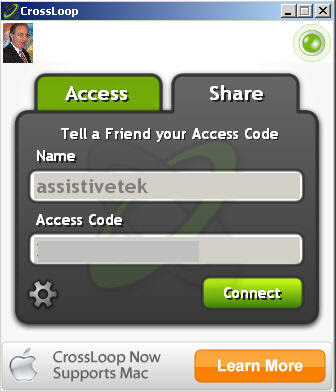
I have been CrossLoop user for some time now and was delighted to learn today that CrossLoop for Mac is available. This easy to use tool allows any two computers to do screensharing and remotely control the other computer. The only problem prior to this announcement, was, that it only worked on the Windows platfrom. With the release of CrossLoop for the Mac you can now have sessions with your Mac as well as you Windows buddies. CrosLoop will allow you to collaboratively work on documents as well as provide you a platform for doing remote support and transfer of files. CrossLoop requires OSX 10.4 (Tiger) or later, an Intel processor, 20MB disk space and 500MB of RAM. CrossLoop will not work on a PowerPC Mac. So if you are looking for training or support check me out on CrossLoop!
Quick Screensharing Session with Glance
 This morning I had the opportunity to touch base with Chance Brown from the Mindmap Blog to show him some of the advanced features in Context Organizer. This was a rather impromptu screensharing meeting and so last night I sent him a link for him to click on so that this morning we could be off and running. For the past several months I have been using Glance to do screensharing and for some of the webinars that I do. With this as a backdrop, I called Chance at the designated time and with one click he was viewing my screen. As I went through demonstrating some of the advanced features in Context Organizer, Chance remarked just how easy it was to connect and concentrate on what I was presenting. Chance to say the least, was really impressed with the feature set in Context Organizer as I demonstrated how it could be used to summarize a web site as well as doing searches within Google on various topics that were also summarized. Similalry, he was really taken by the Glance session and commented just how easy it was to use for what we were doing. As we move into 2009 one of the themes that we will be seeing over and over again is simplicity. In this respect Glance adheres to this philospophy and has always stressed simplicity over complexity. It was great to be able to connect with one another over the phone and via the Glance session, since we had only knew of each other's work through each other's blog. The power to connect in many different ways using the web is a phenomenon that I find to be quite amazing and to this day I enjoy all of the new friendships that I have made on the journey.
Screensharing and More with Glance
 Over the years I have used Glance to do webinars and for screen sharing sessions. One of the things that I like most about Glance is the ease of use and the lack of complexity. This is crucial especially when you are supporting others who may not be technically inclined. With Glance you simply select, Start a session and you are provided with your Glance.net URL and a session key that you provide to your client. It is just that simple- your client goes to the URL address provided, enters the session key you provided them and within seconds they see your screen. Like I said before, if you are working with clients that are new to this type of support it is crucial that the process is streamlined and easy. In the case of Glance, I have to say it is as easy as it gets.
Just yesterday, I received an email from Glance that they released a beta of the Glance application so that now you will be able to view your clients screen and take remote control to help provide
 support. To provide remote support using Glance it is as simple as selecting Start session - view guest's screen. You will be prompted if you want to just initially view or if you would like to view and take remote control of your clients computer when they log in. Again you simply provide your client with your Glance URL address and the session key. Once this accomplished they will be prompted to download a small viewing application. Having tested it out this past week the download and installation went very quickly. Once installed you will now be able to view your clients screen and remotely control their computer. This is a great tool for providing webinars and now for doing remote support without having to leave the office.
Glance starts at $49.95 a month or $499 dollars for a full year for a Glance Personal account. The program is cross platform and I have used it with my PC and my Mac with excellent results. For the Glance Personal account you can host an unlimited number of sessions and can have up to 100 users online with you- which is great for webinars. There are Glance Corporate accounts as well which you can find out more information about on their website. Some of the new features like sharing your clients screen and remote access are only available at this time on Windows. Hopefully this will change. Glance has been really good about adding support for Macintosh, so I will assume that it is just a matter of time.
In these tough economic times, tools like Glance are going to make a real difference in allowing consultants and trainers to provide high quality services without the need to travel. If you are looking for online training in Captivate 3, MindManager 7, JCVGantt Pro, Adobe Presenter or Adobe Acrobat 9 Extended give me a holler. Imagine how much time can be saved by doing training in the privacy of your home or office using tools like Glance. Glance is very easy and powerful tool that simply delivers! So if you have the opportunity download the application and give it a try, you will be glad you did.
Adobe AIR version of Acrobat.com
In the past year I have written about Adobe and its unique set of online tools. Adobe continues to add features to their Acrobat.com site and provides all of us with an incredible tool set. I have written about Buzzword, Adobe's online word processing tool which has not only has a great looking interface but really gives you the feeling that you are working on a desktop application. If you have not given Buzzword a try it is worth checking out. I recently found that Adobe has released an Acrobat.com wideget that is written in Adobe AIR that gives you easy access to your files and application at Acrobat.com. Adobe's use of Flash and mix of Adobe AIR gives the applications a unique look which I find very pleasing to the eye. The programs work quickly over the internet and at times it is hard to belief that you are using these applications that reside on the internet. Here is how Adobe has described the widget:

Acrobat.com Widget
On the Acrobat.com website you can also use it to convert up to 5 documents to PDF format which could come in handy. You also get a fair amount of storage space where you can store your files and share them with others which can provide you with a way to collaborate on word processing documents. Buzzword does track all changes and revisions which makes it easy to see who did what and when.
One of the applications that I recently decided to try out on the Acrobat.com website was Adobe Connect, which lets you meet and share your computer screen online. Adobe ConnectNow lets you connect with two other computers which could make it ideal for doing small webinars and for providing technical support. Adobe ConnectNow allows you to use your webcam as well as setting up a pod for you to store documents and files that you would like your participants to have access to. Your participants are also provided with chatting capabilities and you can use your built-in webcam microphone to talk to your participants using VOIP. You can also choose to use the teleconference number that is available to you through Adobe ConnectNow. Considering the price of admission this is an invaluable tool and one you should look into. So if you get the chance download the Acrobat.com widget and let me know what you think.
The Adobe AIR version of Acrobat.com provides an easy way of interacting with Acrobat.com by dragging and dropping files and folders from your local computer directly into your Acrobat.com account, and browsing, previewing, sharing or publishing files easily from your computer. The application can be minimized to a widget on your desktop providing easy access to the Acrobat.com services.You can download the Acrobat.com widget and keep it on your desktop which makes uploading files and gain access to the applications that much easier.

Acrobat.com Widget
On the Acrobat.com website you can also use it to convert up to 5 documents to PDF format which could come in handy. You also get a fair amount of storage space where you can store your files and share them with others which can provide you with a way to collaborate on word processing documents. Buzzword does track all changes and revisions which makes it easy to see who did what and when.
One of the applications that I recently decided to try out on the Acrobat.com website was Adobe Connect, which lets you meet and share your computer screen online. Adobe ConnectNow lets you connect with two other computers which could make it ideal for doing small webinars and
 for providing technical support. Adobe ConnectNow allows you to use your webcam as well as setting up a pod for you to store documents and files that you would like your participants to have access to. Your participants are also provided with chatting capabilities and you can use your built-in webcam microphone to talk to your participants using VOIP. You can also choose to use the teleconference number that is available to you through Adobe ConnectNow. Considering the price of admission this is an invaluable tool and one you should look into. So if you get the chance download the Acrobat.com widget and let me know what you think.
Croosloop Revisited
While I have talking about Web 2.0 for some time now, the real benefit of these technologies is the ability to collaborate over the web. Just yesterday evening I was collaborating with my colleague and fellow visual mapper Wallace Tait on a visual map. Using Crossloop and Skype we were able to collaboratively work on the visual map as if we were in the same room. The speed and clarity of the screen was really unbelievable. Using readily available Web 2.0 technologies made this collaboration possible at no cost to either myself or Wallace. Using Skype for the audio and Crossloop for the screen sharing session was a real winner all around.
Using these technologies it is now possible to provide high level support, training, and collaboration wherever you may reside. All you need is high speed internet and a free Skype and Crossloop account. If you are looking for training and support in the comfort of your home or office just drop me a line to find out how we can get started. This type of support and training is ideal when you get in a pinch and need someone to turn to. I offer free estimates and would be glad to speak to you over Skype about your training or support needsor feel free to email me.
Using these technologies it is now possible to provide high level support, training, and collaboration wherever you may reside. All you need is high speed internet and a free Skype and Crossloop account. If you are looking for training and support in the comfort of your home or office just drop me a line to find out how we can get started. This type of support and training is ideal when you get in a pinch and need someone to turn to. I offer free estimates and would be glad to speak to you over Skype about your training or support needsor feel free to email me.
Subscribe to:
Comments (Atom)