Pages

Showing posts with label Matchware. Show all posts

Matchware Releases MindView 5

Without a lot of fanfare Matchware has recently released MindView 5, one of the leading mind mapping tools in the marketplace. Matchware, taking the lead from its customers, spent a great deal of time improving on the feature set of MindView in this current release. MindView 4 users will feel right at home using the latest version, knowing that the core of the product didn't change all that much. While some of the changes are rather subtle, make no mistake about it, they add a great deal of value to the existing application. While I intend to do a more in-depth review of the recent release, I want to highlight a couple of features which make the latest release of MindView 5 a great tool for students and those with disabilities.

Matchware over the years has made inroads with their mind mapping products to schools and has always had a keen interest in meeting the needs of students with learning disabilities. It is not everyday that a company considers incorporating the principles of Universal Design and Matchware should be applauded for including text to speech support, audio notes and a high contrast design for viewing the mind map on the screen. MindView 5 gives students access to wide array of views that can quickly be changed. Students can easily go from a mind map to an outline or to a timeline with a click of the mouse making it easy to visualize the information in many different ways.

Matchware has included a new feature in MindView 5 that lets users search the WorldCat catalog and insert a citation right within the mind map. The WorldCat catalog has million of entries and is a great tool for searching for articles that can be used for doing a research paper. Once you have used the WorldCat catalog and entered a citation you can then export your mind map and have MindView 5 automatically format your bibliography into one of the many standard outputs; notably APA, Chicago, MLA, Harvard, and ISO690. Having access to the WorldCat catalog right within MindView 5 really plays to the strength of MindView and its exceptional ability when exporting formatted Microsoft Word documents. I for one have come to rely on MindView to create RFP's and structured documents when I am delivering my proposals. When exporting MindView 5 mind maps to Word, the structure of the output is really exceptional and giving the end user the ability to navigate the document with the clickable table of contents works really well. When I prepare my proposals with MindView I often get great comments and my readers are impressed by how succinct and to the point my proposals are.

So if you like, give MindView 5 a try by clicking here for a free 30 day Trial


Are You Thinking About a Mindmapping Conference?

It has been a number of years since I had initiated putting together a mind mapping conference here in New Jersey, and today I was talking to my good friend and visual mapper Wallace Tait about the possibility of setting up a mind mapping conference so that we convene and share ideas. With the economy in its current state we need to bring innovation and ideas to the work that we do whether it is in the public or private sectors. What better way to  kick-start this year then by planning to convene interested participants who want to explore how we can put mind mapping to use in the work that we do.

I have spoken to Wallace about the idea for an Unconference -whereby we pick a time and place and build the agenda the day of the conference based on your needs. This model has worked really well in the educational marketplace and is one that could work well for us. At the Unconference we could learn about new and innovative ways that people are using mind mapping in the work that they do, whether it is academic, personal, or business related. In this spirit, it would be great to have some corporate sponsorship that could take care of some of the expenses and be a host for the day. I for one think that a mind mapping conference is long overdue and hope that some of the leading companies in this arena will find value in this idea and step up to the plate to make this a reality. I know that Wallace and I are willing to put the time in to see that it happens. If you are interested in making this a reality please feel free to contact me.  All the best and Happy Mind Mapping!

NoteControl - Taking Charge of Your Resources

With information coming at us at a frantic pace it is no wonder that we can quickly become overwhelmed. This is especially true for students who have a need to curate their notes and sources when writing research articles. Life was a lot easier for me when I was in school, there were simply books and journals, that I used to cite my works. Today students are faced with the myriad of Internet sources, books, journals, podcasts, and multimedia to keep account of when doing research. In this light, Matchware, recently released a new product NoteControl aimed at students to help them collect, collate, and sort notes when doing a written research paper. The coup de grace is the ability of NoteControl to output a perfectly formatted bibliography in many accepted and recognized formats (ie APA, MLA, Harvard to name a few.).

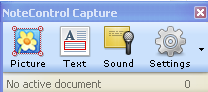
The premise of the program is quite simple-you create a notebook and then use the space to capture all of your notes which can include: Text, Picture, Sound, and Web notes. NoteControl allows the user to create a Folder structure to organize your notes and it is easy to move Notes that you capture from one folder to the next. For example, if you want to create a citation for text from a web site, you can simply go to the web site and highlight the text you want to use and then Click on the Text Note icon. This will bring up a note card with the text automatically included- you can change the name of the note card and once you click the Accept button your noted will be stored along with the source.You can use the same technique to capture graphics from websites or store needed  files (Word, PDF's) for your research project. If your computer has a microphone it is easy to store audio notes in your notebooks from within NoteControl.

Matchware has teamed up with WorldCat to enable users of NoteControl to access their large database of resources and collections from libraries around the world. Students are able within NoteControl to search the WorldCat database and have the citation automatically filled out with all of the necessary information for a properly formatted entry. If you have all of the information for a citation you can also manually add a citation to your research Notebook. Students will find the WorldCat tool a very handy tool to use for doing research and will find it even easier when it is time to generate the bibliography.

After you have collected your notes and resources NoteControl really shines when it is time to export all of your notes and create your bibliography. With one click of the mouse NoteControl lets you export your source listing, notes and bibliography directly to Word. NoteControl will export your notes and bibliography to any one of several formats including APA, Chicago, and MLA styles. The bibliography is perfectly formatted saving you the time an effort to manually recreate it once your paper is completed. You will find NoteControl an easy to use tool that is ideal for high school and college students who are writing research papers. As students begin to utilize more and more Internet resources they will find NoteControl and ideal tool to take charge and organize their resources for use in their papers. For those students who have access to MindView 4 and want to see their notes and resources in a mind map you can export them directly from NoteControl. Overall, NoteControl is an easy to use program that delivers on its promise to provide students a way to organize, sort and curate notes for research papers and projects. A one year subscription to NoteControl is prices at $49 dollars and at this time is only available for computers running Windows OS. There is a trial version of NoteControl available for student to try out which I would highly suggest. At $49 dollars for a year, NoteControl is good value and another tool that you should have your students take a look at to help tame the paper tiger when it comes time to write that research paper. It would be great if Matchware could add Text to Speech (TTS) supports within NoteControl for students that benefit from this type of support. NoteControl also allows students to work on collaborative projects across the web which adds value to this fine product. Give it a try and let me know what you think.

MatchWare Launches MindView 4 Mac, Mind Mapping Software for OS X Lion

Today MatchWare (http://www.matchware.com) announces the release of MindView 4 Mac, a professional mind mapping software ideal for optimizing brainstorming sessions, creating visually driven presentations and displaying project plans in an easy-to-overview timeline. Thomas Henriksen, MatchWare’s Product Manager, explains, “Our user feedback was very clear, Mac customers want a professional mind mapping tool to visually overview ideas and improve communication, collaboration and innovation. MindView 4 Mac provides the professional feature set to drive productivity through seamless integration with Microsoft Office and a cutting-edge presentation mode that ensures brainstorming, organizing and presenting ideas has never been easier.”

The enhanced Microsoft Office integration and ready-to-use templates enable users to effortlessly export their mind maps as professionally formatted Microsoft® Word documents and PowerPoint presentations. With 7 dynamic viewing options including a timeline, new map styles, and innovative presentation options, MindView 4 Mac continues to take mind mapping to the next level. Additional new features include a new formatting toolbar, the ability to record audio commentary as a sound note and attach the file to a mind map branch, open MindView 4 for PC files and the option to export a mind map as a PDF.

MindView 4 Mac’s new presentation mode displays information one branch at a time, enabling users to deliver dynamic, interactive presentations directly from the mind map. Focus mode empowers users to zoom-in on specific areas of the map, allowing participants a clear view of the specific information presented. MindView 4 Mac enables users to customize the placement of branch pictures; further enhancing the capability to provide clear, visual displays to improve the understanding of complex topics.
“I have tested MindView 4 Mac on OS X Lion and the new Presentation Mode and Focus Mode are extremely helpful when presenting my mind maps during meetings. I like the fact that the Focus Mode lets me zoom in automatically on branches in a non-linear way so people in the back of the room easily can see and contribute to brainstorming sessions,” says Frans Merrild, C.E.O of Tell-It Online.

MindView’s unique Timeline view delivers a powerful, visual overview to improve any project planning process and enhance the study of historical and future events. By adding dates or times to the mind map branches, users can simply switch to the Timeline view to instantly display information on a horizontal time axis.

MindView 4 dramatically improves the ability of professionals to capture and share information in one click from a mind map to Microsoft Office, a timeline, a PDF document or a HTML website. Mac users now have a professional productivity tool for turning ideas into action plans.
MindView 4 Mac is available for purchase at http://www.MatchWare.com and the Mac App Store for the upgrade price of 149 USD or 249 USD for a single user license. For more information about MindView, visit http://www.MatchWare.com or follow us on Twitter and Facebook. Contact us for multi-user and educational discounts.

About MindView
MatchWare MindView is professional mind mapping software that allows you to optimize brainstorming sessions and present ideas visually. MindView's mind mapping capabilities provide an effective way to organize and develop ideas, outline reports, and streamline decision making. MindView’s visual hierarchy and professionally designed export templates convert your mind map into a polished presentation with the click of a mouse. Brainstorm topics, storyboard presentations and enhance meeting discussions. Attach pictures and videos, take notes or add hyperlinks – everything will be included in your export.

About MatchWare
Founded in 1992, MatchWare is a leader in intuitive Mind Mapping and multimedia authoring tools for enhancing individuals’ ability to create, visualize, manage and distribute information. The company’s award-winning software packages, MindView, Mediator, and ScreenCorder, offer highly intuitive user interfaces and powerful features at affordable prices. Headquartered in Denmark, MatchWare has subsidiaries in the UK, the USA, Germany, France and Sweden.
  • MatchWare, MindView, MatchWare Mediator, MatchWare ScreenCorder are trademarks or registered trademarks of MatchWare A/S. All other trademarks and registered trademarks used in this document are the property of their respective companies.

Using Matchware's MindView 4 in Presentation Mode

I have been using MindView 4 Business Edition since it was released but haven't had the chance to use the Presentation Mode until yesterday. While planning my workshop and presentation for a Tech Day at a local school, I decided to plan out what I would cover in MindView 4 so that I could test out the new Presentation Mode. When planning my workshops, I tend to like to use mind maps to brainstorm and decide upon what I will cover. I tend to use Left/Right maps when planning my sessions since I think it is easier for my participants who are not as familiar with mind mapping to digest the content. I provided each participant with a printed mind map with the content so that they could take notes and then used the Presentation Mode in MindView 4 during the workshop.


Using the Presentation Mode in MindView 4 could not have been any easier- I simply clicked on the Presentation Mode and within seconds the presentation palette showed up that let me advance from topic to topic. MindView 4 opened each topic and subtopic as it advanced and then would close the topic as it advanced to the next one. I found it very easy to use while I was presenting and I believe it helped the participants to focus in on what I would be covering during the session. I put together a short screencast to show you how easy it was to use the Presentation Mode in MindView 4. Please feel free to download a Free Trial Version of MindView 4 and try the Presentation Mode for yourself.


PS: You will also be glad to know that you can advance through the topics by using a wireless presenter remote.

MindView 4 Adds Audio Sound Recording

Matchware Inc., has added a number of new features to MindView 4, but one of my favorites is the ability to quickly record and idea and attach it to my mind map. You know there are times when you are brainstorming that the ideas are just flowing and what better way to capture it by simply doing a quick audio recording. To record audio in MindView 4 you simply click on the idea in your map and then click on the Insert tab and Click on the Sound icon. This brings up the Recording palette and you are then ready to record your ideas. Simple and elegant. Watch the video below to see just how easy it is to add an audio recording to your MindView 4 mind maps. To try out MindView 4 click here for a full working Trial Version.


MindView 4 from Matchware- Quick Thoughts About the Upgrade

Over the past couple of weeks I have had a chance to review a number of software applications that have recently been released. All of the applications have represented a major commitment from the developers to release these upgraded products to give the user a better experience when using their product. If there is a trend that I see in the world of software, it is that rather than the developers adding a host of new features they really have spent the time on refinements in the user interface and the ease of use. Many of the companies are spending their efforts to really understand their user base and to  include only features that make sense for their product. Feature creep is always a problem with mature software applications and it was great to see that Matchware, Inc. choose to go down a path to refine and only add functionality that made sense to their flagship product, MindView 4, which was recently released.


Businesses that have invested in MindView 3 will feel right at home when upgrading to MindView 4. MindView 4 now sports the new Office 2010 interface which is both aesthetically pleasing and well organized. Moving about the program with the new Office 2010 interface is very intuitive and the functions are clearly organized to make it easier to use. MindView 4 has incorporated some new styles for your maps which are easy to apply and are aesthetically pleasing to the eye. It is much easier in MindView 4 to edit and format text and change the color of the branches. Likewise Matchware has made it very easy now to place your images on branches by simply dragging them to the location of your choice. You can now place your images on the top, right and left of the text within the branch. I am also enjoying the ability to attach an audio note to a branch which is a quick and easy way to capture my ideas. Matchware has also added the ability to export to a PDF file with different styles which makes it easy for me to share my maps for those individuals that don't own a copy of MindView 4. Exporting your mind maps to a PDF is fast and straightforward and the results are outstanding. The addition of the Presentation Mode is outstanding and one I know I will use more often when I use MindView 4 during the presentations and workshops that I often give. It is the little changes and the attention to detail that I feel really highlights this update and brings huge value to upgrading to MindView 4.

Look for additional posts as I delve into this upgrade with a focus on collaboration and project management.. To give MindView 4 a try download a Trial Version by clicking on this link.

Matchware Announces Mindview 4

It just came to my attention that Matchware has announced MindView 4 which is chock full of new and exciting features. One of the hallmarks of this release is collaboration and the ability to share your MindView 4 maps in a shared workspace.This feature will certainly herald in new and innovative ways to use mind mapping in the work space. Matchware has also included some new formatting and styles that can qucikly be applied and there is now the ability to Export to PDF which looks interesting.I for one am looking forward to finding out first hand the ins and outs of what looks to me to be a fantastic upgrade. Hope to do a review soon!

iThoughtsHD- Mind Mapping for the iPad

Two weeks ago I went out and purchased an Apple iPad to see what all the excitement was about. I have to say it is a very seductive device and one that is hard to put down. I am enamored by its potential as a tool for some of the students that I work with who have writing, reading and organizational difficulties. The iPad is very fast at doing almost anything you want it to do (except play Flash media) and the battery life is really incredible.

Over the last couple of weeks I have investigated and bought many productivity apps to get an idea of how the iPad could be used as complimentary device to all of the other computers in my household. As someone who loves to mind map I quickly came across iThoughtsHD which I had heard so much about. iThoughtsHD is a full featured mind mapping application that runs on the iPad. It did take me a little getting used to the fact that I didn't have a mouse and had to touch the screen to create new nodes but once I got the hang of it-it was easy to use. I quickly created my first mind map in iThoughtsHD and was able to move my ideas around the map and relink them. Adding icons and formatting the nodes was quite intuitive and fast. There are some nice features to allow you to align your ideas to keep the formatting looking clean and your nodes equidistant. I have also used iThoughtsHD with my Bluetooth keyboard which made it even faster for me to create a mind map. While the interface is rather spartan there is a lot of functionality under the hood and you will find getting around iThoughtsHD to be quick and efficient. Within your mind map you can easily attach links as well as insert task completion icons to keep track of tasks as they are completed.

One of my favorite features is being able to send my iThoughtsHD mind maps to the cloud or transfer them to my computer using the WiFi Transfer option. Using the Box.net service it is rather straight forward to save your mind maps to the cloud that you can then access from any computer connected to the internet. iThoughtsHD supports a wide range of exporting features which makes it ideal if you intend to open your mind map with another mind mapping desktop application. iThoughtsHD supports exporting to : MindManager, MindView, NovaMind, iMindmap, xMind, and Freemind. iThoughtsHD also supports the use Task Completion icon and Start and Due dates for tasks on your mind map.

All in all, iThoughtsHD is a formidable mind mapping application for the iPad and works well with your desktop mind mapping applications. If you purchased an iPad and are looking for a top of the line mind mapping app look no further and download iThoughtsHD.

The Many Uses for Mind Maps


I have a number of training workshops coming up in the next couple of weeks and what better way to plan them out then with a mind map. Using a mind map gives you the ability to get your ideas down and then gives you the flexibility to move your ideas around as you survey the landscape. When I first open up the mind map I quickly to a "brain dump" on the topics I plan to cover and once that is in place, I can begin to see how all the pieces fit together. It gives me a great deal of freedom knowing that I have complete control of how to structure the day by getting a snap shot of the activities and topics planned. Once I have decided on my topics I often will turn on the numbering feature which lets me take a look at the sequence of events.

If I plan on using web sites in my training session I will attach a hyperlink to the activity. Likewise, I will often add notes to my mind map which can provide additional information to my participants on a topic that I will be covering. But the real benefit of using a mind map for the development of my training sessions is that when I am done I can quickly turn my map into a Word document which becomes an easy to use handout for the session. Both MindManager 8 & MindView 3 have excellent Microsoft Word integration for exporting your mind maps to a visually pleasing Word document. For those colleagues of mine who are more visual they get the mind map on the front page of the handout right before the Table of Contents. One of the advantages of building my training handout in a mind mapping tool is that the Table of Contents is linked to the contents. By Control clicking on an entry in the Table of Contents the user is automatically taken to the topic in the body of the handout. All of the web links are carried over as well, which makes it very easy for my participants to go to those sites during the class. In my effort to go green, I have created a number of Google Sites which then allows me to upload my handout to.

For those of you who use Adobe Acrobat you can quickly convert your Word handout to a PDF which protects your materials. You should note that all of the links in your document are maintained which gives the user a very good experience as they interact with your handout.

All in all, using mind maps to prepare and plan for training sessions has been just one more way that I have found to use mind maps in the course of my professional work. When you are done planning you can quickly turn them into highly interactive handouts that your participants will enjoy using.

If you would like to learn more about how you can benefit from your investment in a mind mapping program send me an email. I can provide you with personal coaching and demonstrate to you all of the ways you can use your mind mapping application so you can get ahead of the pack.

Service Pack 2 Available for MindView 3 Business Edition

While using MindView 3 Business Edition today I was alerted that Service Pack 2 was available for download from Matchware. After you install the Service Pack your version of MindView 3 should be at Version 3.160. There is also Service Pack2 for MindView 3 as well.


This Service Pack contains the following changes:

Service Pack 2:

New Features:
  • MindView now supports pen input as well as standard keyboard/mouse input.
  • MindView now supports the use of SMART boards.
  • Timeline view: The detail level of the Timeline now matches the detail level used in the Timeline Outline. This means that only branches that are visible in the outline are shown on the timeline itself.
Fixes:
  • Copying a branch containing a text note now also copies the text note as expected.
  • The command Send no longer causes MindView to swap to another open document in some circumstances.
  • The filtering of dates has been updated.
  • The Mind Map now scrolls to the left when editing branch labels that expand outside the right edge of the workspace.
  • The Auto Correct function now works as expected when editing branch labels.
  • The Find/Replace and Spellchecking functions now expand invisible branches when necessary.
  • The Show Time Info setting chosen to display or hide start and end times is now preserved as expected when saving and re-opening the Mind Map.
  • Mind Maps shown in the Top Down view with their sub-branches displayed vertically are now updated as expected when branches are moved or deleted.
  • The layout of Mind Maps whose branches have been arranged "manually" (with auto-layout off) is now preserved as expected when saving and re-opening the file.
  • It is now possible to insert a branch from the Timeline Outline without causing the "Insert Event" dialog to open.
  • The dialog displayed when opening a packed map containing files whose original versions has changed since the map was packed no longer shows multiple entries when the same file has been used on several branches.
  • The Show Branch Data settings chosen to display or hide start/end times, priority level, completion percentage and resource names are now preserved as expected when saving and re-opening the Mind Map.
  • When updating the priority level, completion percentage and/or resource names of a branch, the changes are now reflected immediately on the Mind Map.
  • Copying branches containing calculations values now works as expected.
  • Gantt view:
    • The timescale chosen (years, quarters, months, days etc.) to represent the Gantt chart is now preserved as expected when saving and re-opening the file.
    • The label displayed in the Predecessors column of the Gantt Outline is now shown correctly in the case of tasks linked with predecessors with a Start to Start link.
    • Tasks having a summary task as predecessor task and linked to it with a percentage lead time (so that the task can start some time before the summary task ends) are now scheduled correctly in all circumstances.
    • Saving very large Gantt charts no longer causes MindView to freeze while generating the file preview picture.
  • MS Project Export: The Mind Map hierarchy is now always preserved as expected when exporting to MS Project 2007.
  • Excel Export: Sheet names are now localized as expected in versions of MindView other than English.
  • XML import: This now works as expected when branches have branch boundaries.

Microsoft Adds a Timeline View to MS Project 2010

A couple of months ago I wrote a blog post about Gantt Charts and Timelines You Decide which raised the issue with regards to which views project managers and their stakeholders prefer. While I didn't get a large number of readers to complete the survey-most readers seemed to lean towards using the Timeline View to communicate the status of the project. It would seem that if you are not a professional project manager that reading Gantt Charts could pose a problem. There is a great deal of clarity that can be derived from looking at a Timeline and the information is much more digestible. In the original post I talked about how MindView 3 Business Edition from Matchware enables you to communicate the information in either a Gantt Chart, a Timeline or a Combination Timeline/Gantt Chart View. So depending on your audience you can decide how to share the information visually, that is best suited for your stakeholders.

In light of my July post it was interesting for me to come across the blog post from the Microsoft Project Team Blog that announced that they had added a Timeline View to MS Project 2010. From the post it looks as if there will be lots of ways to customize and format the Timeline. The post also noted that you will be able to copy and past the Timeline information into the other Office Products. It is my understanding that the Timeline will come in as Office Art shapes that will then allow you to format it to your hearts content. So I would like to believe that my post swayed the large Seattle company called Microsoft to add the Timeline view- but who am I kidding! In any case it is great to see that tools like MS Project 2010 will give users a flexible tool for communicating project information and status.

Creating Calculations in MindView 3 a Simulation

For the past 2 1/2 years I have worked with Adobe Captivate to create video demonstrations and simulations of software that I am teaching to my students and business clients. I have worked hard to hone my skills and last Fall passed the Adobe Certification test for Adobe Captivate 3. When Adobe Captivate 4 was released I was eager to get my hands on it and learn about how to integrate some of the new features into my elearning bag of tricks. One of the areas that Adobe Captivate 4 really shines in the development of software simulations. It is possible with Adobe Captivate 4 to create simulations that your users can interact with that allows them to experience what it is like to use a specific piece of software without actually having to have the software installed on their computer. Imagine being able to guide someone through a software application with prompts and feedback. What makes Adobe Captivate 4 even nicer is that for the most part it builds most of the simulation for you right out of the box. With the addition of the editing tools in Adobe Captivate you can always go back to your screens and edit them.

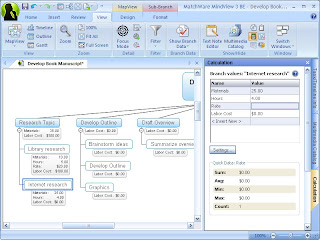
This past weekend I had a chance to build a simulation of what it would be like to utilize the Calculation features that are built into MindView 3 Business Edition. The Calculation feature found in MindView 3 BE is very powerful but may not be as accessible for some who may not understand how to use it. Using the Calculation feature you can add numerical values to branches as well as formulas that are automatically calculated. Built-in functions allow you to display values automatically rolled up from lower sub-branches to higher ones. This is extremely powerful but I would guess that many MindView 3 users have not attempted to use this feature because of the step involved. In any case I am hoping that if you walk through my video simulation you will have a good idea of how to add numerical values and create formulas to your branches and then using the built in functions Sum the values. So give it a try and let me know what you liked or disliked about working through the simulation.

Using the Calculation Feature in MindView 3

For the past several months I have been using MindView 3 Business Edition for some of the projects that I have been working on and have had a chance to delve into the Calculation feature. While the Calculation feature is powerful it may not be initially intuitive to figure out, for the first time user. Once you get the hang of it and understand how it works you will see just how powerful it is and how it can help you budget and estimate the cost of your projects. Not only can you enter values into your branches but you can create formulas with those defined values that automatically calculate for you that can be rolled up to help you look at the big picture. Since a picture is worth at least a thousand words, I thought it would be easier to show you how to use the Calculation feature in MindView 3 by creating this short screen cast. Click here to view the screencast. Having entered values into your mind map then gives you the option to Export these values to Excel which generates a complete report. So take the time to look at the video and let me know what you think. I think you will see the value in learning how to enter values into your mind map which is great for costing out projects that you may be working on.

If you are looking for how your organization can benefit from using MindView 3 Business Edition please feel free to email me

Interview with Brandon Conrad from Matchware Inc.

I had the opportunity last week to interview Brandon Conrad, Sales Manager for Matchware the developers of MindView 3 Business Edition to get his insights about their new release and the visual mapping field. It was great having the opportunity to speak with Brandon to find out about Mindview 3 Business Edition and how it is positioned in the visual mapping marketplace.


Brian S. Friedlander: Tell us about the Matchware organization and the products?

Brandon Conrad:MatchWare is a leading provider of multimedia, screen recording and visual thinking software that enhances individuals' ability to create, visualize, manage and distribute information. MatchWare's easy-to-use professional software empowers business, education and government worldwide to produce and deliver dynamic multimedia content that will engage and inspire. A fast growing, highly profitable, and self-financed company, MatchWare has its headquarters in Denmark with subsidiaries in the USA, United Kingdom, Germany, Sweden and France.


BSF: Please share with us about the latest release of MindView 3

BC: While retaining the user friendliness of previous editions, MindView 3 Business Edition has introduced several new and innovative features that make it more powerful and flexible than ever. Firstly, MindView 3 Business offers the industry’s most intuitive Office 2007 interface. The new Office templates ensure seamless integration with MS Office, increasing productivity and making the use of Mind Mapping more efficient than ever.


Secondly, to complete its integration with the MS Office suite of tools, MindView 3 Business now offers integration with MS Excel using impressive new Excel import and export functions.

Thirdly, MindView 3 Business includes a new calculation module. This module allows users to associate numbers with each mind map branch and to instantly perform complex calculations. The data can then be exported to an Excel spreadsheet with the simple click of a mouse. Conversely, users can also import numbers from Excel to MindView. This new calculation module makes budgeting, forecasting and calculating costs faster and easier than ever!

Other features include an advanced filter, a numbering scheme, and “focus” mode, which allow you to optimize your work, boost your productivity, and communicate more effectively than ever before. Read on to find out why MindView 3 is the only mind mapping tool you need!

BSF: How do you differentiate MindView 3 from the other leading visual mapping tools?

BC: Simplify put, we classify ourselves as an overall business tool and not just a mind mapping software. We substantiate this claim by referencing out multiple views and our full integration with the MS Office suite. When I say full integration, we can import/export to the entire MS Office suite. We cater not only to the right brain thinkers (organic) but also to the left brain thinkers (linear) too. We do this by adding different views such as the Gantt, Outline, WBS, Org. Chart, Timeline etc. So are we a mind mapping software, project managemnt software, Timeline software etc? We are both none of those and all of those. We have successfully developed the complete business tool to increase efficiency and maximize productivity.


BSF: What do you see as the benefits of users using MindView 3?

BC: It's pretty simple, this tool is optimized for planning brainstorming and project management which initially captures our customer base. As our customers become more involved with the tool they see it as an overall productivity tool and efficiency tool because of the multiple views and superior MS Office integration. This tool has endless capabilities across multiple business departments. That being said, the tool is extremely successful in all environments too, from middle school children to top CEO's. Everyone has the need to communicate more effectively and we all look for ways to make our work more efficient and productive. MindView 3 Business satisfies these needs.


BSF: What do you see in the field of visual mapping as trends going forward?


BC: To stay on top of the software industry you have to listen to your customers and produce software that captures the majority of the market. Our customers have been wanting a more collaborative tool which can be a tricky venture when referencing a desktop application. Also, customers define collaboration many different ways. For instance, web based tool which have their pitfalls of refreshing and internet speed. As a trend, collaboration is the road most desktop applications will be traveling down if customers keep requesting these features. It's very difficult to predict long term technology trends because it moves and changes too quickly. We listen to our clients which drives out product development.


Thanks so much to Brandon Conrad, Sales Manager for Matchware. For more information please visit the Matchware website. If you are interested in purchasing MindView 3 you will be glad to know that I have become an Affiliate Partner and would be happy to support you should you decide to invest in MindView 3.

Matchware Releases Service Pack 1 for MindView 3

FYI

I just found out that Matchware has released Service Pack 1 for Mindview 3 which can be downloaded from their website. I have upgrade my version of MindView 3 BE to the latest version without a hitch. MindView 3 feels faster when changing from the various views. Going from a Mind map to a Gantt Chart is much faster than in previous versions. Give it a try and let me know what you think. You can download the Service Pack 1 by clicking on this link. According to the Matchware website here are some of the features of the Service Pack 1.

This Service Pack contains the following changes:

Service Pack 1:

  • Panels now include scroll bars when screen resolution is low or when space is limited.
  • Converting between views has been slightly optimized.
  • Branch text editor: Several usability issues and other problems have been corrected.
  • Icons: The Icons gallery now closes upon selection of an icon.
  • Outline view: The font settings can now be changed as expected.
  • Spellchecker: The problem whereby correct text was sometimes underlined in red has been resolved.
  • Word export:
    • PDF files are now handled correctly.
    • Links to embedded files are now handled correctly.
    • Pictures located in text notes on the Mind Map are now shown in the exported Word document.
  • PowerPoint export: The problem whereby comments were not exported to PowerPoint when using a non-English version of MindView has now been fixed.
  • SharePoint: Now fully compatible with SharePoint 2003. With SharePoint 2007 it may be necessary to check out the file before being able to save it from within MindView.
  • Many other usability and internal issues have been corrected.
  • Resources:
    • Adding resources from the Address Book now works as expected.
    • Resources assigned to tasks are now preserved when copying to another document.
  • Dragging a link from the web browser onto a branch now creates a hyperlink.
  • The Calculation Defaults and Formats dialog now supports localized decimal separators.
  • Excel export: You can now export to Excel even when Excel is not installed, but you will only be able to save the file in the XML 2003 Spreadsheet format.
  • HTML export: New export templates have been included.
  • Microsoft Project import: Files containing unsupported characters can now be imported.
  • It is now possible to export to the older OpenMind/MindView 2 XML format.

Gantt Charts vs Timelines-You Decide


In the early 1900's Henry Gantt introduced us to what is commonly referred to as the Gantt Chart, a way of visually communicating tasks and the timeline for each. In his 1919 book "Organizing for Work" [6] Gantt gives two principles for his charts:
  • one, measure activities by the amount of time needed to complete them;
  • two, the space on the chart can be used the represent the amount of the activity that should have been done in that time.
A lot has changed since 1919, and with the advent of computer technology we have seen a number of business project management software applications that take Gantt Charts to a whole new dimension. With the power of the personal computer we can now show not only task completion but the inter-dependencies of the tasks as they relate to the project completion. As more and more information gets added to the Gantt Chart and the visual complexity increases it certainly adds a real cognitive load for many, to make sense of the data. Recently, Wallace Tait and I had a conversation about Gantt Charts and their utility-which lead us to talk about the advantages and disadvantages of the visual display when presenting information in a Gantt Chart. One of the real advantages of using Gantt Charts is the fact that it can pack a lot of rich information into a small area. But this can be its downfall as well-and it does take a certain knack to be able to decipher the information and the dependencies that are often displayed in a Gantt Chart.

While Gantt Charts have a rich tradition some people may have difficulty understanding the complexities that are displayed on the screen and choose not to use them to communicate project information. In this regard, some users may want to opt to use a Timeline to convey project information which is a more sequential way at looking at a tasks over time. While you certainly lose out on the richness of the Gantt Chart you are quickly able to see the flow of the project and when things need to be done. One mind mapping application that bridges the gap between Gantt Charts and Timelines is MindView 3 BE. In MindView 3 BE, you have the choice of looking at your project in various modes: as a mind map, a Gantt Chart, or as a Timeline. You can check out my previous post on MindView 3 BE to learn about the features and the project management tools. MindView 3 BE even lets you display your project using a cross between a Timeline with Duration bars. So the question I leave you with is: What are your preferences when you are displaying project information? Please complete the survey that I put together about Gantt Charts. I will report the results once they come in.

Adobe eLearning Suite - Captivate 4

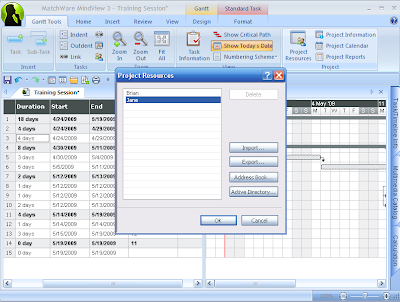
First off, I would like to thank Reagan at A&R Edelman for providing me a review copy of the Adobe eLearning Suite. I had posted about the release of this powerful eLearning toolkit some months ago and have just got around to looking at some of the new features specifically in Captivate 4, which is one of the core rapid eLearning tools found within the suite. I have used Captivate 3 to create a number of training and simulation videos for the work that I do and wanted to dig my heals in and see what was new in Captivate 4. From the onset there are some small but significant changes to the interface when capturing your screenshots which gives the developer more freedom and control when you start a project. I found the new interface to be intuitive and really enjoyed the control it gave me when shooting my video. For the past couple of weeks I have been reviewing MindView 3, and wanted to see how I could create a training video for someone who was new to using the Gantt View. In the training video the user will be prompted on the screen to change the duration of a task, create resources and then assign the resources. Click on this link to view the training video.

One of the new features which was integrated into Captivate 4 is Text to Speech (TTS). As a consultant in the field of assistive technology I have been using TTS for some time now and was excited to learn that Adobe Captivate 4 would include this feature. Adobe now supplies the Kate and Paul voices from NeoSpeech, two high quality voices which I have used in the past with students. I wondered how I could use the TTS in the training module and was pleasantly surprised just how good the voices sounded in my video. Inserting text to speech was extremely easy to do- you simply type the text you want Captivate 4 to say in the Slide Note area, and click, on the Covert to Speech button. Once the text has been converted you can then instantly listen to the instructions from within Captivate 4 by clicking on the Play button. As I went through my slides I found that I could copy the text that Adobe Captivate 4 created when I set up the simulation and paste it into the Slide Note area to quickly transform the text to TTS. The speech sounds very clear and is a very fast way to at times, circumvent having to use voice narration. I will let you be the judge of that and I hope you will add comments with regard to how you found the TTS in the video.

One of the really nice feautres that you will not see is the way that Adobe Captivate 4 handles the production of the files. In the past if your video included real time video captures, Adobe Captivate 3 would create multiple videos which made it more of a challenge to upload and manage. With the release of Adobe Captivate 4, things have changed and now regardless of number of real time video captures there is only one final production SWF file. This is a great feature which I know you will enjoy. Likewise, with the release of Adobe Captivate 4 you can now output your training or simulation videos as a PDF file which will run perfectly with Acrobat Reader 9. This is truly a very powerful feature- being able to distribute your digital eLearning assets as a PDF file. In future posts, I will take a look at how you can incorporate Variables and Widgets into your Captivate 4 training videos and simulations. With the release of Captivate 4 as part of the Adobe elearning Suite once again Adobe has produced a quality software applicaiton for rapid elearning.

What Does it Take to Do A Webinar?

With the imminent release of billion of dollars to the public schools for the purchase of assistive technology and professional development I saw an opportunity to reach out to my colleagues and give them some pointers and tips for planning for this event. During the past couple of years I have had the pleasure of being a presenter on several webinars but have never actually been the one in the trenches setting it up and marketing the event. I decided about a month ago to sponsor the free webinar on the President's Recovery & Investment Plan for 2009 and how it would impact on the work that we do under Individuals with Disabilities Education Act (IDEA). The initiative is clear that there is a priority for schools to have access to state of the art assistive technology devices and to provide intensive professional development for regular and special eduction teachers.

In order to pull this webinar together I had to do a fair amount of planning and make some decisions about the screensharing platform as well as the audio conferencing portion of the webinar. During the planning stages I was reviewing MindView 3 and decided to take a look at how I could use the Gantt Charts and Timeline features to plan for the event. Using the Timeline feature really highlighted the series of steps that I needed to accomplish to pull off the event. Being able to go from the Gantt View to the Timeline View was very helpful in seeing the big picture. Having access to these tools allowed me to visually plan the event and keep me focused. Having used Glance for some time now, I decided to go with this platform, which worked like a charm. In order to deliver the audio portion I decided to use the teleconference service that was provisioned to be used with Glance.

Prior to the event I did a run through using the teleconferencing service so that I woud know how to change the audio features when running the webinar. You can never be too over prepared for your webinar when anything could happen with the technology. It is important to consider having a back up computer ready in the wings when doing the webinar. As far as your audio equipment, I used a high quality headset that was plugged into my phone system so that my hands were free during the webinar. I also had my computer directly connected via the Ethernet port to ensure that my connection was as fast as possible when sharing my screen. These are some tips that I would pass onto anyone who is considering doing a webinar.

With this out of the way I could now focus on the content and the marketing of the event which made me look at some of the Web 2.0 technologies to help spread the word. I used my blog to jump start the marketing campaign and using my auto-responder from A Weber, individuals could easily sign up for the webinar and would automatically receive a series of emails from me instructing them on how to log onto the webinar and other information that would be helpful on the day of the webinar. I decided to setup five different correspondences for the event and some reminders the day of the event that would automatically get broadcasted. Using Twitter, I was able to share with those followers information and a link to my blog to about the event. I also decided to use Ning to get the information out. All told my marketing campaign did work and I was able to deliver my webinar as planned on April 29th. I consider it a big success and something that I will continue to do in the future as part of professional development services that I can deliver to schools across the United States. There is certainly a lot of planning and things to consider when designing and delivering a webinar. I hope this gives you some insight into the process so that you can consider doing the same thing.

MindView 3 from Matchware-Part 1

I had a chance this past week to take a look at MindView 3 Business Edition, which is the latest offering from Matchware, Inc. MindView 3 is a full featured mind mapping application that is a significant upgrade from what used to be known as OpenMind 2. MindView 3, takes full advantage of Microsoft's Fluid Ribbon Interface and makes navigating, formatting, and working with your mind maps easy to jump into. MindView 3 is unique in that it offers the user a full featured mind mapping application as well as including project planning (GANTT charts) and Timeline views that are integrated into the application. I will speak more about these features in part 2 of my review.

When MindView 3 opens you can quickly start creating a new mind map, Outline, Timeline or Gantt chart from the template provided. There is also a complete library of mind map templates that are more specialized that you could start your map from. Once you select your mind map you are ready to get started to map your ideas. From within MindView 3 you can designate the style of the map that you would like to create and you have the option of creating a tradional map with your ideas radiating from the center and going out as well as selecting top-down and left/right maps. To get started you simply type you main idea and press the Enter key to have you ideas radiate from your central point at the same level. To create a sub-branch you can click on the Sub-branch icon on the ribbon or simply Press the Insert key on your keyboard. Generating your ideas moves quickly using the keyboard and within minutes you should be able to flesh out your mind map. Moving ideas on your mind map is easy and intuitive as the program gives you visual feedback along the way. With MindView 3 you can quickly add icons to your branches and sub-branches by selecting the branch and accessing the Icons from the Insert ribbon. This is a fair number of icons that when inserted will appear to the left of your idea in the branch or sub-branch. The icons cover prioritization, arrows, task completion, stars, and library of commonly used icons. You can also access a large library of clip art which can be searched from within MindView 3. Once you find the picture you are looking for you can drag it to the branch. Unless you are using a Floating Picture as it is referred to in MindView 3 the graphic will sit above the branch. While you can select the graphic and make it larger or smaller you can not place it as an inline graphic within the branch. You do have the option of bringing in any graphic of your choice as a Floating Picture which allows you to move the graphic anywhere on your map. Attaching multiple files and hyperlinks to your branches is straight forward and easily accomplisehd using the Ribbon interface. MindView 3 makes it easy to add text notes to your map and opens a large text window at the bottom of the screen to accomplish this. Using the text editor you have the freedom to format to your heart's content, as well as giving you the opportunity of inserting pictures, tables, and hyperlinks.
Formatting your mind map is very intuitive and easy within MindView 3 using the Design ribbon. Using the Design Ribbon you can quickly select from Layouts, Styles and Effects which can quickly let you format your map just the way you want to. To format the branches and sub-branches you will need to access the Properties menu from the View Ribbon to bring up the options. You can also add boundaries around your sub-branches and format them with a range of colors, gradients and fills to highlight certain areas of your map. When using MindView 3 for presentations you will find the Focus Mode and the Apply Branch Focus to be two very helpful features. If you have designed very large maps these two features help to bring your ideas into focus on the screen. The Focus Mode zooms in on your map and what you have selected and brings into focus the branch or sub-branch. Using the Apply Branch Focus will hide all of the other branches except the one you are focused on allowing you to zero in on your topic. Navigating through the two features is fast and intuitive. MindView 3 also has powerful filtering features which lets you set up rules for showing certain branches that meet the criteria. You can use Boolean logic to only show those items in your map that meet the criteria. If you have a designed a large map this feature will come in handy.

When it comes time share and distribute your map MindView 3 gives you lots of options to output your map. You can export your maps very quickly to the Microsoft Office Suite of tools including: Word, Excel, PowerPoint, Outlook, and Project. I found the exporting to be very fast and clean with lots of options for tailoring the output. Each export gives you the option of doing a Quick or Advanced export depending on your need. MindView 3 supplies you with lots of Export templates to choose from to make your documents, presentations and projects come to life.

There is a lot to like about MindView 3- in no time you will be developing your mind maps complete with pictures, icons, and links. I found MindView 3, with the Fluid Ribbon Interface very easy to use and quick and responsive. With robust exporting to the Microsoft Office Suite, MindView 3 makes sharing and distributing your maps a cinch. In my next post, I will highlight the GANTT and Timeline feature that is built right into MindView 3 which really makes this a unique software application. Mindview 3 is a formidable mind mapping software application with a sweet spot for those who want built-in project planning tools. Look for Part 2 of this review that delves into the project planning, using calculations and the timeline features found within MindView 3.