While having an iPhone 4S has made me much more productive, it seems that wherever I am, I am always looking to plug it in for a quick charge. One of the downsides to owning an iPhone4S is the battery life-make no mistake about that. If I'm traveling and away for the office it not unusual for my iPhone 4S to be down around 10% by the end of the day. That is where an external battery charger come into play. I recently had a chance to review the Summit 3000, from MyCharge which is a 3000mAh Rechargeable Power Bank and have to say it did a great job of keeping my iPhone fully charged while I was on the road. According to MyCharge, the Summit 3000 will give you 13 plus hours of talk time and 10 plus hours of Browsing on your smartphone.
The Summit 3000 is about the size of the iPhone 4S only a little thicker. What is unique about the Summit 3000 is that all the connectors are built-in so there is no need to worry about toting your cables with you. The Summit 3000 comes equipped with the 30 pin Apple Connector, Micro USB and a full sized USB Port.The Summit 3000 is extremely well designed and pleasing to the eye and feels good holding it your hand. The Summit 3000 can be easily and quickly charged with the built-in ultra-fast wall charger. To check the battery level of the Summit 3000 simply press the button on the front panel and an array of five LED's will light up and the Summit 3000 will announce using text to speech the battery level- nice feature! Once fully charged you can charge up to three devices at once making this ideal if you own other electronic devices in addition to the iPhone.
In my tests I was able to charge my iPhone 4S which was at 50% charge in two hours. After I had charged my iPhone 4S to full capacity, I checked the Summit 3000 which still had 50% charge, which meant that if I needed to I could have gotten another nice charge out of the battery. I also tested the Summit 3000 with my Kindle PaperWhite which was down to 50% and it took about hour and half to charge it to full capacity using the Summit 3000.
The Summit 3000 is an ideal rechargeable battery bank that can be used to charge not only your iPhone but your iPad and tablets as well. I know that from here on in, I will not leave my home without my Summit 3000 in my case. MyCharge makes a full line of rechargeable batteries with real innovative features- but having the built-in cords makes it an ideal battery for the person on the go. So now, I always have my Summit 3000 in my bag wherever I go, and have the confidence knowing that my iPhone and electronic devices can be easily charged when I am on the go. Go to MyCharge to take a look at the full line of rechargeable battery banks.
Showing posts with label iphone. Show all posts
Voice Dream Reader- Awesome Reading Tool for IOS
I know I may be a little late to the party- but in any case, I do want to share with you an awesome reading app, Voice Dream Reader for the iPad and iPhone which has a number of unique features which makes it a real stand out. I also want to thank Winston Chen the developer for contacting me and giving me the opportunity to review Voice Dream Reader. I had a great conversation with Winston the other day and we had a chance to talk about Voice Dream Reader and where he saw it going. Voice Dream Reader has been very well received in the assistive technology arena and offers users a number of wonderful features at a very low dollar entry point. Voice Dream Reader can be purchased in the app store for $9.99
First and foremost, Voice Dream Reader is an excellent app for reading a whole host of different formatted files which include: PDF, ePub, Text, Word, PowerPoint, Pages, Keynote, RTF, and HTML. Voice Dream Reader comes standard with the Acapella Speech Engine installed with Heather. If you would like you can add additional voices for a nominal fee right from within Voice Dream Reader for $1.99, for each additional voice. Voice Dream Reader has a clean and fluid interface which should take minimal training to learn how to use. To have Voice Dream Reader read text simply click on the play button on the bottom of the screen. Voice Dream Reader supports a number of fonts as well as the Open Dyslexic font as well as giving the student the option to change the size of the font and the color theme.When Voice Dream Reader starts to read the controls fade into the background allowing you to simply concentrate on the text on the screen. Voice Dream Reader will select the a line of text and highlight each individual word in yellow. You can quickly move about the screen by double tapping at a new location to start Voice Dream Reader reading from that point in the text. You also have the option for start reading text from a chapter, bookmark or highlight. Students can look up definitions, bookmark and highlight text on the screen which makes it invaluable for when students need to utilize the tool for studying and reviewing material. Voice Dream Reader integrates with Dropbox, Pocket, Instapaper, and Bookshare.
What is most impressive is that Voice Dream Reader now supports both Personal and Organizational Accounts, giving students who need access to their books an economical way to access them. I had a chance to download a book from Bookshare and it worked flawlessly. I really like the way Bookshare is integrated into the app giving students access to their books when they need them right within the program. Likewise, having integration with Dropbox is ideal and one that I applaud. With so many students saving their work in the cloud it makes it really easy to access notes and files which can be read from within Voice Dream Reader. If you haven't already done so I urge you to take a look at Voice Dream Reader-it is a great app and a great entry point.
I have included a screencast to give you an overview of Voice Dream Reader
First and foremost, Voice Dream Reader is an excellent app for reading a whole host of different formatted files which include: PDF, ePub, Text, Word, PowerPoint, Pages, Keynote, RTF, and HTML. Voice Dream Reader comes standard with the Acapella Speech Engine installed with Heather. If you would like you can add additional voices for a nominal fee right from within Voice Dream Reader for $1.99, for each additional voice. Voice Dream Reader has a clean and fluid interface which should take minimal training to learn how to use. To have Voice Dream Reader read text simply click on the play button on the bottom of the screen. Voice Dream Reader supports a number of fonts as well as the Open Dyslexic font as well as giving the student the option to change the size of the font and the color theme.When Voice Dream Reader starts to read the controls fade into the background allowing you to simply concentrate on the text on the screen. Voice Dream Reader will select the a line of text and highlight each individual word in yellow. You can quickly move about the screen by double tapping at a new location to start Voice Dream Reader reading from that point in the text. You also have the option for start reading text from a chapter, bookmark or highlight. Students can look up definitions, bookmark and highlight text on the screen which makes it invaluable for when students need to utilize the tool for studying and reviewing material. Voice Dream Reader integrates with Dropbox, Pocket, Instapaper, and Bookshare.
What is most impressive is that Voice Dream Reader now supports both Personal and Organizational Accounts, giving students who need access to their books an economical way to access them. I had a chance to download a book from Bookshare and it worked flawlessly. I really like the way Bookshare is integrated into the app giving students access to their books when they need them right within the program. Likewise, having integration with Dropbox is ideal and one that I applaud. With so many students saving their work in the cloud it makes it really easy to access notes and files which can be read from within Voice Dream Reader. If you haven't already done so I urge you to take a look at Voice Dream Reader-it is a great app and a great entry point.
I have included a screencast to give you an overview of Voice Dream Reader
Social Networking in the Age of Natural Disasters
I'm sitting here today on Thanksgiving Day reflecting on just how thankful I am for family and friends who helped us out during hurricane Sandy! Thankfully our house was spared, but for many like myself we were without power for many days and only resumed our regular schedule last week. To say the least it was very disorienting not having a regular schedule and moving around New Jersey from family and friends to find homes that had power.
The college where I teach got hit hard and was without power for two weeks. During this time, we were alerted about the college closing via an automated system that emails and phones us to give us periodic updates. Because of the nature of the damage there were some faculty and students who reported having trouble getting emails and for a lot of us our only consistent way to get information was using our cell phones which worked pretty well- as long as you were able to keep it charged. There were many times during the two week period without power that I sat in the car and charged my iPhone. Keeping informed with my colleagues, students and friends was important to me and Facebook proved to be a great way to keep in touch and update everyone. I can see going forward that social networking sites like Facebook will become a bigger part of the overall communications system when there are natural disasters. With my iPhone 4S, I was able to check in and get updated information from friends and family. Text messaging proved to be another great way to get in touch with friends and because of the low bandwidth requirements the messages got through when at times it was hard to make a cell phone call.
One other tool that I relied on during Sandy, to communicate with my students was Remind101. Remind101 is a text messaging service that allowed me to push messages to my students. Remind101 pushes messages in one direction and does not allow recipients to reply. At the beginning of the semester I had my students in each of my classes sign up for the service, which only took a minute or so. Once the students signed up I could now send them up to 140 character messages via my Remind101 iPhone app. Remind101 was great during the hurricane Sandy and allowed me to update my students and keep them abreast as to what was happening. I highly recommend using Remind101 to push messages to students, parents or any one else that is part of your network. I can't say enough for Remind101 and how it allowed me to stay in touch with my students during a natural disaster. So when you are putting together your disaster communication plan consider including Facebook and Remind101.
The college where I teach got hit hard and was without power for two weeks. During this time, we were alerted about the college closing via an automated system that emails and phones us to give us periodic updates. Because of the nature of the damage there were some faculty and students who reported having trouble getting emails and for a lot of us our only consistent way to get information was using our cell phones which worked pretty well- as long as you were able to keep it charged. There were many times during the two week period without power that I sat in the car and charged my iPhone. Keeping informed with my colleagues, students and friends was important to me and Facebook proved to be a great way to keep in touch and update everyone. I can see going forward that social networking sites like Facebook will become a bigger part of the overall communications system when there are natural disasters. With my iPhone 4S, I was able to check in and get updated information from friends and family. Text messaging proved to be another great way to get in touch with friends and because of the low bandwidth requirements the messages got through when at times it was hard to make a cell phone call.
One other tool that I relied on during Sandy, to communicate with my students was Remind101. Remind101 is a text messaging service that allowed me to push messages to my students. Remind101 pushes messages in one direction and does not allow recipients to reply. At the beginning of the semester I had my students in each of my classes sign up for the service, which only took a minute or so. Once the students signed up I could now send them up to 140 character messages via my Remind101 iPhone app. Remind101 was great during the hurricane Sandy and allowed me to update my students and keep them abreast as to what was happening. I highly recommend using Remind101 to push messages to students, parents or any one else that is part of your network. I can't say enough for Remind101 and how it allowed me to stay in touch with my students during a natural disaster. So when you are putting together your disaster communication plan consider including Facebook and Remind101.
Swivl-The Hands Free Way to Record Video on Your iPhone
I would like to thank the folks at Satarri, Inc for sending me the Swivl to review, which arrived this past week. The Swivl is an innovative product for the iPhone 4, 4S and iPod Touch 4th generation that lets you capture video without the need for a camera-person. The Swivl is comprised of two different units-the Swivl base and the Marker. The Swivl base is a motorized turret that houses your iPhone and allows the base to communicate with the Marker which can follow your movements as you record. Set up was a breeze at the company provided a Quick Start Guide that got you up and running quickly.
To get started I downloaded the free Swivl app to my iPhone 4S, placed the provided batteries (nice touch) into the Swivl base and Marker and then seated the iPhone on the Swivl base and plugged in the connector. I powered up the Swivl base and the Marker, opened the Swivl app and hit the record button to start the video recording. As I moved around the Swivl followed me which made recording a snap. The actuators in the Swivl base are very quiet and barely perceptible. I should note that the Marker in addition to being used as a way to track your movements, includes a high quality digital microphone that is used in the recording process. Once you have finished recording you can quickly upload your video to YouTube directly from the Swivl app which makes this a great tool for bloggers, educators, or anyone that wants to incorporate more video into the work that they do. Having the freedom to move around while doing your videos and not be constrained is really a fantastic feature. The Swivl is easy to use and I know that I will be doing more video blogging with it in the future. So if you find yourself wanting to do more video work and you usually work on your own, this is the perfect gift for you. You can purchase the Swivl on the Swivl website or on Amazon.com.
Below is the video that was captured using the iPhone and Swivl with Medium Video size setting in the Swivl app. The Notes for this video were captured using Quartet Kapture, a digital flip chart capturing tool. For more information about Quartet Kapture click here. Please let me know how you might use Swivl?
To get started I downloaded the free Swivl app to my iPhone 4S, placed the provided batteries (nice touch) into the Swivl base and Marker and then seated the iPhone on the Swivl base and plugged in the connector. I powered up the Swivl base and the Marker, opened the Swivl app and hit the record button to start the video recording. As I moved around the Swivl followed me which made recording a snap. The actuators in the Swivl base are very quiet and barely perceptible. I should note that the Marker in addition to being used as a way to track your movements, includes a high quality digital microphone that is used in the recording process. Once you have finished recording you can quickly upload your video to YouTube directly from the Swivl app which makes this a great tool for bloggers, educators, or anyone that wants to incorporate more video into the work that they do. Having the freedom to move around while doing your videos and not be constrained is really a fantastic feature. The Swivl is easy to use and I know that I will be doing more video blogging with it in the future. So if you find yourself wanting to do more video work and you usually work on your own, this is the perfect gift for you. You can purchase the Swivl on the Swivl website or on Amazon.com.
Below is the video that was captured using the iPhone and Swivl with Medium Video size setting in the Swivl app. The Notes for this video were captured using Quartet Kapture, a digital flip chart capturing tool. For more information about Quartet Kapture click here. Please let me know how you might use Swivl?
Printing from the iPad Just Got a lot Easier- Lantronix xPrint Server
One of the frustrating tasks for many iPad users is figuring out how to print directly from your iPad. Some schools have resorted to purchasing Hp Printers with ePrint technology that lets iPad users print directly to these printers over the Wifi network. Once these Hp printers are put on the Wifi network all
you need to do is go to the app, and if printing is supported, it will find the printer and print your document. Other schools have looked for software solutions which usually means that you have to install a printing app on the iPad and then use your Macintosh or Windows computer as a vehicle to route your docuuments before they hit the printer. Realizing the need for schools to have access to their network printers, Lantronix has recently released the Lantronix xPrint Server which when plugged into the network will automatically recognize and detect all of the printers on your network. With the Lantronix xPrint Server you are now ready to print from your iPad to any of your network printers- there are no apps to install or configure. The Lantronix xPrint Server saves you time and money. AssistiveTek LLC is proud to be a distributor of the Lantronix xPrint Server and is available for $149.95 plus S/H. Purchase Orders are accepted. Contact me if you need more information- this has got to be one of the best purchases your school can make if you are looking for an easy and inexpensive way to print from your iPad.Kingston Wi-Drive: Expanding Your Storage Capacity on Your iPhone & iPad
While having a 16 GB iPhone or iPad sounded like you would have lots of storage capacity when you first bought it-before you know it the apps, movies, music and documents begin to take up lots of space and soon you are running on empty. Now what are you going to do? Well with the advent of the Kingston Wi-Drive there is a solution and a good one at that. The Kingston Wi-Drive is available in a 16GB or 32GB configuration and is about the size of the iPhone but slightly slimmer. Once you charge the Kingston Wi-Drive via the USB charger that is supplied and installed the Kingston Wi-Drive app you are ready to test it out. Simply plug the Kingston Wi-Drive into the USB port on your Mac or PC and drag documents, movies, music, and videos onto the drive to copy them over. Once the files are copied dismount the drive and go to your Settings on your iPad, or iPhone and to connect to the Wi-Drive Network. Now launch the Wi-Drive app on your iPhone or iPad and lo and behold all of your files, music and videos can be accessed. With the Kingston Wi-Drive it is possible to store your files on an external drive and access them whenever you need to. It is a handy device that can expand the storage capacity of your device and it is easy to transport. At this time you do need to disconnect from your other Wifi networks when connecting to the Kingston Wi-Drive-but lets hope they will figure out a way around this issue. All told, I am very happy with my purchase of the Kingston Wi-Drive and the ease of setup and its functionality.
A Busy Month
October has been an incredibly busy month for me and so my blog posts have slowed down. Between presentations, workshops, and teaching my days have been full. Of course there is always time for new technologies and just last week my iPhone 4S arrived on the scene. It is an incredible device and with the large number of apps it is overwhelming-even for me.
Setting up the iPhone was quick and easy to do, and once I connected it to my Google account, my contacts and schedule came streaming in. Talk about smooth integration. As much I will become wedded to my iPhone 4S, thinking about the whole category of smartphones for students with disabilities is really intriguing. Just last week I did a demo of Siri, Apple's integrated assistant for my graduate students and was thinking about all of the applications for students that we work with executive functioning disorder. With Siri it is possible to create Reminders easily using your voice as well as enter Events directly into the calendar. Apple has once again taken the initiative to build a speech recognition engine into the iPhone 4S which allows users to use natural language to control certain aspects of the phone. I'm sure over time new functionality will be added that will even take the Siri technology even further. In fact, Apple has integrated speech recognition into all aspects of the iOS 5 which I have found works really great. Simply click on the microphone which is located on the onscreen keyboard and start dictating. You will find the speech recognition to be highly accurate and a great tool for instant messaging and for composing emails. Have to run but look for more posts about using the iPhone with your students with Executive Functioning Disorder- coming soon!
Skype for iPhone Now with Video Calls
I could remember back to 1964 at the New York's World Fair being transfixed as I spoke to my mother an father and was able to see them on the video phone in the ATT Pavilion. It sure has taken a long time for the idea of video calls to take hold. But if there is one prediction which will really take hold in 2011 it will be how we begin to make more and more video calls on our mobile phones. Apple lead the way this year with their application FaceTime running on the iPhone 4 and iPod Touch, allowing users to have video conferencing calls on the go when they are within earshot of a Wifi network. Skype today announced the release of Skype for iPhone which is free that will allow users to place video calls over a 3G or Wifi network.
With Skype, you can:
So enjoy the New Year and reach out and touch someone with Skype for the iPhone!
With Skype, you can:
- Make video calls to people on their computers as well as other iPhones (details below)
- Make free audio calls to anyone else on Skype
- Make great value calls to landlines and mobiles around the world
So enjoy the New Year and reach out and touch someone with Skype for the iPhone!
Dragon Dictation 2.0 Released for the iPad
One of the truly marvelous apps for the iPad has to be Dragon Dictate from Nuance. I have been using Dragon Dictate since I got my iPad and it is hard to believe how accurate it is for transcribing your voice to text. What is more amazing is that there is no need to do any training of the sort. Using cloud based processing Nuance is able to capture your voice file process it in the cloud and return your transcription back to the application in seconds. If you have not tried it out on your iPad, iPod Touch or iPhone you should definitely download it and give it a try- the price is right. Right now the app is free! Nuance just released version 2.0 of Dragon Dictate which now lets you quickly send your text to Facebook and Twitter from a small drop-down palette in the program. I tried out this feature just yesterday evening and it works like a charm.Tools like Dragon Dictate open up all kinds of possibilities for students with learning disabilities and as I work with more and more students with writing disabilities I now have my iPad available to see how well it can work for them. I recently worked with a 6th grader who happened to be using an iPhone and we installed Dragon Dictate to see how well it would work. The beauty of Dragon Dictate is that there is no training involved. The student opened up Dragon Dictate on his iPhone and began to dictate and within seconds text appeared on the screen. I was amazed how accurate it was for this particular student. I have tried it with other students where the transcription was not that accurate. So if you have access to an iPhone or iPad give it a try when you are assessing students and see what happens. I would be interested in your experiences using Dragon Dictate 2.0 with the students you work with. It is incredible to think how far this technology has come in such a short amount of time and how we can harness this technology for the students we work with with learning disabilities.
Microvision SHOWWX Pico Projector

One of the products that generated a lot of buzz at the Consumer Electronic Show 2010 (CES) was the Microvision SHOWWX pico projector. Several companies have announced and are delivering pico projectors and the market. I'm sure this market will explode with these devices that we can hook up to netbooks, laptops, iPods, and Smartphones. I for one would enjoy the day when I can drive my presentation from my BlackBerry Curve alongside a small projector. Rounding out the solution will be a pico projector that I could carry in my shirt pocket. Having a portable solution would be ideal and I look forward to being able to review some of these new pico line of projectors.
The Microvision SHOWWX pico projector is unique in that it uses three different lasers to generate the image. Becuase of the use of the lasers there is no need to be concerned about auto focusing since the image is always in focus. My understanding is that the Microvision SHOWWX pico projector has an output of 10 lumens which should be sufficient in a small darkened room. This solution is ideal for board rooms or for projecting in small classrooms where you have control of the ambient lighting.
According to the Microvision Website here are some of the projector's features:
- Always in focus: you never, ever have to adjust focus
- Sharp and clear images on any surface from 6 inches or less to 200 inches or more
- Rich and vivid laser colors amplify your photos, videos and presentations
- Wide projection angle delivers a big image (1:1 throw ratio)
- High resolution (WVGA 848x480) brings out every detail
- Widescreen (16:9) aspect ratio enables you to experience content
the way it was meant to be - Sleek contours feel great in your hand; slim enough to put in your pocket
- Plug-n-play compatibility enables quick and easy operation with your device
- Movie-capable battery that lasts 90-120 minutes on a single charge
PS: Microsvision if you are reading this post, please know that I am interested in reviewing the Microvision SHOWWX projector when it is released.
Technology Predictions for 2010

I guess this is the time of the season to look into the crystal ball and make predictions about the year ahead. Certainly 2009 has been an exciting year for all types of technology and in 2010, I predict we will begin to see even more rapid developments. One of the really exciting development has been in the area of mobile handsets.
With more people connected to the web via their smartphones we need to take a look at this factor and plan accordingly. With Apple raising the bar with the iPhone we have seen a flurry of development and new smartphones are being released on a weekly basis. This year we saw the release of the BlackBerry Storm 2 as well as the Motorola Droid featuring the Android operating system from Google. This has certainly been a hotbed of development and the apps for these mobile devices continues at a furious pace. Next year we will continue to see huge developments in the mobile handset market which will play out well for us in education. The real tipping point for this technology will be the ability to run Flash applications on these handsets. From what I have been reading Adobe is working hard with Research in Motion (BlackBerry) and Google to build Flash into their development tools. Once Flash becomes standard on these devices you will see incredible applications that can deliver on the promise of these devices for learning. In many cases the students we work with are carrying very powerful computing devices which could be used as an educational tool to advance their learning. So next year look for smartphones to play a larger role in the area of classroom and mobile learning. I am already beginning to see a number of companies that are developing accessories or companion products to work with smartphones which could really propel this whole arena. So next year might just be the year of mLearning- that is mobile learning opportunities from anywhere on your smartphones.
As much all of us are used to starting up our applications from our hard drives - we will continue to see a shift to the cloud at even a faster pace of adoption. I recently had a conversation with my nephew who is in his early twenty's who had just purchased a new Windows laptop. I asked him if he had purchased a copy of Microsoft Office to install and he looked at me and said "there is no reason to, I am now using GoogleDocs for all of my work." So yes there is a huge shift happening and as we move forward we will begin to see more and more students and educators adopt the cloud to do all of their work. I suspect that as I speak to educators, that many schools will jump on board in 2010 and will sign up for Google Apps for Education. In doing so, both teachers and students will recognize the quantum leap in collaboration and learning that just wasn't possible with standalone applications. So look for 2010 to bring about huge shifts in collaboration and moving to the cloud for our personal computing.
We have also just begun to witness the movement from the printed book to the digital book and 2010 is going to be a banner year for ebooks as it explodes into the market. If it is any indication, Amazon reported that their sales from downloaded books to the Kindle outpaced that for printed books for the 2009 Holidays! With this in mind we will see a number of new players in this market with their own spin on the feature set. During the 2009 holiday season we saw the release of the Nook from Barnes & Noble which was an instant success. We also have Sony in the market touting not one but three different Sony Readers. Competition is good, and I suspect we will see a host of other companies making announcements about their branded eReaders at the Consumer Electronic Show come this January in Las Vegas. In any case- it is clear that ebooks will evolve over time and will play a much bigger role in schools. As we saw in the Kindle 2- having access to text to speech built-in can make a world of difference for students who need accessible curriculum material. Having consumer products that are designed with assistive technology from the beginning helps to keep the costs down and make it a universally designed product from the get go.
I hope you have a wonderful and Happy New Year! I would appreciate hearing about your predictions for 2010- so feel free to add your comments.
Interesting Uses of QR Codes for Educators
Many of us are used to seeing those familiar UPC Codes on products that can be scanned at the check out counters to look up the price and product name. While attending the DevLearn 09 Conference I came across another type of bar code called the QR Code. While I had seen them in different venues I did not at first grasp how they might be used during a conference or in an educational setting. At the DevLearn 09, QR Codes could be found on the signage of every workshop that when read by a QR Reader on a smartphone would take you to a web site for additional information about the presentation. While QR Codes have been popular in Japan, they are just beginning to gain popularity in the United States and Europe. I obtained this information from Wikipedia about QR Codes which I though would be of interest to you:
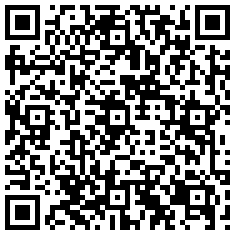
With the rise in the number of smartphones (Android, iPhones, Blackberry) in use, QR Codes become a great way for "tagging" physical information that links to a URL. With a QR Reader installed you can simply point your camera phone at the QR Code and be instantly taken to a website to provide your viewers with additional information. You can embed text, RSS feeds, and URL's in a QR Code. Imagine printing the code on lectures, notes or study guides so that your students can be supplied with supplemental information. Or how about adding QR codes to physical objects in your environment and have your students learn more about the topic. The use of QR codes are endless! So give it a try and let me know what you think. So download a QR Reader to your smartphone and give this QR Code a try! To generate and print out a QR code go to the Kaywa website. So point your smartphone camera at the QR Code below to see what happens!

A QR Code is a matrix code (or two-dimensional bar code) created by Japanese corporation Denso-Wave in 1994. The "QR" is derived from "Quick Response", as the creator intended the code to allow its contents to be decoded at high speed.
QR Codes are common in Japan, where they are currently the most popular type of two dimensional codes. Moreover, most current Japanese mobile phones can read this code with their camera.
With the rise in the number of smartphones (Android, iPhones, Blackberry) in use, QR Codes become a great way for "tagging" physical information that links to a URL. With a QR Reader installed you can simply point your camera phone at the QR Code and be instantly taken to a website to provide your viewers with additional information. You can embed text, RSS feeds, and URL's in a QR Code. Imagine printing the code on lectures, notes or study guides so that your students can be supplied with supplemental information. Or how about adding QR codes to physical objects in your environment and have your students learn more about the topic. The use of QR codes are endless! So give it a try and let me know what you think. So download a QR Reader to your smartphone and give this QR Code a try! To generate and print out a QR code go to the Kaywa website. So point your smartphone camera at the QR Code below to see what happens!
One Sentence Summary Created with Context Organizer With a QR Reader installed you can simply point your camera phone at the QR Code and be instantly taken to a website to provide your viewers with additional information.
Subscribe to:
Comments (Atom)