
Showing posts with label Flash video. Show all posts
Showing posts with label Flash video. Show all posts
Qwiki- New Informational Video Mashup
Captivate 3 Demonstration using Flash Video (FLV)
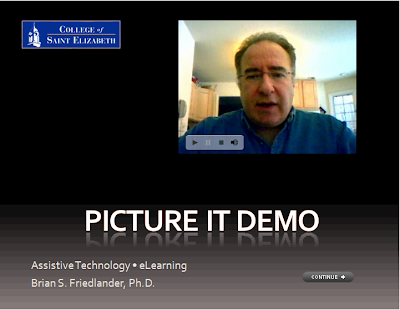 In my last post I shared with you how to insert a Flash video (FLV) into your Captivate 3 projects. Today I want to show you the final product so that you can see how it turned out. I have set the video to automatically start to play when it comes into view. You will need to click on the Continue button to go to the next screen. Enjoy!
Inserting Flash Video (flv) into your Captivate 3 Projects
 In addition to all of the rich interactive features that are included within Captivate 3 it is nice to know that you can insert video into your projects right within the application. In order to insert a video into your Captivate projects it must be in the Flash Video format (FLV). While playing around with Adobe Presenter 7, I found a way to use the web capture feature to record Flash Video with my webcam and wanted to share this tip with you.
If you have Adobe Acrobat 9 Pro Extended installed on your computer you will also have Adobe Presenter 7 installed which gives you access to this feature that I highlight in the screencast. Using this feature will enable you to add Flash Videos to your projects which can go a long way to teaching someone a skill within your Captivate 3 project. Once you have the video saved in the FLV format it is very easy to insert it into your project, as you will see. So click here to view the screencast. Enjoy!

Subscribe to:
Comments (Atom)