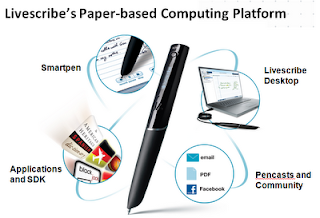
I have been using the Echo Smartpen for the past week and to say the least I am very impressed with the second generation pen from
Livescribe. Livescribe evidently listened to customer feedback and made a more ergonomic offering with this release. With its new shape and design the pen feels much more comfortable in my hand. Adding the soft rubberized grip gives the pen a good feel when writing. With the new design the pen will not be able to roll of your desk as was the case with the Pulse pen. The Echo Smartpen is now available with 4 GB ($169) or 8 GB($199) of memory which would allow you to store and incredible amount of audio notes and apps which are available from the Livescribe Online Store. The 8GB Echo Smartpen is capable of storing over 800 hours of audio depending on the quality of the audio recorded. In any case the Echo Smartpen can store a huge amount of audio.
So what do you get when you purchase the Echo Smartpen? In the box you get the Echo Smartpen, a mini USB cable, one digital A5 Starter pad, two pen tip covers, and some Quick Start guides. To get started using the Echo you will first need to download the Livescribe Desktop software from the Livescribe website and register your pen. By registering your Echo Smartpen and setting up an account you will be given space on the Livescribe server to store your penscasts. More about pencasts later in this review. Once you have downloaded and installed the software you are ready to start using the Echo Smartpen. Now the fun begins, just touch the Record button on the bottom of the dot paper and everything you write is synchronized with what was said at the time. The quality of the recording is very good but on some occasions you do here some pen tip noise as you are writing on the paper. To listen to what you recorded you can use the Paper Reply feature by tapping the text with the pen tip on the dot paper to hear the recording. That part is almost magical!
The Echo Smartpen does not ship with the 3D noise cancellation ear buds as the previous model did, which I found to be very useful when recording in large lecture halls. Once you have written on the dot paper you can download the notes to your computer using the mini USB cable that plugs directly into the top of the pen. Changing to the mini USB cable I think is a move in the right direction and makes it easier for those that travel to carry it in their bag for fast syncing. The OLED display gives you visual feedback letting you know that the Echo Smartpen is transferring data to the Livescribe Desktop software. Once the process is done the Livescribe Desktop software provides you with a message that the transfer is complete. The process is straight forward and easy to do.
There have been lots of changes to the Livescribe Desktop software that bears mentioning. One
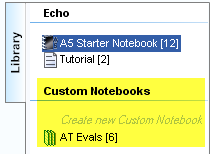
of the new features which I believe will be used a great deal is the ability to create custom notebooks from selected pages you have downloaded. This works very similarly to how you can create Play Lists in iTunes. Simply create a Custom Notebook and drag pages into it. This gives you the ability to group pages of your notes as you see fit so that you can quickly access them. Having the ability to search through your notes to find specific information is one of the most powerful aspects of this system. Of course if you like you can listen to any of your pages played right from the desktop.
Sharing your files in different formats is one of the strengths of the Livescribe digital pen system. Ed
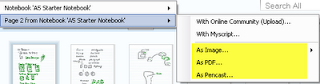
ucators will be able to export saved notes as a Pencast, PDF, orImage file. If you decide to save your notes as a Pencast anyone who has the Livescribe Desktop software will be able to view and listen to the recording. You can if you like also just download the audio portion of your pages which gives you another way to share information that was recorded. What I am really excited about is the announcement that I will be able to share my recordings as a PDF pencast that will be able to viewed using the free Adobe Acrobat Reader. I am told that this feature will be available sometime in the Fall. Likewise, Livescribe is working on an app for the iPad that will let me view my pencasts on the Apple iPad to be released later this summer. For those of you who missed my post about
hand writing recognition and the Echo Smartpen click
here to see how easy it is to convert your handwriting to editable text. It is really exciting to think about all of the possibilities for extending learning in the classroom with the Livescribe Echo Smartpen.
For those of you who may not be familiar with pencasts - this has got to be one of Livescribe's real strengths from and educational perspective. Over the past year educators have posted thousands of pencasts on all different subjects for others to access and view. With a Echo Smartpen a teacher can quickly record and model how to solve an algebraic problem for example that can be accessed from the web. Creating a pencast is as easy as writing and recording your voice and then uploading it to your Livescribe account. Once you upload your pencast to your account you can embed it on your website or link directly to it. You have full control of the file and who has access to it right from within the Livescribe Desktop software application. Just imagine the possibilities as a teacher being able to model a process and having your students watch you do a problem step by step. As more schools move to Learning Management Systems having a tool like the Echo Smartpen will become indispensable for creating digital content is straight forward and natural way. You can view a pencast that I did on how to solve for x below.
The Livescribe ecosystem has really developed since the Pulse pen was released and with the release the Echo Smartpen, Livescribe continues to develop a very strong platform for pen computing that opens the doors for all kinds of possibilities. Look for another post on using apps with your Echo Smartpen and for ideas on how to use this technology in the classroom. For those of you that are using
Livescribe smartpens I would invite your comments.


