Pages

Showing posts with label Blackberry Curve. Show all posts

Remote Printing from your BlackBerry with BreezyPrint

As I rely more and more on my BlackBerry Curve for the work that I do when I am not in my office I have found the need to be able to print my emails or attachments when they come in. When I heard about a new solution for printing on the BlackBerry I had to give it a try. BreezyPrint offers a unique and simple solution to printing from your BlackBerry to any printers that are connected to your computers. To get started you need to install the BreezyPrint application on your Windows based computer as well as the BreezyPrint application on your BlackBerry. After you have installed BreezyPrint to your computer you can select which printers you would like to give BrezzyPrint access to when printing from your BlackBerry. The set up was easy and intuitive. With the printer configured I turned to an email on my BlackBerry and pressed the Menu key to find the Print option. BreezyPrint will give you the option to print the body of the email or any attachments- select the option you want and then within seconds the list of installed printers pops up for you to choose. Since I configured my HP wireless printer I selected this as my option. BreezyPoint let me know that the attachment would be printed and within a minute my printer was printing the attachment. BreezyPrint sends your encrypted documents to the cloud where it gets processed and then gets sent back to your computer for printing the job.

I have found BreezyPoint a real time saver and great for remote printing documents that I receive on my BlackBerry. I often get emails from my students with attachments that need to be printed and with BreezyPrint I can direct them to print in my college office so that when I arrive I simply can pick them up. The remote printing option is a real time saver and one that has worked well for me. As long as you have the BreezyPrint software on your computer you can direct the print job to any of your configured printers that you have installed. Personal accounts start at $24.95 a year for access to the BreezyPrint service. So if you have a need for printing from your BlackBerry, BreezyPrint is a solid, reliable and easy to use solution. For more information go to BreezyPrint.

Skype Comes to Blackberry on Verizon Network


Verizon released today Skype for select Blackberry's that are running on the Verizon Network. Skype for Blackberry's will run on the following Smartphone:
  • Tour 9630
  • Storm2 9550
  • Storm 9530
  • 8830 World Edition
  • Curve 8530
  • Curve 8330


Features include:

  • Skype global rates
    The same Skype rates to global landlines and mobiles. No extra cost.
  • Stop counting minutes
    Skype-to-Skype, IM and global calls from Skype mobile™ don’t use your wireless plan minutes.
  • Free calls included
    The same experience on your Verizon Wireless 3G smartphone means free Skype-to-Skype calls and IM
I just downloaded the Skype App and am up and running connecting to all of my Skype contacts. I have started to Instant Message with it but have not made any phone calls just yet. It is great to be able to access my Skype contacts and use the service on my Blackberry Curve 8330. I will let you know how the voice portion of the service works when I give it a try. This certainly opens up some more doors to each out to my friends and colleagues over the Skype network. Happy Skyping! Brian

Tether for BlackBerry

Just the other day I was doing an observation in a school and so I decided to take my Acer Netbook with me to capture the teacher's lesson. While doing the observation I wanted to access some of my files on my GoogleDocs account but was blocked from using the school's Wi-Fi network. Having been aware of Tether for BlackBerry, I decided to do some research and see if it could help me to get on the web using my Blackberry. Tether for BlackBerry is an application that lets you use your smartphone to access the web from anywhere that you have cellular coverage. So when I went to the Tether home page as saw that they were running a promotion of $29 dollars for the application so I jumped at the opportunity. In order to use Tether you simply download and install the Tether application to your PC and your BlackBerry. Once the installation is complete you run Tether from your PC and then connect your BlackBerry via the USB cable to the computer. Now simply run the Tether application from your BlackBerry. That's all there is to do. Now you can start surfing the web without any additional charges. If you do have a computer with Bluetooth that is another option to consider. Getting up and running was effortless and for the price, I now know that I can get on the web whenever I have my computer and my BlackBerry at my side. The connection was fast and was quite reliable. I will be visiting the school again tomorrow and I'm ready to surf the web with Tether for BlackBerry. So give Tether a try is a great application to have to ensure that you can get on the web wherever you may be!

Collaborating Web 2.0 Style

Since reviewing Tazzle IT I have had numerous conversations with Bruce Haendel about Tazzle IT and the whole mobile phone market. I have enjoyed getting to know Bruce and we have had some great conversations about marketing, technology, and BlackBerry's. Just the other night I connected with Bruce over Skype and some how we got into a conversation about how he could quickly inform others about his new and innovative product called Tazzle IT. I showed him some of the video demos that I have put together and he asked me what it would take to put something like that together. After some discussion over Skype we decided to put together a presentation that would include a video that he put together explaining how to use Tazzle IT.

As much as I use Web 2.0 technologies, I am always amazed what can be accomplished with these incredible collaboration tools. I suggested to Bruce who lives in Japan that we put the presentation together using Google Presentation. I signed into my Google Docs account and quickly shared the presentation with Bruce and we were on our way to creating the slide presentation. We did run in t a little snag every now and again with Google Docs and decided to use Etherpad to collaboratively work on the text for the slides. I quickly set up the Etherpad session and we were able in real time to work and edit the text for the slides. Once Bruce and I agreed on the copy, I was able to copy the text from Etherpad and paste it into the Google Presentation screen. That worked like a charm! Since we wanted to spruce up the Google Presentation, Bruce was able to drop into the Skype window picture files that I could then add to the presentation. By this time we were really humming and the presentation was moving along nicely. For the last slide we decided to insert one of the video's that Bruce had produced that he had uploaded to YouTube. Within seconds I was able to search for the Tazzle IT video within Google Presentation and insert it in the last slide. Adding a couple of corporate logos to the slide deck gave the Tazzle Presentation a polished look at we were then ready to publish it for the world to see. In about a hour, Bruce and I were able to put together this highly informative piece about Tazzle IT using several Web 2.0 technologies. When I reflect on what we did all I can say is Wow! Check out the Tazzle IT $10 dollar off promotion by clicking here.

Microvision SHOWWX Pico Projector


One of the products that generated a lot of buzz at the Consumer Electronic Show 2010 (CES) was the Microvision SHOWWX pico projector. Several companies have announced and are delivering pico projectors and the market. I'm sure this market will explode with these devices that we can hook up to netbooks, laptops, iPods, and Smartphones. I for one would enjoy the day when I can drive my presentation from my BlackBerry Curve alongside a small projector. Rounding out the solution will be a pico projector that I could carry in my shirt pocket. Having a portable solution would be ideal and I look forward to being able to review some of these new pico line of projectors.

The Microvision SHOWWX pico projector is unique in that it uses three different lasers to generate the image. Becuase of the use of the lasers there is no need to be concerned about auto focusing since the image is always in focus. My understanding is that the Microvision SHOWWX pico projector has an output of 10 lumens which should be sufficient in a small darkened room. This solution is ideal for board rooms or for projecting in small classrooms where you have control of the ambient lighting.

According to the Microvision Website here are some of the projector's features:
  • Always in focus: you never, ever have to adjust focus
  • Sharp and clear images on any surface from 6 inches or less to 200 inches or more
  • Rich and vivid laser colors amplify your photos, videos and presentations
  • Wide projection angle delivers a big image (1:1 throw ratio)
  • High resolution (WVGA 848x480) brings out every detail
  • Widescreen (16:9) aspect ratio enables you to experience content
    the way it was meant to be
  • Sleek contours feel great in your hand; slim enough to put in your pocket
  • Plug-n-play compatibility enables quick and easy operation with your device
  • Movie-capable battery that lasts 90-120 minutes on a single charge
For more information click here.

PS: Microsvision if you are reading this post, please know that I am interested in reviewing the Microvision SHOWWX projector when it is released.

Tazzle IT- Print from your BlackBerry to Any PC's Printer

With all the clamor about apps for smartphones, I too have been on the hunt for unique applications that run on on my Blackberry Curve that make me more productive. One of the apps that I had been looking for, for some time is the ability to print from my Blackberry Curve. If you are like me you probably get lots of emails and every once in awhile you may have a need to print your emails or a picture from your BlackBerry. Well about two weeks ago I did a search on the web for printing solutions on the BlackBerry and found out about a solution called Tazzle It I was excited to see that in addition to allowing me to print my emails, I could also view emails, and send pictures to my computer and printer.

So let me share with you my experience when I received my Tazzle IT just today. Before I start, I would like to thanks Bruce at Tazzle IT for sending me a review unit. The Tazzle IT device is a small USB dongle that plugs into your USB port and communicates via Bluetooth to your BlackBerry phone. To get started using Tazzle IT. I downloaded the most current version of the Tazzle IT Desktop Software to my laptop and did the installation which went smoothly. The installation wizard moved through the process and directed me when to plug in the Tazzle IT device. Once I did, I was able to name the Tazzle IT device and select a PIN number that would be used during the Bluetooth pairing process. Step 2- I went to the Tazzle IT website and entered my email address and cell phone number so that I could over the air get a link on my BlackBerry to download the Tazzle IT app for my BlackBerry. Seconds later my email arrived from support with the link and I was off and running downloading the Tazzle IT app. Once the Tazzle IT app was installed on my BlackBerry I did the initial pairing and I was off and running.

Now the moment of truth. I launched the Tazzle IT app on my BlackBerry and on my laptop. Once you launch the Tazzle IT application on your laptop you have three different options when sending files from your BlackBerry, you can View, Print, and Save. So for example if you want to view a large email on your computer rather than have to read it on your BlackBerry you can select the View option, and from your Blackberry menu low and behold you will see a couple of new commands; Tazzle Mail as DOC and Tazzle Mail to Browser. If you select Tazzle Mail as Doc your email message will open within Microsoft Word. If for some reason you don't have Word you can select Tazzle Mail to Browser and your email will open within your default Browser. It is very cool to see your email sent so quickly and appear on your computer within seconds. If you choose the Print option from the Tazzle desktop app your email will automatically get routed to the default printer ready for you to pick up. Sending picture files from your BlackBerry is a snap with Tazzle IT and a great way to move them off of your BlackBerry to be printed out.

Tazzle IT works as advertised and is an easy way to view, send and print files from you BlackBerry through your computer. You will be amazed just how easy Tazzle IT is to use and one of the really nice pluses of this solution is that it is highly portable. If you ever have a need to print something when you are out of your office you can quickly download the Tazzle IT desktop app and send the information you need to the computer to view or print. Tazzle IT comes with a nice small protective case and a lanyard so that you can put it on your key chain and take it wherever you go. Tazzle IT is a wonderful addition to my BlackBerry apps and one I know I will be using to make me more productive! So if you have a chance take a look at Tazzle IT - a truly elegant way to get your contents off your BlackBerry and onto your computer.

ShowMate-PowerPoint Presentations from your BlackBerry

The mobile application space has really been incredible to watch and while the Apple App Store gets a lot of press there are some really unique applications in the BlackBerry world as well. As someone who does a lot of presentations, I was intrigued by a product called Impatica ShowMate, which would allow me to present my PowerPoint presentations directly from my BlackBerry Curve. The ShowMate itself is extremely small and portable(3.5" x 2.5" x 1") with built in Bluetooth that you plug into your VGA cable that is attached to your data projector. Once your Impatica ShowMate is connected to your projector you can launch your PowerPoint presentation from your BlackBerry and view it. Your BlackBerry communicates to the ShowMate via the Bluetooth connection and allows you to control your slide presentation directly from your BlackBerry.

When you order the ShowMate, in the box you will find a CD to Install the Impatica Software, the ShowMate itself and a USB power cord along with some international receptacles that you can use when you travel abroad. In order to use the ShowMate the first thing you will need to do is install the Imaptica for PowerPoint software on your computer as well as the Impatica Presentation Viewer on your BlackBerry. I was able to download the Impatica PowerPoint Viewer directly over the air directly from my BlackBerry using my BlackBerry browser. While the CD to install the Impatica for PowerPoint software is in the box, Impatica suggests that you go to their website and download it to insure that you have the latest version. I was very familiar with the Impatica for PowerPoint software having done a review of it several years ago and within minutes I was up and running. The Impatica for PowerPoint software, formats your existing PowerPoint presentations (.ppt and .pptx) so that when they are outputted, can be run from your BlackBerry. The software significantly reduces the original size of your PowerPoint presentations while maintaining transitions, links, and animations. Once you have converted your presentations (works with Macintosh & Windows) with the Impatica for PowerPoint software the software lets you easily transfer your presentation directly to your BlackBerry via a USB Cable.

Once your PowerPoint presentation lands on your BlackBerry you can preview it using the Impatica PowerPoint Viewer. Making the Bluetooth connection from my BlackBerry Curve to the ShowMate was fast and easy to do. When I projected my PowerPoint presentation all of the links, transitions, and animations were preserved as if I was running it from my computer. I should mention all of the text and images were clear with excellent fidelity. Using my BlackBerry I could move forward or back through the presentation if I needed to. While doing my presentation I could also access my slide notes, if I choose to. Having access to a really portable way to present is now possible- just add this solution to the 3M MP 120 pico presenter and you could leave your laptop at home. So if you are looking for a really portable way to do your presentations from a BlackBerry then you need to look at the Impatica ShowMate. For more information about the Impatica ShowMate click here.

Editor's Note: You can also use the ShowMate to present any of your applications or contents on your BlackBerry. In order to use ShowMate in this manner you can download the free Impatica Connector application to your BlackBerry over the air. Once installed you can now connect via Bluetooth to the ShowMate and see the view the contents of your BlackBerry and through the data projector. When used in this manner, the ShowMate makes for a great training tool!

Technology Predictions for 2010


I guess this is the time of the season to look into the crystal ball and make predictions about the year ahead. Certainly 2009 has been an exciting year for all types of technology and in 2010, I predict we will begin to see even more rapid developments. One of the really exciting development has been in the area of mobile handsets.

With more people connected to the web via their smartphones we need to take a look at this factor and plan accordingly. With Apple raising the bar with the iPhone we have seen a flurry of development and new smartphones are being released on a weekly basis. This year we saw the release of the BlackBerry Storm 2 as well as the Motorola Droid featuring the Android operating system from Google. This has certainly been a hotbed of development and the apps for these mobile devices continues at a furious pace. Next year we will continue to see huge developments in the mobile handset market which will play out well for us in education. The real tipping point for this technology will be the ability to run Flash applications on these handsets. From what I have been reading Adobe is working hard with Research in Motion (BlackBerry) and Google to build Flash into their development tools. Once Flash becomes standard on these devices you will see incredible applications that can deliver on the promise of these devices for learning. In many cases the students we work with are carrying very powerful computing devices which could be used as an educational tool to advance their learning. So next year look for smartphones to play a larger role in the area of classroom and mobile learning. I am already beginning to see a number of companies that are developing accessories or companion products to work with smartphones which could really propel this whole arena. So next year might just be the year of mLearning- that is mobile learning opportunities from anywhere on your smartphones.

As much all of us are used to starting up our applications from our hard drives - we will continue to see a shift to the cloud at even a faster pace of adoption. I recently had a conversation with my nephew who is in his early twenty's who had just purchased a new Windows laptop. I asked him if he had purchased a copy of Microsoft Office to install and he looked at me and said "there is no reason to, I am now using GoogleDocs for all of my work." So yes there is a huge shift happening and as we move forward we will begin to see more and more students and educators adopt the cloud to do all of their work. I suspect that as I speak to educators, that many schools will jump on board in 2010 and will sign up for Google Apps for Education. In doing so, both teachers and students will recognize the quantum leap in collaboration and learning that just wasn't possible with standalone applications. So look for 2010 to bring about huge shifts in collaboration and moving to the cloud for our personal computing.

We have also just begun to witness the movement from the printed book to the digital book and 2010 is going to be a banner year for ebooks as it explodes into the market. If it is any indication, Amazon reported that their sales from downloaded books to the Kindle outpaced that for printed books for the 2009 Holidays! With this in mind we will see a number of new players in this market with their own spin on the feature set. During the 2009 holiday season we saw the release of the Nook from Barnes & Noble which was an instant success. We also have Sony in the market touting not one but three different Sony Readers. Competition is good, and I suspect we will see a host of other companies making announcements about their branded eReaders at the Consumer Electronic Show come this January in Las Vegas. In any case- it is clear that ebooks will evolve over time and will play a much bigger role in schools. As we saw in the Kindle 2- having access to text to speech built-in can make a world of difference for students who need accessible curriculum material. Having consumer products that are designed with assistive technology from the beginning helps to keep the costs down and make it a universally designed product from the get go.

I hope you have a wonderful and Happy New Year! I would appreciate hearing about your predictions for 2010- so feel free to add your comments.

Interesting Uses of QR Codes for Educators

Many of us are used to seeing those familiar UPC Codes on products that can be scanned at the check out counters to look up the price and product name. While attending the DevLearn 09 Conference I came across another type of bar code called the QR Code. While I had seen them in different venues I did not at first grasp how they might be used during a conference or in an educational setting. At the DevLearn 09, QR Codes could be found on the signage of every workshop that when read by a QR Reader on a smartphone would take you to a web site for additional information about the presentation. While QR Codes have been popular in Japan, they are just beginning to gain popularity in the United States and Europe. I obtained this information from Wikipedia about QR Codes which I though would be of interest to you:

A QR Code is a matrix code (or two-dimensional bar code) created by Japanese corporation Denso-Wave in 1994. The "QR" is derived from "Quick Response", as the creator intended the code to allow its contents to be decoded at high speed.

QR Codes are common in Japan, where they are currently the most popular type of two dimensional codes. Moreover, most current Japanese mobile phones can read this code with their camera.


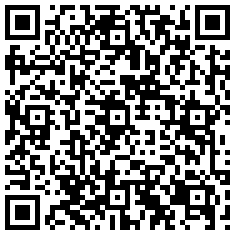
With the rise in the number of smartphones (Android, iPhones, Blackberry) in use, QR Codes become a great way for "tagging" physical information that links to a URL. With a QR Reader installed you can simply point your camera phone at the QR Code and be instantly taken to a website to provide your viewers with additional information. You can embed text, RSS feeds, and URL's in a QR Code. Imagine printing the code on lectures, notes or study guides so that your students can be supplied with supplemental information. Or how about adding QR codes to physical objects in your environment and have your students learn more about the topic. The use of QR codes are endless! So give it a try and let me know what you think. So download a QR Reader to your smartphone and give this QR Code a try! To generate and print out a QR code go to the Kaywa website. So point your smartphone camera at the QR Code below to see what happens!

One Sentence Summary Created with Context Organizer With a QR Reader installed you can simply point your camera phone at the QR Code and be instantly taken to a website to provide your viewers with additional information.


qrcode


Going it Alone with my Blackberry Curve

I just got back from a short vacation in Las Vegas with my family and I decided to leave my laptop at home and fly solo with my Blackberry Curve on the Verizon Network. As much as I like to always travel with my laptop, I would only be away for a short period of time and wanted to see what it would be like to rely on my Blackberry for accessing my email and the web in case I had to get in touch with clients. With the fall right around the corner, I needed to be in reach and be able to email my clients if they contacted me. As we all know Blackberry's are great for emailing and I was able to stay in touch and respond to several key email requests while I was away. While in Las Vegas I was able to look up some of the attractions using the web browser on my Blackebrry without a problem-with fairly quick response times on the Verizon network. Using Twitter on the Blackberry to keep up with things was fairly straight forward but on occasion the application did freeze my phone. Now that my Blackberry Curve is about 1 1/2 old you can sense that the processor in the Curve is under-powered, which at times causes the phone to crash. About the only thing that I wasn't able to do on my Blackberry Curve was to complete a PDF form that I needed to email to a colleague of mine. All in all, the Blackberry Curve really performed well and makes you question at times if you really need to carry your laptop when traveling. I knew that I would not have the need to do word processing or edit a spreadsheet on my vacation so going it alone with my Blackberry Curve proved to be the way to go. I would be interested in your experiences using your smartphone in lieu of toting your laptop or netbook with you.

Google Latitude Released


After reading abut the release of Google Latitude, a location based service which runs on smartphones (ie. iPhone, Blackberries, etc) I decided to install it on my Blackberry Curve and give it a whirl. The installation went very smoothly and with a reboot of my Blackberry Curve I was able to launch Google Maps and invite my contacts from my Google account to give me permission to see their location. Within minutes I received a reply from Ira Socol and I was able to see his location in Michigan- very cool. Location based services are maturing and moving forward we will be inundated with these types of services on our smartphones. For those who travel it is a great application to be able to see where your frinds and colleagues are in real time and connect with them. Google does allow you to change the Privacy settings within Google Latitude should you decide that you want to block your location. I found Google Latitude easy to use and by today I had three of my friends that I was following.

TwitterBerry for BlackBerry Curve

I have become a real fan of Twitter and am using it more and more to follow my colleagues and thought leaders in various fields. I have found it to be indispensable for following and tracking the latest trends in technology. Just recently I was able to follow the tweets for the DevLearn2008 Conference that I was unable to attend to keep up with the latest news from the conference. I'm sure you are finding interesting ways to use Twitter. Today I installed TwitterBerry on my BlackBerry Curve and now have full Twitter functionality from my smartphone. I tried it this evening with great success-now I have Twitter in the palm of my hands. You can Follow me on Twitter @assistivetek Hope to hear from you- so send me a tweet!

YouTube on Your Blackberry


For those of you with Blackberry phones who need to access YouTube it is very easy to do. Just open your browser and type in m.youtube.com. Now select your favorite YouTube video and watch it come to life on your Blackberry. I had a chance to play some of my screencasts that are on YouTube on my Blackberry Curve and while the picture is small I was impressed with the image and the audio quality. So go ahead and enjoy YouTube on your Blackberry

Off to the National Educational Computing Conference

My bags are packed and I off to San Antonio, TX for the National Educational Computing Conference. I will have 5 full days of educational technology and meetings with both hardware and software developers. At this conference the hardware and software developers will announce new products and services which always makes this one of the more exciting conferences of its kind. For the conference, I am packing my MacBook, Livescribe Pulse Smartpen, Olympus Digital Camera, Blackberry Curve, and FlipVideo camera. If I have learned anything, attending these conferences, is make sure you bring lots of business cards. I have lots of meetings and look forward to reporting to you from the convention floor-up to the minute news. I have set up my Jott account so that I can use my cell phone to quickly post to my blog. So if you see some minor errors please know that it is the speech recognition that is faulty. It should be a lot of fun and I'm looking forward to reporting the news to you- so stay tuned.