I have been a long time user of
Adobe Acrobat and use it extensively in the work that I do as a professor and technology consultant. While many of us are used to using Adobe Acrobat Reader- you don't really understand the power and utility of Adobe Acrobat until you start working with with the Standard, Pro or Pro Extended versions. When Adobe announced that they had just released version 9 of Adobe Acrobat, I knew that I had to take a look at it and see what new features it offered. I once again would like to thank Roman from
A & R Edelman for providing me with a review copy of Adobe Acrobat Pro Extended. There are currently four different versions in the Adobe 9 product line which include: Reader, Standard, Pro, and Pro Extended. Each version has a different set of features which are delineated on this
matrix provided by Adobe. For the purpose of this review I am going to be speaking about Adobe Acrobat Pro Extended version which has the most advanced feature rich set.
In this post, I will highlight two very exciting features which I know will change the way we think about PDF's (Portable Document Format) and how we use them. On the top of my list is the introduction of portfolio's and the ability to play Flash assets within a PDF which takes this version to a whole new level. Let me start off by talking about the Portfolio feature which I know will make us all rethink how we create and distribute information that we produce. I'm sure that if you are like me, you often get emails with several PDF attachments. When the email is delivered into your inbox you have no idea which one to open first and once they are opened you then have to save them to a folder and organize them in some way so that they are useful to you. Well all of that has changed with the concept of creating a PDF Portfolio with Adobe Acrobat Pro Extended (Portfolio's can be created with the Standard and Pro editions of Acrobat).
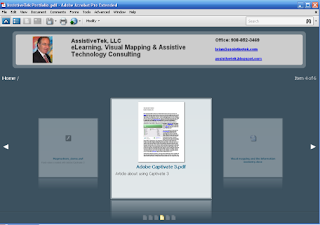
Now imagine that you can now take your existing PDF files, SWF files, Word files, Excel documents, and picture files and create one unitary portfolio which stores all of your documents. When you are ready to share your documents via an email attachment there is only one file to attach. While this is certainly an improvement over the way we used to do it, now imagine that you have the ability to craft the portfolio so that it has the look and feel that you hope to achieve for your communication. Once you begin to create your portfolio you can choose a layout, add a welcome and header, select a color scheme, specify file details, and publish the portfolio. I found it very easy to create the look an feel that I wanted and I was able to add my picture to personalize my portfolio. I choose to use the Revolve layout which gave me a sort of cover flow effect that you might find on your iPod. To add the files to my portfolio- it was as simple as dragging them into the portfolio from my desktop where they were stored. You should note that my PDF Portfolio contains several different types of files, just to show you the power of
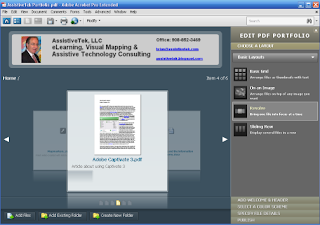
this new feature. I included a Word document, a Captivate SWF movies, and several PDF files. Acrobat allowed me to use the nice blue color schemes from a large palette of colors. One of the really impressive features is the ability to present your documents in the order you desire when the recipient receives them. By creating an Order field within Acrobat, I was able to place a number from 1 to 6 into the field and then sort the documents so that they appear in the order that I want. As you create your PDF Portfolio there are lots of features that you can change to insure that it looks and behaves as you wish. Before publishing your PDF Portfolio there are lots of ways that Acrobat allows you secure your PDF portfolio. Click
here to watch how I created a PDF Portfolio in Adobe Acrobat Pro Extended
What really got me excited is the way Adobe Acrobat 9 handles files within the portfolio. You will see if you
download my PDF Portfolio that Acrobat will allow you preview your Word and Excel files right within the portfolio. You will also note that I placed a Captivate 3 swf demonstration video within the PDF file that plays right within Adobe Acrobat Reader 9, without the need of
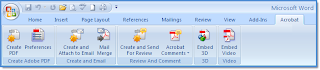
any additional players. This feature alone is huge. Imagine being able to great technical and training guides complete with Flash videos embedded right within the PDF. With Adobe Acrobat 9 Pro Extended you can easily embed Flash video within your Word and PowerPoint presentations. Once you install Adobe Acrobat 9 Extended you will now have a new Acrobat menu embedded within Word, Excel, and PowerPoint. By simply using the Embed Video drop down you can insert Flash and FLV videos right within your documents that are automatically converted to Flash when you publish your PDF's. This is truly an awesome feature and one that will change the way we think about how we use PDF's for training and distributing information. Remember you will need to
download Adobe Acrobat Reader 9 to view the Portfolio.
As part of Adobe Acrobat Pro Extended you also get the added bonus of Adobe Presenter 7 which is an add-in to PowerPoint. I must say a very powerful add-in to say the least. I have highlighted the use of
Adobe Presenter in a previous post- so if you missed it here is the
link.


 I have been a long time user of Adobe Acrobat and use it extensively in the work that I do as a professor and technology consultant. While many of us are used to using Adobe Acrobat Reader- you don't really understand the power and utility of Adobe Acrobat until you start working with with the Standard, Pro or Pro Extended versions. When Adobe announced that they had just released version 9 of Adobe Acrobat, I knew that I had to take a look at it and see what new features it offered. I once again would like to thank Roman from A & R Edelman for providing me with a review copy of Adobe Acrobat Pro Extended. There are currently four different versions in the Adobe 9 product line which include: Reader, Standard, Pro, and Pro Extended. Each version has a different set of features which are delineated on this matrix provided by Adobe. For the purpose of this review I am going to be speaking about Adobe Acrobat Pro Extended version which has the most advanced feature rich set.
 this new feature. I included a Word document, a Captivate SWF movies, and several PDF files. Acrobat allowed me to use the nice blue color schemes from a large palette of colors. One of the really impressive features is the ability to present your documents in the order you desire when the recipient receives them. By creating an Order field within Acrobat, I was able to place a number from 1 to 6 into the field and then sort the documents so that they appear in the order that I want. As you create your PDF Portfolio there are lots of features that you can change to insure that it looks and behaves as you wish. Before publishing your PDF Portfolio there are lots of ways that Acrobat allows you secure your PDF portfolio. Click here to watch how I created a PDF Portfolio in Adobe Acrobat Pro Extended
 any additional players. This feature alone is huge. Imagine being able to great technical and training guides complete with Flash videos embedded right within the PDF. With Adobe Acrobat 9 Pro Extended you can easily embed Flash video within your Word and PowerPoint presentations. Once you install Adobe Acrobat 9 Extended you will now have a new Acrobat menu embedded within Word, Excel, and PowerPoint. By simply using the Embed Video drop down you can insert Flash and FLV videos right within your documents that are automatically converted to Flash when you publish your PDF's. This is truly an awesome feature and one that will change the way we think about how we use PDF's for training and distributing information. Remember you will need to download Adobe Acrobat Reader 9 to view the Portfolio.
 for providing technical support. Adobe ConnectNow allows you to use your webcam as well as setting up a pod for you to store documents and files that you would like your participants to have access to. Your participants are also provided with chatting capabilities and you can use your built-in webcam microphone to talk to your participants using VOIP. You can also choose to use the teleconference number that is available to you through Adobe ConnectNow. Considering the price of admission this is an invaluable tool and one you should look into. So if you get the chance download the Acrobat.com widget and let me know what you think.