Free Upcoming eSeminars - Adobe Captivate & eLearning Suite
Free Adobe eSeminars for Captivate 5.5
Adobe is Offering Free eSeminars on Adobe Captivate & eLearning Suite
I would recommend registering for the eSeminars in advance by visiting Adobe’s Webinar site or using the links below. You’ll be prompted for your Adobe ID (creating one is easy and free) during registration and will receive detailed log-in information via email. NOTE: Click on the “test your computer” link to ensure you’ll be able to successfully log into the eSeminar. Adobe Delivers Technical Communication Suite 3
SAN JOSE, Calif. — Jan. 11, 2011 — Adobe Systems Incorporated (Nasdaq:ADBE) today announced Technical Communication Suite 3, the latest version of its complete single-source authoring and multi-device publishing toolkit for the creation and publication of rich, standards-compliant technical information and training material. The new improved version of Adobe’s industry-leading suite enables technical writers, help authors and instructional designers to efficiently author, enrich, manage, and seamlessly publish content to multiple channels and devices. Adobe also introduced new versions of the suite’s core products: Adobe FrameMaker® 10, a powerful template-based authoring and publishing solution for technical content; and Adobe RoboHelp® 9, an HTML and XML help, policy and knowledgebase authoring and publishing solution. Adobe Photoshop® CS5, Adobe Captivate® 5 and Adobe Acrobat® X Pro round out the suite, integrating powerful image editing, eLearning and demo creation, and dynamic PDF functionalities. “Today’s technical communication end user – from an average consumer to a design engineer – expects content experiences that are clear, concise and more engaging,” said Naresh Gupta, senior vice president, Print and Publishing at Adobe. “Technical Communication Suite 3 customers can meet this demand by creating documentation that is increasingly interactive, rich and socially enabled – all with one set of tools, within one user interface.”
New Features
Technical Communication Suite 3
• Enhanced single-sourcing: Import FrameMaker content into RoboHelp with support for FrameMaker books. Directly link DITA (Darwin Information Typing Architecture) maps, automatically convert table and list styles, and publish multiple RoboHelp outputs from within the native authoring environment.
• Dynamic “single-click” publishing: Create standards-compliant XML and DITA (1.2) content and output to multiple formats, including print, PDF, Adobe AIR™, WebHelp, EPUB, XML and HTML, and deliver it to a wide range of mobile devices, such as eReaders, smartphones and tablets. Lend your content to search engine optimization, via enhanced metadata tagging of published content.
• Expanded multimedia capabilities: Take advantage of more than 45 video and audio formats and engage audiences by adding 3D models, training demos and simulations.
FrameMaker 10
• Standards support: Take advantage of significantly enhanced XML/DITA authoring capabilities of FrameMaker 10, which is an early adopter of industry standards including DITA 1.2.
• Usability enhancements: Work more efficiently with standards-compliant, prebuilt tools and templates designed for easier authoring. Use utilities like Auto Spell Check, Highlight Support, scrolling for lengthy dialogue, and enhanced Find and Replace to get the job done faster.
• Content Management System (CMS) connectors: Integrate seamlessly with leading content management systems, including Documentum and MS SharePoint. While competitors often sell these connectors for thousands of dollars, they will be included in FrameMaker 10 at no additional cost. Single-source, review, manage and automatically publish content faster and smarter – all within your favorite technical authoring tool.
Adobe Announces Technical Communication Suite 3
RoboHelp 9
• More personalized, optimized end-user experiences:
o Enable users to filter help systems based on their role, department, geography, products, operating system, or any other parameter, ensuring the most relevant information is instantly available.
o Enrich the quality of documentation by allowing users to add comments, rate helpfulness or generate relevant content independently.
o Create rich, interactive materials by adding access to external Web content including Google search, blogs,
wikis and forums.
• Efficient Workflows: Collaborate with authors, subject matter experts and readers using advanced PDF shared reviews, live linking of shared resources, moderation-enabled workflows through Adobe AIR Help, topic-rating and other multiauthor environment capabilities.
Adobe FrameMaker Server 10 and Adobe RoboHelp Server 9, the server versions of the core FrameMaker and RoboHelp products, are two separate releases that complement the new suite and help streamline enterprise workflows.
Pricing and Availability
Technical Communication Suite 3, FrameMaker 10 and RoboHelp 9 are immediately available in English, French, German and
Japanese versions through Adobe Authorized Resellers and the Adobe Store. Estimated street price for Technical Communication
Suite 3 is US$1899 (upgrades from US$699). FrameMaker 10 and RoboHelp 9 are also available as standalone products.
Estimated street price for FrameMaker 10 and RoboHelp 9 is US$999 each (upgrades from US$399). For details on FrameMaker
Server 10 and RoboHelp Server 9 pricing visit http://www.adobe.com/products/framemakerserver.html and
http://www.adobe.com/products/robohelpserver.html
About Adobe Systems Incorporated
Adobe is changing the world through digital experiences. For more information, visit www.adobe.com.
###
© 2010 Adobe Systems Incorporated. All rights reserved. Adobe, the Adobe logo, are either registered
trademarks or trademarks of Adobe Systems Incorporated in the United States and/or other countries. All other trademarks are the property of their respective owners.

Adobe Announces eLearning Suite 2 & Captivate 5

SAN JOSE, Calif. - (BUSINESS WIRE) - Adobe Systems Incorporated (Nasdaq:ADBE) today announced Adobe eLearning Suite 2, a significant upgrade to its tightly integrated, end-to-end solution for easily creating, reviewing and maintaining eLearning content. The suite, now natively compatible with Mac OS in addition to Windows, enables eLearning professionals, educators and trainers to turn creative ideas into dynamic eLearning materials that engage learners with multimedia and interactivity. eLearning Suite 2 - anchored by the new Adobe Captivate 5 - includes Adobe Flash Professional CS5, Adobe Dreamweaver CS5, Adobe Photoshop CS5 Extended, Adobe Acrobat 9 Pro, Adobe Presenter 7 and Adobe Soundbooth CS5.
"Today's educational and professional learning departments are under enormous pressure to deliver impactful content quickly and efficiently," said Naresh Gupta, senior vice president, Print and Publishing at Adobe. "eLearning Suite 2 is a major leap forward in eLearning content creation. It addresses the challenge with its tightly integrated toolset that allows content creators to develop powerful media-rich eLearning experiences without the time and expense of programming."
Adobe eLearning Suite 2 enhances productivity with smarter aggregation capabilities included in Adobe Captivate 5, eLearning extensions for Dreamweaver and Flash, and new application round tripping workflows between authoring and asset creation tools. For example, a course designer can now insert Adobe Photoshop CS5 (PSD) files as smart objects into an Adobe Captivate project and update the images with one click should the original files change without having to resave and reinsert images. Similar workflows exist between the other eLearning Suite components including Adobe Captivate, Soundbooth and Flash.
"Timely, effective training on the use of our products is critical for us and our customers to meet compliance requirements," said Mary McGivern, Instructional Designer, Omnicell, a leading provider of comprehensive, technologically advanced automation that enables healthcare facilities to acquire, manage, dispense, and deliver medications and supplies more effectively. "The new user interface in Adobe Captivate 5 lets me work more efficiently and is now similar to other Adobe products. This will speed up my workflow and help me meet timelines more effectively."
Introducing Captivate 5
Adobe Captivate is the industry-leading, rapid authoring solution for developing demonstrations, application simulations and branching scenarios - without requiring programming expertise while not compromising quality. Version 5, which introduces the software to Mac OS, offers exciting new features that allow users to do more complex tasks faster such as enhanced importing and round tripping for Microsoft PowerPoint.
The new user interface - similar to the Dreamweaver CS5, Flash CS5 and Photoshop CS5 interfaces - lets users create and revise content faster and more easily than ever before by supporting multiple document editing and personalized workspaces. The Properties Inspector tool also boosts time-savings, as course authors can edit object properties in fewer steps. Additionally, eLearning professionals can leverage an expanded asset library and use customizable widgets to quickly create tables and design graphical buttons. Other major enhancements include support for rich animation effects, the ability to import videos in popular formats (AVI, MOV, FLV, MPEG) and synchronize video across multiple slides.
For more effective collaboration, Adobe Captivate 5 customers can upload, exchange and review content, as well as track and report learner scores by signing up for Adobe's online productivity software, Acrobat.com (available separately). Also, a new widget lets students and educators interact via Twitter, facilitating online Q&As and group discussion.
To ease the process of maintaining content, Adobe Captivate 5 introduces Object Style editing, which facilitates changes project-wide with just a few clicks, allowing content creators to easily define and modify the look and feel of buttons, text, images and other elements. eLearning designers can also create Master Slides with preset themes and styles for text, shapes and graphics. This accelerates authoring as contributors can focus on content rather than formatting details, and ensures that the look and feel of an organization's presentations are preserved. Once eLearning content is published, training and learning professionals can track and report key performance metrics via Acrobat.com or their own Web server.
Pricing and Availability
Adobe eLearning Suite 2 and Adobe Captivate 5 are expected to be available via Adobe Authorized Resellers and the Adobe Store at www.adobe.com/store in June. Customers can pre-order Adobe eLearning Suite 2 and Captivate 5 today. Estimated street price for the suite is US$1799; upgrade pricing starts at US$599. Estimated street price for Adobe Captivate 5 is US$799; upgrade pricing starts at US$299. Educational pricing is available for both products.
Both products are compatible with Mac OS X v10.5.7 or v10.6, Microsoft Windows XP with Service Pack 2 (Service Pack 3 recommended), Windows Vista Home Premium, Business, Ultimate, or Enterprise with Service Pack 1 or Windows 7 (certified for 32-bit Windows XP, Windows Vista and Windows 7). The Mac OS version of eLearning Suite 2 does not contain Adobe Presenter.
Helpful Links
eLearning Suite 2 and Captivate 5 Customer Quote Sheet
eLearning Workflows in eLearning Suite 2
eLearning Suite 2 home page
What's new in eLearning Suite 2 (On-demand seminar)
Top new features in Captivate 5
Captivate 5 home page
What's new in Captivate 5 (On-demand seminar)
About Adobe Systems Incorporated
Adobe revolutionizes how the world engages with ideas and information - anytime, anywhere and through any medium. For more information, visit www.adobe.com.
(c) 2010 Adobe Systems Incorporated. All rights reserved. Adobe, the Adobe logo, eLearning Suite 2, Captivate, Flash, Dreamweaver, Photoshop, Acrobat and Soundbooth are either registered trademarks or trademarks of Adobe Systems Incorporated in the United States and/or other countries. All other trademarks are the property of their respective owners.
Photos/Multimedia Gallery Available: http://www.businesswire.com/cgi-bin/mmg.cgi?eid=6275652&lang=en
Press/ Analyst Contacts
Adobe Systems Incorporated
Stefan Offermann, 408-536-4023
sofferma@adobe.com
or
A&R Edelman
Gina Pucci, 650-762-2897
gpucci@ar-edelman.com
An Interview with Audrey Dalton from CodeBaby Part 2
Part 2 of Interview with Audrey DaltonBSF: Can you share some examples for us as to how eLearning Designers are taking advantage of CodeBaby for their services or products?
Services:
We offer a very generous support policy for 18% of your final single license price.
Includes:
✓ 1 year of free updates including major version changes
✓ Priority phone and email support + 12 hours of application assistance on customer projects
Lots of designers take advantage of custom services through clothing changes, character changes, and even completely new characters. We have clients that ask for doctors, nurses, specific uniforms, hats, etc.
Additionally, in the very near future, we're gearing up to provide a more extensive lineup of training services, from self-service tutorials to webinars to onsite training. We currently provide this training, but we're looking forward to extending the offerings.
And at this point, since we're a very personalized organization that's still growing, we offer a very human connection when you're dealing with us. We provide unique solutions for each client.
Telstra, the largest internet provider, trains 40,000 employees on the best practices of social media engagement featuring character "Lily". They do this by integrating Lily into an interactive flash comic book.
The Medical School at McMaster University raised public awareness of asthma symptoms on behalf of the Asthma Society of Canada, in honor of World Asthma Day. They publicly launched the module “Taking Control of Your Asthma” on May 9, 2009.
ASTD Best Winner, global accounting firm, Grant Thornton, uses CodeBaby characters in multiple languages across the globe this is due to the language independent lip synching. Learners achieved an average of a 11% higher score than the national average for their most recent tax training.
The University of Illinois uses a specific mad scientist custom characters in its science eLearning modules.
I could go on, but the list is extensive.
BSF: What eLearning applications can you integrate CodeBaby into?
AD: Anything that accepts a swf, avi or flv file, for example Articulate, Captivate, PowerPoint, Lectora, Rapid Intake, and Learn.com, etc. I'm not recommending specific tools, but the point is that this works with most everything. The only restriction we have is that you are using the CodeBaby characters for internal learning uses and you're not trying to sell eLearning that includes the CodeBaby character, unless you have a specific agreement with us.
BSF: What is the learning curve for integrating CodeBaby into your current projects?
AD: Extremely fast. If you're an eLearning developer, with one or two tutorials and perhaps a webinar, you'll be able to create a two character interaction almost immediately. I'm fairly tech savvy but nowhere near the skill level of some of our eLearning partners, and I can now create custom animated one character interaction, and I learned that in one day. We have one client, Wendy Phillips with Big Pond in Australia, that learned the program and developed an award-winning flash comic book eLearning program on employee orientation all in a matter of two weeks - from start to finish.
BSF: Could you walk us briefly through the steps to develop an eLearning solution using the CodeBay Production Studio?
AD: Yes, first things first. After you decide to use characters to simulate role plays or specific people, define that character's persona. Run a contest to name and describe your persona and get people familiar with your chosen character. Second, write dialogue script and scene instructions. How will the character walk in? What will they say? What's the location/background? You're creating a rich story before opening Studio. This way, you have outlined your props and backgrounds, character personalities and scene instructions.
Then for a very straightforward interaction, you drag and drop selected character. Drag and drop selected background (there's another step if you use your own or when exporting, it can be a transparent export which then will overlay any background in your learning output).
Import audio and allow the default for auto animation and lip syncing. Hit play and adjust gestures as necessary by dropping and dragging any number of the 400 animations. Export as flv or swf, and you're done with your first animation! As time goes on, you'll learn to use the camera changes, tweening and multiple scene and stage development.
BSF: What services does CodeBaby offer for those professionals who may be interestested in out sourcing the development?
AD: If the client provides the storyboard, we'll develop the animation. They provide their own audio or we'll source professional voice talent for them. We also create props, minor to major modifications such as glasses, aging, new clothes all the way to face wraps which means creating a character likeness of a real person, and we also develop new characters based on the client's developed persona.
BSF: What features are current users of CodeBay Production Studio asking for at this point in time?
These features will eventually be available in upcoming new versions. The most asked for new features are more character with different body sizes and additional gestures that allow for more character movement. I won't go into detail on these yet, but with our new releases, we will be satisfying these requests.
BSF: In closing- please summarize for us why eLearning Specialists should consider using CodeBaby for their projects?
AD: If you want to create amazing learning that truly helps learners retain information while enjoying the development process as you create engaging scenes and interactions, CodeBaby is the solution. Contact us for a trial to experience this for yourself!
An Interview with Audrey Dalton from CodeBaby Part 1
I had the pleasure of meeting Audrey Dalton, Product Marketing Director at CodeBaby during the DevLearn 09 Conference and had a chance to sit down and talk to her about her role and the CodeBaby platform for eLearning.BSF: Hello Audrey, can you share with us your position and tell us a little background information about CodeBaby and the company?
AD: Responsible for all product marketing functions for the eLearning product line: Product Release Planning and Marketing, Demand generation, MarCom, Tradeshow & Event Planning, Online Community Relations, Curriculum Design, and Corporate Marketing Activities. Essentially, I'm the jack of all trades for the eLearning product marketing line and additionally have oversight for the education sector. Since we're a growing company, I'm taking on a multitude of roles at this time. Most importantly, I enjoy working with clients, our eLearning developer partners and reseller in Australia, Symmetree, to showcase and promote new uses and ideas for using CodeBaby characters in eLearning programs. In this role, I leverage my prior eLearning project management experience to facilitate their success stories and understand the customer perspective when marketing and gathering research for future product releases.
CodeBaby's history is quite interesting. CodeBaby began as a incubation project within Bioware, a Canadian company based in Edmonton, Alberta. In creating memorable 3D characters for their story-driven games, Bioware founders Ray Muzyka and Greg Zeschuk noticed that those interactive characters created a powerful digital engagement and emotional response with players. In 2001, CodeBaby officially spun off as a completely separate entity. Our web product consists of digital character-driven "Conversations" that are directed at engaging customers, while driving specific objectives such as lead capture, click-to-buy, up/cross-sell, and customer self service. This product is sold on a SaaS / monthly subscription model, and integrates with a customer's site via a single line of code.
The product that I'm responsible for is the eLearning product - CodeBaby Production Studio.
CodeBaby makes the creation of animated, 3D digital characters accessible to a variety of companies who want to make their training content come to life. CodeBaby Production Studio is a timeline-based, drag-and-drop production environment that puts the capabilities of a highly skilled, 3D artist in the hands of a eLearning/training content developer. Studio comes with a library of 20+ standard characters, and 400+ animation sequences. Lip synch to recorded audio files is driven programmatically by the software, condensing hundreds of hours of animation work into only about an hour per minute of finished content.
BSF: With the shift to eLearning happening in all kinds of markets how does CodeBaby fit into this move to online learning?
AD: Good question, CodeBaby Production Studio is a natural fit for online learning, informal learning, and easily exports into any cloud-based product. Since Production Studio exports your CodeBaby scenes as swf, flv and avi files, these can be used in virtually any learning delivery. If you want the CodeBaby character to introduce classroom instruction delivered from your cloud-based presentation tool, that's easily done. If you want to create up to the minute communication announcements for your company or school, just export the CodeBaby as a swf and export to your learning portal. If you want to create more complex scenario based scenes and export into a traditional rapid eLearning or authoring tool, it's perfectly suited. As long as the medium has to do with learning, and it's for internal use, CodeBaby interactive characters are a highly effective addition to any learning program.
BSF: What do you see are the benefits of developers using CodeBaby for their eLearning projects?
AD: Are you speaking from a technical aspect or instructional design aspect? If from a technical aspect, Studio is very rich in development possibilities. For a creative, experienced developer, they'll truly enjoy playing with the 400 animations and 24 stock characters, ability to create multiple scenes and stages and the capability of producing bulk renders and exports. We have developer options to create new outfits for the characters if they use graphics programs like Maya or 3ds Max. Just the other day, one of our eLearning partners said that they've explored the program so much and have extensively studied and utilized the gestures and animations that they are now incorporating neurolinguistic programming theory into the movements in order to enhance the learning transmission. Additionally, he said that he's really looking forward to the additional animations that will available in upcoming versions.
From an instructional design perspective, we have found from our own research, from customer experience, and from Byron Reeves at Stanford from his paper the "The Benefits of Interactive Online Characters", that character interfaces bring social intelligence to online interactions. Social intelligence determines engagement, attention in learning, and persistence in relationships. Compelling social interactions are as important in online transactions as they are to teachers in real life. Bottom line, socially intelligent, interactive characters foster learning and adoption of new information and behavioral skills. We consistently hear from customers that performance improved, attention increased and they saved money when comparing online instruction with CodeBaby characters to instructor-led training or using video production. Essentially, there are no limits with how CodeBaby characters are used: as peer instructors, experts, multiple character role plays in which students learn in a non-threatening environment, in immersive simulations, sales training, customer service training, organizational change, employee orientation, best practices, compliance training, etc.
To be continued.....
From Adobe Captivate 4 to YouTube
In a recent post I talked about how I used CodeBaby Production Studio with an Adobe Captivate 4 project to create some very unique and engaging content. In my effort to share the project I decided to upload it to YouTube so that others may find value in looking at what I did. One of the new features in Adobe Captivate 4 is the ability to export your projects and save them in a .AVI format which can then be uploaded to YouTube. In previous versions of Adobe Captivate you would have to use a third party application to convert your SWF project to .AVI. But now with the new enhancements in Adobe Captivate 4 all of the conversion can be done right from within the application. Here is an Adobe Captivate 4 video to show you how to export your video in an .AVI format. You can view the resulting video on YouTube by clicking here.
Working with CodeBaby Production Studio & Adobe Captivate 4
By that time I was through talking to the CodeBaby staff my head was swirling. Once I got back to New Jersey I had emailed Audrey Dalton, eLearning Product Marketing Specialist at CodeBaby and she was able to set me up for a Trial of CodeBaby Prooduction Studio. The staff at CodeBaby were really fantastic and they set up a webinar to walk me through the steps to create my first CodeBaby project. A big thanks goes out to Jeff and Jim for coordinating this webinar. As sophisticated as the CodeBay software is I found it very intuitive to use and was up and running in no time. Using a copy of Audacity I was able to record my voice and import it directly into the CodeBaby Production Studio. Upon import, one of the really cool features is the auto animate feature which synchs the lips of the character from the wav. file. To see it in action is not to believe- it is a little spooky. Not only does CodeBaby synch your lips but the way the body, eyes and the figure moves so gracefully there are times you forget it is a avatar. Once I saw what I was able to do, I thought about all of the ways I could use CodeBay to make my demonstrations and simulations that much more engaging. Now imagine having my CodeBaby avatar as a guide on the side moving along the demonstration or assisting me during a simulation. With that in mind I got to work and am in the process of integrating a couple of scenarios with CodeBaby into my Adobe Captivate projects. Using short 5 to 15 seconds snippets my CodeBaby character can guide you through the process on screen, keeping my students engaged and supported.
In the example that follows I am introducing my students to Write:Outloud, a talking word processor and am having them work through a simulation of what it is like to use the Spell Checker. You will see how I was able to integrate the CodeBaby character (with my voice) into the simulation video which adds great depth and support for a user who maybe unfamiliar with the software application. The CodeBaby character can guide the student on screen and help them to learn how to use the software. I would be interested in your comments and how you think CodeBaby could be integrated into your projects. Here is the link to view the Write:Outloud Video.
Uploading your Captivate 4 Videos to BlackBoard
While presenting Delivering e-Learning Assets in PDF Format at the DevLearn 09 Conference a question was raised as to how do you go about sharing your Captivate 4 projects on BlackBoard. Now that you can save your video projects as a PDF file it is easy to upload them to your BlackBoard course as a simple PDF file. But if you would like, you have the option of storing your video project as a zip file on BlackBoard which gets unzipped when your students click on the link. There are a couple of details which are important to note when uploading your Captivate projects to BlackBoard in a zip format which are highlighted in this video. So take a look at this video to see how you to can upload your Captivate projects as a zip file right into BlackBoard. Your comments are welcome- hope this helps!
Creating Interactive Handouts with Adobe Acrobat 9 Pro Extended
Earlier this week I spoke about how you could easily create printed handouts from your Captivate 4 projects. While this is certainly an added benefit and a good approach when you are doing workshops-wouldn't it be even better if you could show your participants how to accomplish the skill in an interactive handout. Why not take the printed handout an add a video demonstration to it to make it even more engaging for your learners. If you have Adobe Acrobat Pro9 Extended it is easy to add a video to your Microsoft Word document and then convert it to a PDF file and distribute it electronically.Creating Calculations in MindView 3 a Simulation
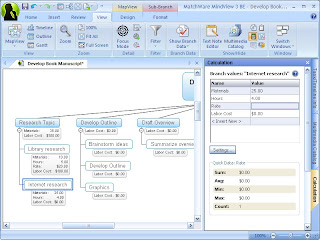
For the past 2 1/2 years I have worked with Adobe Captivate to create video demonstrations and simulations of software that I am teaching to my students and business clients. I have worked hard to hone my skills and last Fall passed the Adobe Certification test for Adobe Captivate 3. When Adobe Captivate 4 was released I was eager to get my hands on it and learn about how to integrate some of the new features into my elearning bag of tricks. One of the areas that Adobe Captivate 4 really shines in the development of software simulations. It is possible with Adobe Captivate 4 to create simulations that your users can interact with that allows them to experience what it is like to use a specific piece of software without actually having to have the software installed on their computer. Imagine being able to guide someone through a software application with prompts and feedback. What makes Adobe Captivate 4 even nicer is that for the most part it builds most of the simulation for you right out of the box. With the addition of the editing tools in Adobe Captivate you can always go back to your screens and edit them.This past weekend I had a chance to build a simulation of what it would be like to utilize the Calculation features that are built into MindView 3 Business Edition. The Calculation feature found in MindView 3 BE is very powerful but may not be as accessible for some who may not understand how to use it. Using the Calculation feature you can add numerical values to branches as well as formulas that are automatically calculated. Built-in functions allow you to display values automatically rolled up from lower sub-branches to higher ones. This is extremely powerful but I would guess that many MindView 3 users have not attempted to use this feature because of the step involved. In any case I am hoping that if you walk through my video simulation you will have a good idea of how to add numerical values and create formulas to your branches and then using the built in functions Sum the values. So give it a try and let me know what you liked or disliked about working through the simulation.
Captivate 4: Export Videos to PDF Format
Over the past year I have spent a great deal of time working with Adobe Captivate to create numerous video tutorials for the classes and the workshops that I hold. I have found Adobe Captivate easy to use and many features that have arrived in the latest version, Adobe Captivate 4 have really cut down on my production time. I have written about the use of text to speech in the production of my video tutorials which has worked well for me. But when all is said and done, one of the really important features when I am done with the video tutorial is how am I going to distribute it? Prior to Adobe Captivate 4 I would generally upload it to my FTP account and provide my students or workshops participants with a link to the streaming media. While this has worked out fine it was great to learn that in Adobe Captivate 4 you could publish your finished video as a PDF file- making it even easier to distribute.When you are ready to publish go to the Publish icon and make sure to select Export PDF in the dialog box. You will notice that you can also export the HTML and your SWF file as well in one
fell swoop. The process is very straight forward and when you are done you will have your SWF video and PDF published to the designated folder. If you would like you could also store your finished PDF file on Acrobat.com so that others could download it to their computer. Since the PDF has encapsulated the video you will want to download the PDF file and open it with Adobe Acrobat Reader 9 to view. Having the capability to publish the video tutorials to a PDF is a great feature and one that you should explore. Being able to distribute my tutorials in the PDF format is a real advantage since everyone has access to the free Adobe Acrobat Reader.You can download a video tutorial that I recently made about Blogger by clicking here.
Deleting Unused Items in Captivate 4
I was planning on doing a short video on how to delete Unused Items in Captivate 4 and then I saw RJ Jacquez's tweet about the Tip. Deleting unused items is just one way to make your projects size smaller and have them run more efficiently. When you open a Captivate 4 project with unused items Captivate 4 will prompt you. So it is a good idea to remove unused items within your projects. I thought it would be easier to show you how to do it, using Captivate 4. So here without any further explanations is my Captivate video.
Using Variables in Adobe Captivate 4
One of the really exciting new features in Adobe Captivate 4 is variables. Using variables allows the developer to personalize the experience when the user is interacting with your video. Adobe Captivate 4 allows you to use both User Variables as well as built in System Variables in your projects. While working with ConceptDraw for MindMap Projects, I created a short video which shows you just how easy it is to go from the ConceptDraw Mindmap to ConceptDraw Project. Using User Variables I captured the user's full name in a User Variable called v_Name which then gets stored, and is then used throughout the simulation video to personalize the experience. You will see once you enter your name that the guiding captions now include your name at the beginning of each prompt. This is a really nice touch to your simulation videos and one I know I will be using more and more. In a future video I will show you just how easy it is to create the User variable and then use it within your video. Click here to view the simulation video.In addition to personalizing the video simulation, I also demonstrate how I can use a widget which is a new feature found in Adobe Captivate 4. Using the Certificate widget, in conjunction
with the Quizzing feature found in Adobe Captivate 4, I was able to create two questions which were then followed up with a certificate which included the users name, the name of the course, their score, and grade on the quiz. The Certificate widget uses variables that a passed along to the certificate from within Adobe Captivate 4 which make this a rather easy task to accomplish. So when you run the simulation, enter your full name and then watch as it is populated throughout the session. When you get to the end of the quiz notice how the certificate includes all the information which can then be printed out for the user. Adobe Captivate 4 has numerous widgets and system variables that can be used in your projects. I hope this gives you some idea of the power of these two features and I welcome your feedback.
Adobe eLearning Suite - Captivate 4
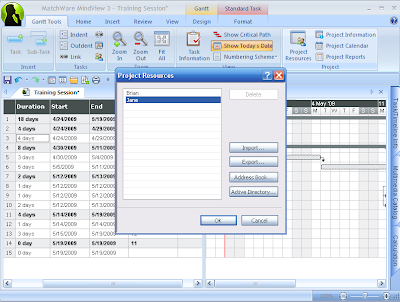
First off, I would like to thank Reagan at A&R Edelman for providing me a review copy of the Adobe eLearning Suite. I had posted about the release of this powerful eLearning toolkit some months ago and have just got around to looking at some of the new features specifically in Captivate 4, which is one of the core rapid eLearning tools found within the suite. I have used Captivate 3 to create a number of training and simulation videos for the work that I do and wanted to dig my heals in and see what was new in Captivate 4. From the onset there are some small but significant changes to the interface when capturing your screenshots which gives the developer more freedom and control when you start a project. I found the new interface to be intuitive and really enjoyed the control it gave me when shooting my video. For the past couple of weeks I have been reviewing MindView 3, and wanted to see how I could create a training video for someone who was new to using the Gantt View. In the training video the user will be prompted on the screen to change the duration of a task, create resources and then assign the resources. Click on this link to view the training video.One of the new features which was integrated into Captivate 4 is Text to Speech (TTS). As a consultant in the field of assistive technology I have been using TTS for some time now and was
excited to learn that Adobe Captivate 4 would include this feature. Adobe now supplies the Kate and Paul voices from NeoSpeech, two high quality voices which I have used in the past with students. I wondered how I could use the TTS in the training module and was pleasantly surprised just how good the voices sounded in my video. Inserting text to speech was extremely easy to do- you simply type the text you want Captivate 4 to say in the Slide Note area, and click, on the Covert to Speech button. Once the text has been converted you can then instantly listen to the instructions from within Captivate 4 by clicking on the Play button. As I went through my slides I found that I could copy the text that Adobe Captivate 4 created when I set up the simulation and paste it into the Slide Note area to quickly transform the text to TTS. The speech sounds very clear and is a very fast way to at times, circumvent having to use voice narration. I will let you be the judge of that and I hope you will add comments with regard to how you found the TTS in the video.One of the really nice feautres that you will not see is the way that Adobe Captivate 4 handles the production of the files. In the past if your video included real time video captures, Adobe Captivate 3 would create multiple videos which made it more of a challenge to upload and manage. With the release of Adobe Captivate 4, things have changed and now regardless of number of real time video captures there is only one final production SWF file. This is a great feature which I know you will enjoy. Likewise, with the release of Adobe Captivate 4 you can now output your training or simulation videos as a PDF file which will run perfectly with Acrobat Reader 9. This is truly a very powerful feature- being able to distribute your digital eLearning assets as a PDF file. In future posts, I will take a look at how you can incorporate Variables and Widgets into your Captivate 4 training videos and simulations. With the release of Captivate 4 as part of the Adobe elearning Suite once again Adobe has produced a quality software applicaiton for rapid elearning.
Back to Teaching
With the new semester just beginning I have been preoccupied with getting my graduate classes set up and running. It is always exciting to start a new semester full of new ideas and ways to deliver and instruct my classes. Last week I had a chance to use PollEveryWhere in my class and it worked like a charm. My students were impressed and enjoyed the opportunity to learn a new technology that they may be able to use in their classroom. I plan on using more digital assets for my hybrid courses using tools like Camtasia Studio 6, Adobe Captivate, Adobe Acrobat 9, and Adobe Presenter which I can utilize wtih BlackBoard.For the past couple of months I have been developing an Assistive Technology eBook with a colleague, complete with video tutorials that should be out in a couple of weeks. More to come about this eBook in a couple of days. It is an exciting project and one that shows the true potential of these various tools for educational purposes. The final product will be delivered as a downloadable PDF file taking advantage of Acrobat 9 now being able to play video's with nothing more than Acrobat Reader 9. Boy we have come a long way!
So stay tuned to this blog for more information about the Assistive Technology eBook and my reflections on using more digital assests in my courses using the aforementioned software applications.
Adobe eLearning Suite
FYI: Today Adobe, Inc. released a number of products that I thought you would interested in learning about. As I learn more about the new offerings I will share the information with you.Today, Adobe Systems Inc. today announced the Adobe eLearning Suite, a new content-authoring solution for learning professionals, educators and trainers. Users can create rich learning experiences that are deliverable via the Web, desktop, mobile devices and learning management systems using this integrated set of tools, which includes:
· The just-released Adobe Captivate 4
· Adobe Flash CS4
· Adobe Dreamweaver CS4
· Adobe Photoshop CS4 Extended
· Adobe Acrobat Pro
· Adobe Presenter 7
· Adobe Soundbooth CS4
· Adobe Bridge CS4
· Adobe Device Central CS4
The full press release is below. Please let me know if you'd like additional information, including box shots and screenshots, or to schedule time with an Adobe spokesperson.
Best,
Gina Pucci for Adobe Systems Inc.
650-762-2897
____________________________________
Adobe Introduces New eLearning Suite And Captivate 4 -- Learning Professionals Gain Unmatched Productivity Through Courseware Authoring Tools
SAN JOSE, Calif. — Jan. 20, 2009 — Adobe Systems Incorporated (Nasdaq:ADBE) today announced the Adobe eLearning Suite software, a new content-authoring solution for learning professionals, educators and trainers to create rich learning experiences that can be delivered via the Web, desktop, mobile devices and learning management systems. The new suite boosts productivity by tightly integrating a major new version of Adobe Captivate®, Adobe Flash® CS4, Adobe Dreamweaver® CS4, Adobe Photoshop® CS4 Extended, Adobe Acrobat® Pro, Adobe Presenter 7, Adobe Soundbooth® CS4, Adobe Bridge CS4, Adobe Device Central CS4 as well as eLearning extensions for Adobe Flash® CS4 and Adobe Dreamweaver® CS4.
“The new Adobe eLearning Suite is a unique and highly integrated set of tools designed to help professionals author, enrich, review and publish rich eLearning content all within one environment,” said Naresh Gupta, senior vice president of the Print and Publishing Business Unit at Adobe. “By leveraging different applications and streamlined workflows, learning professionals can be truly innovative and reach learners in new ways anytime, anywhere and through any medium.”
Adobe Captivate 4
Adobe Captivate 4, a new point product release and also the cornerstone of the suite, is the latest version of Adobe’s eLearning software for creating professional eLearning content and courseware that combines simulations, scenario-based training, quizzing, rich media and interactivity. Professionals can take advantage of more than two dozen new features including single SWF file publishing, text-to-speech conversion, a drawing toolbar for simple graphics, enhanced project templates, and round-trip Microsoft® PowerPoint® workflows, which let users import and edit PowerPoint slides with audio and interactivity. Adobe Captivate 4 also preserves Photoshop layers, which can then be animated individually, and supports PDF publishing and Audio Video Interleave (AVI) output for publishing to YouTube™.
With Adobe Captivate Reviewer, a new Adobe® AIR™ application, learning professionals can capture reviewers’ feedback regardless of their operating system and insert comments directly into an Adobe Captivate SWF file, simplifying the review process. Adobe Captivate 4 also enables users to add customizable tables of contents that automatically update as a learner navigates a project. To further boost engagement, learning professionals can use system and custom variables to provide learners with a personalized learning experience. For example, a learner can be prompted to type their name into a blank field in the beginning of the course and Adobe Captivate 4 will automatically personalize upcoming slides with the learner’s name.
Workflow and Integration Benefits
By integrating Adobe’s industry leading content creation tools, the Adobe eLearning Suite presents learning professionals with workflow benefits that are unavailable when purchasing individual products. With the Dreamweaver CS4 CourseBuilder extension, course designers can use Dreamweaver CS4 to directly create HTML-based eLearning modules, complete with assessments, by utilizing standard question types. Using the new Shared Courseware Object Reference (SCORM) packager, designers can also combine Adobe Captivate 4, Flash CS4, Dreamweaver CS4 and Adobe Presenter content into a single course, which further simplifies course creation.
With the inclusion of Soundbooth CS4, learning professionals can easily remove noise from recordings, polish voice-overs, customize music to fit a production and mix multiple clips on several tracks. Course designers can further engage their audiences with powerful visuals created within Photoshop CS4 Extended, which includes added features for editing 3D images and motion-based content. The visuals along with media developed in Adobe Captivate or other components can be easily organized, browsed, viewed and directly placed into Adobe Captivate 4, Photoshop CS4 and Flash CS4 from one central location using Adobe Bridge CS4.
Once content is ready for delivery, users can select one of several standardized output formats, including SWF, HTML, PDF, AVI, and SCORM, enabling easy delivery to the Web, desktop and learning management systems. If course designers don’t have access to a learning management system, the Adobe eLearning Suite allows users to publish directly to Adobe Acrobat® Connect Pro™ (sold separately). Additionally, Adobe Device Central CS4 allows course designers to design, preview, and test content for viewing on more than 600 mobile device screens.
Pricing and Availability
Adobe eLearning Suite and Adobe Captivate 4 are immediately available through Adobe Authorized Resellers and the Adobe Store. Estimated street price for the suite is US$1799 and US$799 for Adobe Captivate 4 as a standalone product. Upgrade and education pricing for both products is available. Both the Adobe eLearning Suite and Adobe Captivate 4 are compatible with Microsoft® Windows® XP with Service Pack 2 (Service Pack 3 recommended) and Windows Vista® Home Premium, Business, Ultimate, or Enterprise with Service Pack 1. For more information about the Adobe eLearning Suite visit www.adobe.com/products/elearningsuite, for Adobe Captivate 4 visit www.adobe.com/products/captivate .
About Adobe Systems Incorporated
Adobe revolutionizes how the world engages with ideas and information – anytime, anywhere and through any medium. For more information, visit www.adobe.com.
Captivate 3 Demonstration using Flash Video (FLV)
In my last post I shared with you how to insert a Flash video (FLV) into your Captivate 3 projects. Today I want to show you the final product so that you can see how it turned out. I have set the video to automatically start to play when it comes into view. You will need to click on the Continue button to go to the next screen. Enjoy!
Adobe Certified Expert in Captivate 3
For the past month I have been soaking up every bit of information that I could find in preparation for taking the Adobe Certification Examination for Adobe Captivate 3. What better way to master the program than to jump right in and use it day in and day out, which is what I did. The Adobe Captivate 3 Certification Test consisted of 62 questions pertaining to different aspects of the program. If you go on the Adobe website they do breakdown the various topics that will be covered on the exam and even give you 10 sample questions to show you what you can expect. The exam is administered through Pearson and I took it in a designated Computer center about 30 minutes from my home. The Adobe Certification examination is administered on the computer and was very easy to navigate and to review questions. Some of the questions had picture exhibits which were very easy to access. Of course what was nice was that once I finished the exam-I received my results almost instantaneously. I did pass with flying colors and you will see that I can now place the Adobe Certified Expert in Captivate 3 logo on my blog.In addition to using Captivate 3, I did find a couple of resources that were indispensable in
preparation for the test that I would like to share with you. One of the first books that I purchased was Essentials of Adobe Captivate 3 by Kevin A. Siegel. This workbook takes you step by step through the process of putting a project together and helps you to understand the basic concepts and ideas on how to best use Adobe Captivate 3. Using this workbook, you will get up to speed quickly as you move through the project. A CD with project files accompanies the workbook which makes it very easy to apply the skills that you are developing. This is a must for first time users of Captivate 3.The second reference book which I relied on in preparation for the examination was Adobe Captivate 3: The Definitive Guide (Wordware Applications Library) by Brenda Huettner. This guide
proved to be more like a manual and really went into in depth on all of the topics that would be covered in the exam. As a reference guide this book was really fantastic and I was able to quickly use the index to look up information as I was studying for the exam. I must have read this reference guide 3 times from cover to cover in preparation, and it really paid off. If you are preparing for the Adobe Certified Examination for Captivate 3, I would highly recommend that you consider these two wonderful resources.So if you are looking to do some internal training of your staff and need someone to help you develop your materials- I know an Adobe Certified Expert in Captivate 3 that is ready to help:-)