Pages

Showing posts with label MindView 3 BE. Show all posts

Writing Proposals with MindView 3 Business Edition

As a technology consultant I am often asked by my clients to write up a proposal for my services. For many of us who are in this situation our first inclination is to open up Microsoft Word and start to draft our proposal. While I have written about this topic before, it is worth mentioning again that I have found it to be a tremendous time saver to draft my proposals in a mind map and then export them to Microsoft Word. In the past couple of weeks I have had to put three proposals together and in this instance I decided to put MindView 3 Business Edition through its paces to draft my proposals. I have been using MindView 3 Business Edition lately, to track some of my projects using the Gantt Chart and Timelines but had not investigated how to use it to generate proposals.

In general I find it a good strategy to brainstorm the topics for my proposals in the mind map which gives me the freedom to move around the key ideas. Once I have the main headings I can begin to insert the details for each main topic. In MindView 3 Business Edition I decided to add more text to flesh out my ideas by using the Notes feature. For each idea that I wanted a fuller explanation I typed in some notes into the text editor. I generally also add some graphics and icons to my maps to spruce them up. After all of my ideas and notes were completed I was able to export my mind map to Microsoft Word. MindView 3 Business Edition provides a nice set of formatted Word templates to Export your mind maps to. You have considerable control as to what comes over during the export process. I have found that MindView 3 Business Edition outputs your mind maps quickly and accurately to Microsoft Word and the finished product is very professionally formatted.

As much as I would like to think that the content of my proposals is what gets me my work, it does help when your proposals are succinct and look professional. In this case, MindView 3 Business Edition has assisted me to get my proposals in, in less time with laser focus. So the next time you need to write a business proposal open up MindView 3 Business Edition and give it a whirl you will be glad you did- take it from me.

One Sentence Summary Created by Context Organizer
In the past couple of weeks I have had to put three proposals together and in this instance I decided to put MindView 3 Business Edition through its paces to draft my proposals.

Service Pack 2 Available for MindView 3 Business Edition

While using MindView 3 Business Edition today I was alerted that Service Pack 2 was available for download from Matchware. After you install the Service Pack your version of MindView 3 should be at Version 3.160. There is also Service Pack2 for MindView 3 as well.


This Service Pack contains the following changes:

Service Pack 2:

New Features:
  • MindView now supports pen input as well as standard keyboard/mouse input.
  • MindView now supports the use of SMART boards.
  • Timeline view: The detail level of the Timeline now matches the detail level used in the Timeline Outline. This means that only branches that are visible in the outline are shown on the timeline itself.
Fixes:
  • Copying a branch containing a text note now also copies the text note as expected.
  • The command Send no longer causes MindView to swap to another open document in some circumstances.
  • The filtering of dates has been updated.
  • The Mind Map now scrolls to the left when editing branch labels that expand outside the right edge of the workspace.
  • The Auto Correct function now works as expected when editing branch labels.
  • The Find/Replace and Spellchecking functions now expand invisible branches when necessary.
  • The Show Time Info setting chosen to display or hide start and end times is now preserved as expected when saving and re-opening the Mind Map.
  • Mind Maps shown in the Top Down view with their sub-branches displayed vertically are now updated as expected when branches are moved or deleted.
  • The layout of Mind Maps whose branches have been arranged "manually" (with auto-layout off) is now preserved as expected when saving and re-opening the file.
  • It is now possible to insert a branch from the Timeline Outline without causing the "Insert Event" dialog to open.
  • The dialog displayed when opening a packed map containing files whose original versions has changed since the map was packed no longer shows multiple entries when the same file has been used on several branches.
  • The Show Branch Data settings chosen to display or hide start/end times, priority level, completion percentage and resource names are now preserved as expected when saving and re-opening the Mind Map.
  • When updating the priority level, completion percentage and/or resource names of a branch, the changes are now reflected immediately on the Mind Map.
  • Copying branches containing calculations values now works as expected.
  • Gantt view:
    • The timescale chosen (years, quarters, months, days etc.) to represent the Gantt chart is now preserved as expected when saving and re-opening the file.
    • The label displayed in the Predecessors column of the Gantt Outline is now shown correctly in the case of tasks linked with predecessors with a Start to Start link.
    • Tasks having a summary task as predecessor task and linked to it with a percentage lead time (so that the task can start some time before the summary task ends) are now scheduled correctly in all circumstances.
    • Saving very large Gantt charts no longer causes MindView to freeze while generating the file preview picture.
  • MS Project Export: The Mind Map hierarchy is now always preserved as expected when exporting to MS Project 2007.
  • Excel Export: Sheet names are now localized as expected in versions of MindView other than English.
  • XML import: This now works as expected when branches have branch boundaries.

Microsoft Adds a Timeline View to MS Project 2010

A couple of months ago I wrote a blog post about Gantt Charts and Timelines You Decide which raised the issue with regards to which views project managers and their stakeholders prefer. While I didn't get a large number of readers to complete the survey-most readers seemed to lean towards using the Timeline View to communicate the status of the project. It would seem that if you are not a professional project manager that reading Gantt Charts could pose a problem. There is a great deal of clarity that can be derived from looking at a Timeline and the information is much more digestible. In the original post I talked about how MindView 3 Business Edition from Matchware enables you to communicate the information in either a Gantt Chart, a Timeline or a Combination Timeline/Gantt Chart View. So depending on your audience you can decide how to share the information visually, that is best suited for your stakeholders.

In light of my July post it was interesting for me to come across the blog post from the Microsoft Project Team Blog that announced that they had added a Timeline View to MS Project 2010. From the post it looks as if there will be lots of ways to customize and format the Timeline. The post also noted that you will be able to copy and past the Timeline information into the other Office Products. It is my understanding that the Timeline will come in as Office Art shapes that will then allow you to format it to your hearts content. So I would like to believe that my post swayed the large Seattle company called Microsoft to add the Timeline view- but who am I kidding! In any case it is great to see that tools like MS Project 2010 will give users a flexible tool for communicating project information and status.

Creating Calculations in MindView 3 a Simulation

For the past 2 1/2 years I have worked with Adobe Captivate to create video demonstrations and simulations of software that I am teaching to my students and business clients. I have worked hard to hone my skills and last Fall passed the Adobe Certification test for Adobe Captivate 3. When Adobe Captivate 4 was released I was eager to get my hands on it and learn about how to integrate some of the new features into my elearning bag of tricks. One of the areas that Adobe Captivate 4 really shines in the development of software simulations. It is possible with Adobe Captivate 4 to create simulations that your users can interact with that allows them to experience what it is like to use a specific piece of software without actually having to have the software installed on their computer. Imagine being able to guide someone through a software application with prompts and feedback. What makes Adobe Captivate 4 even nicer is that for the most part it builds most of the simulation for you right out of the box. With the addition of the editing tools in Adobe Captivate you can always go back to your screens and edit them.

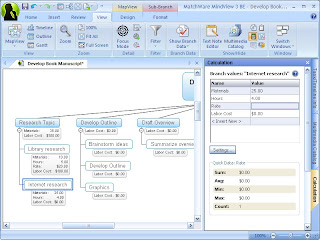
This past weekend I had a chance to build a simulation of what it would be like to utilize the Calculation features that are built into MindView 3 Business Edition. The Calculation feature found in MindView 3 BE is very powerful but may not be as accessible for some who may not understand how to use it. Using the Calculation feature you can add numerical values to branches as well as formulas that are automatically calculated. Built-in functions allow you to display values automatically rolled up from lower sub-branches to higher ones. This is extremely powerful but I would guess that many MindView 3 users have not attempted to use this feature because of the step involved. In any case I am hoping that if you walk through my video simulation you will have a good idea of how to add numerical values and create formulas to your branches and then using the built in functions Sum the values. So give it a try and let me know what you liked or disliked about working through the simulation.

Using the Calculation Feature in MindView 3

For the past several months I have been using MindView 3 Business Edition for some of the projects that I have been working on and have had a chance to delve into the Calculation feature. While the Calculation feature is powerful it may not be initially intuitive to figure out, for the first time user. Once you get the hang of it and understand how it works you will see just how powerful it is and how it can help you budget and estimate the cost of your projects. Not only can you enter values into your branches but you can create formulas with those defined values that automatically calculate for you that can be rolled up to help you look at the big picture. Since a picture is worth at least a thousand words, I thought it would be easier to show you how to use the Calculation feature in MindView 3 by creating this short screen cast. Click here to view the screencast. Having entered values into your mind map then gives you the option to Export these values to Excel which generates a complete report. So take the time to look at the video and let me know what you think. I think you will see the value in learning how to enter values into your mind map which is great for costing out projects that you may be working on.

If you are looking for how your organization can benefit from using MindView 3 Business Edition please feel free to email me

Interview with Brandon Conrad from Matchware Inc.

I had the opportunity last week to interview Brandon Conrad, Sales Manager for Matchware the developers of MindView 3 Business Edition to get his insights about their new release and the visual mapping field. It was great having the opportunity to speak with Brandon to find out about Mindview 3 Business Edition and how it is positioned in the visual mapping marketplace.


Brian S. Friedlander: Tell us about the Matchware organization and the products?

Brandon Conrad:MatchWare is a leading provider of multimedia, screen recording and visual thinking software that enhances individuals' ability to create, visualize, manage and distribute information. MatchWare's easy-to-use professional software empowers business, education and government worldwide to produce and deliver dynamic multimedia content that will engage and inspire. A fast growing, highly profitable, and self-financed company, MatchWare has its headquarters in Denmark with subsidiaries in the USA, United Kingdom, Germany, Sweden and France.


BSF: Please share with us about the latest release of MindView 3

BC: While retaining the user friendliness of previous editions, MindView 3 Business Edition has introduced several new and innovative features that make it more powerful and flexible than ever. Firstly, MindView 3 Business offers the industry’s most intuitive Office 2007 interface. The new Office templates ensure seamless integration with MS Office, increasing productivity and making the use of Mind Mapping more efficient than ever.


Secondly, to complete its integration with the MS Office suite of tools, MindView 3 Business now offers integration with MS Excel using impressive new Excel import and export functions.

Thirdly, MindView 3 Business includes a new calculation module. This module allows users to associate numbers with each mind map branch and to instantly perform complex calculations. The data can then be exported to an Excel spreadsheet with the simple click of a mouse. Conversely, users can also import numbers from Excel to MindView. This new calculation module makes budgeting, forecasting and calculating costs faster and easier than ever!

Other features include an advanced filter, a numbering scheme, and “focus” mode, which allow you to optimize your work, boost your productivity, and communicate more effectively than ever before. Read on to find out why MindView 3 is the only mind mapping tool you need!

BSF: How do you differentiate MindView 3 from the other leading visual mapping tools?

BC: Simplify put, we classify ourselves as an overall business tool and not just a mind mapping software. We substantiate this claim by referencing out multiple views and our full integration with the MS Office suite. When I say full integration, we can import/export to the entire MS Office suite. We cater not only to the right brain thinkers (organic) but also to the left brain thinkers (linear) too. We do this by adding different views such as the Gantt, Outline, WBS, Org. Chart, Timeline etc. So are we a mind mapping software, project managemnt software, Timeline software etc? We are both none of those and all of those. We have successfully developed the complete business tool to increase efficiency and maximize productivity.


BSF: What do you see as the benefits of users using MindView 3?

BC: It's pretty simple, this tool is optimized for planning brainstorming and project management which initially captures our customer base. As our customers become more involved with the tool they see it as an overall productivity tool and efficiency tool because of the multiple views and superior MS Office integration. This tool has endless capabilities across multiple business departments. That being said, the tool is extremely successful in all environments too, from middle school children to top CEO's. Everyone has the need to communicate more effectively and we all look for ways to make our work more efficient and productive. MindView 3 Business satisfies these needs.


BSF: What do you see in the field of visual mapping as trends going forward?


BC: To stay on top of the software industry you have to listen to your customers and produce software that captures the majority of the market. Our customers have been wanting a more collaborative tool which can be a tricky venture when referencing a desktop application. Also, customers define collaboration many different ways. For instance, web based tool which have their pitfalls of refreshing and internet speed. As a trend, collaboration is the road most desktop applications will be traveling down if customers keep requesting these features. It's very difficult to predict long term technology trends because it moves and changes too quickly. We listen to our clients which drives out product development.


Thanks so much to Brandon Conrad, Sales Manager for Matchware. For more information please visit the Matchware website. If you are interested in purchasing MindView 3 you will be glad to know that I have become an Affiliate Partner and would be happy to support you should you decide to invest in MindView 3.

Matchware Releases Service Pack 1 for MindView 3

FYI

I just found out that Matchware has released Service Pack 1 for Mindview 3 which can be downloaded from their website. I have upgrade my version of MindView 3 BE to the latest version without a hitch. MindView 3 feels faster when changing from the various views. Going from a Mind map to a Gantt Chart is much faster than in previous versions. Give it a try and let me know what you think. You can download the Service Pack 1 by clicking on this link. According to the Matchware website here are some of the features of the Service Pack 1.

This Service Pack contains the following changes:

Service Pack 1:

  • Panels now include scroll bars when screen resolution is low or when space is limited.
  • Converting between views has been slightly optimized.
  • Branch text editor: Several usability issues and other problems have been corrected.
  • Icons: The Icons gallery now closes upon selection of an icon.
  • Outline view: The font settings can now be changed as expected.
  • Spellchecker: The problem whereby correct text was sometimes underlined in red has been resolved.
  • Word export:
    • PDF files are now handled correctly.
    • Links to embedded files are now handled correctly.
    • Pictures located in text notes on the Mind Map are now shown in the exported Word document.
  • PowerPoint export: The problem whereby comments were not exported to PowerPoint when using a non-English version of MindView has now been fixed.
  • SharePoint: Now fully compatible with SharePoint 2003. With SharePoint 2007 it may be necessary to check out the file before being able to save it from within MindView.
  • Many other usability and internal issues have been corrected.
  • Resources:
    • Adding resources from the Address Book now works as expected.
    • Resources assigned to tasks are now preserved when copying to another document.
  • Dragging a link from the web browser onto a branch now creates a hyperlink.
  • The Calculation Defaults and Formats dialog now supports localized decimal separators.
  • Excel export: You can now export to Excel even when Excel is not installed, but you will only be able to save the file in the XML 2003 Spreadsheet format.
  • HTML export: New export templates have been included.
  • Microsoft Project import: Files containing unsupported characters can now be imported.
  • It is now possible to export to the older OpenMind/MindView 2 XML format.

Gantt Charts vs Timelines-You Decide


In the early 1900's Henry Gantt introduced us to what is commonly referred to as the Gantt Chart, a way of visually communicating tasks and the timeline for each. In his 1919 book "Organizing for Work" [6] Gantt gives two principles for his charts:
  • one, measure activities by the amount of time needed to complete them;
  • two, the space on the chart can be used the represent the amount of the activity that should have been done in that time.
A lot has changed since 1919, and with the advent of computer technology we have seen a number of business project management software applications that take Gantt Charts to a whole new dimension. With the power of the personal computer we can now show not only task completion but the inter-dependencies of the tasks as they relate to the project completion. As more and more information gets added to the Gantt Chart and the visual complexity increases it certainly adds a real cognitive load for many, to make sense of the data. Recently, Wallace Tait and I had a conversation about Gantt Charts and their utility-which lead us to talk about the advantages and disadvantages of the visual display when presenting information in a Gantt Chart. One of the real advantages of using Gantt Charts is the fact that it can pack a lot of rich information into a small area. But this can be its downfall as well-and it does take a certain knack to be able to decipher the information and the dependencies that are often displayed in a Gantt Chart.

While Gantt Charts have a rich tradition some people may have difficulty understanding the complexities that are displayed on the screen and choose not to use them to communicate project information. In this regard, some users may want to opt to use a Timeline to convey project information which is a more sequential way at looking at a tasks over time. While you certainly lose out on the richness of the Gantt Chart you are quickly able to see the flow of the project and when things need to be done. One mind mapping application that bridges the gap between Gantt Charts and Timelines is MindView 3 BE. In MindView 3 BE, you have the choice of looking at your project in various modes: as a mind map, a Gantt Chart, or as a Timeline. You can check out my previous post on MindView 3 BE to learn about the features and the project management tools. MindView 3 BE even lets you display your project using a cross between a Timeline with Duration bars. So the question I leave you with is: What are your preferences when you are displaying project information? Please complete the survey that I put together about Gantt Charts. I will report the results once they come in.