
Showing posts with label mind mapping. Show all posts
Showing posts with label mind mapping. Show all posts
From ConceptDraw MINDMAP 7 to Evernote- Seamless!
Inspiration Maps for the iPad- Simply Brilliant!


Of all the features the one that students really enjoy taking advantage of is bring in pictures from the camera and Camera Roll. Unlike Inspiration for the computer, Inspiration Maps does not ship with a library of pictures so in order to make your maps more visual, you can bring in pictures from your iPad to personalize your work. One tip that I learned awhile ago is that it is easy to copy pictures from Google Images into your Camera Roll, by simply holding your finger down on an image until the dialog pops up to that says Save Photo. Once you do that you will find the picture in the Camera Roll that can then be used with Inspiration Maps. If you know it advance that your students will be working a particular project and will need some specific pictures you can load them ahead of time using Google images so that your students can then simply select them from the camera Roll.

Overall, you will find Inspiration Maps a joy to use and one that will benefit your students as they write, brainstorm, or think through academic content. The interface is very intuitive and the developers really devised the program and took into account the fact that the students would be interacting through touch. To this end Inspiration has accomplished a lot in providing educators with a robust and wonderful program to use in the classroom. So for me the tradition continues, as more and more of the students that I work with move to the iPad, is great to be able to recommend a program that I have relied upon for my entire career and that is Inspiration. Inspiration has a Lite version that you can trial for free which is well worth it-but once you begin to use it and see the value, you will want to upgrade to the full version which gives you great templates and better exporting features.
Tip: If you have Speak Selection turned on in Accessibility, your students can select any text in Inspiration Maps and have the iPad read it to them using the built-in text to speech.
Matchware Releases MindView 5

Matchware over the years has made inroads with their mind mapping products to schools and has always had a keen interest in meeting the needs of students with learning disabilities. It is not everyday that a company considers incorporating the principles of Universal Design and Matchware should be applauded for including text to speech support, audio notes and a high contrast design for viewing the mind map on the screen. MindView 5 gives students access to wide array of views that can quickly be changed. Students can easily go from a mind map to an outline or to a timeline with a click of the mouse making it easy to visualize the information in many different ways.

So if you like, give MindView 5 a try by clicking here for a free 30 day Trial
CS Odessa Launches Skype Integration for ConceptDraw MINDMAP v7


XMind Integrates Websummarizer Technology
It is really exciting to see how companies can work together to bring their technologies to the marketplace. XMind has been working closely with Context Discovery to bring summarization tools to their mind mapping application. I have to give credit to XMind for thinking outside of the box and giving prospective users the ability to quickly summarize information right from within XMind Pro. The integration is seamless and now this new feature gives users the opportunity to summarize key words as well as websites based on the URL. The Websummarizer plug-in is tightly integrated into XMind and delivers fast and efficient summaries of information sitting in Wikipedia. Websummarizer can be used with the following languages: English, French, German, and Spanish. I have created a short video to show you how XMind has integrated the Websummarizer into their mind mapping application. Your feedback and comments are welcome.
ConceptDraw Mindmap- Great Tweeting Tool

Are You Thinking About a Mindmapping Conference?
 It has been a number of years since I had initiated putting together a mind mapping conference here in New Jersey, and today I was talking to my good friend and visual mapper Wallace Tait about the possibility of setting up a mind mapping conference so that we convene and share ideas. With the economy in its current state we need to bring innovation and ideas to the work that we do whether it is in the public or private sectors. What better way to kick-start this year then by planning to convene interested participants who want to explore how we can put mind mapping to use in the work that we do.
I have spoken to Wallace about the idea for an Unconference -whereby we pick a time and place and build the agenda the day of the conference based on your needs. This model has worked really well in the educational marketplace and is one that could work well for us. At the Unconference we could learn about new and innovative ways that people are using mind mapping in the work that they do, whether it is academic, personal, or business related. In this spirit, it would be great to have some corporate sponsorship that could take care of some of the expenses and be a host for the day. I for one think that a mind mapping conference is long overdue and hope that some of the leading companies in this arena will find value in this idea and step up to the plate to make this a reality. I know that Wallace and I are willing to put the time in to see that it happens. If you are interested in making this a reality please feel free to contact me. All the best and Happy Mind Mapping!
Using Websummarizer to Summarize Information
I have been a big fan of Wikisummarizer and have watched the evolution of this service from Context Discovery. Just this past week Context Discovery released their new service Websummarizer which lets anyone summarize the content of a web page. I took the liberty of using Websummarizer to summarize my last post so that you can see how powerful this tool is. Because of some of the constraints of Blogger it is hard to view the contents of the nodes-but to see for yourself and try out Websummarizer click here. I am very interested in learning how you might use Websummarizer in the work that you do?
Using Mindmaping Tools in the Writing Process
 Over the years I have written countless articles about how I use mind mapping in the work that I do, but one of the areas which may be overlooked is in the writing process. As part of my consulting business I am often asked to write project proposals for new work as well as status updates on projects that I may be working on. While man of us may be inclined to open up Microsoft Word and start writing, I have always found it easier to structure my thoughts using mind mapping software.
As part of the process, having the ability to brainstorm what I am going to include is a natural using mind mapping software. Having the ability to move my ideas around the mind map helps me to organize my ideas and structure the content that I will include in my final report. Once I have completed the brainstorming phase, I move the ideas around the map until I am satisfied with the content. Next, I begin to attach notes to my topics to flesh out my ideas. The notes will serve as the content for my report once I have exported the mind map into a Word document. After adding notes to each of the ideas in my mind map, I am now ready to utilize the export feature to Microsoft Word- which quickly generates a structured proposal or status report. Many of the leading mind mapping applications allow you to export directly to a PDF file format. I prefer to first export the report to a Microsoft Word document first so that I can make any final edits and changes before converting it to a PDF file.
Utilizing mind mapping tools to help generate and structure the report gives my proposals and project updates a unique look and feel that sets me apart from other consultants. The cover sheet of my report includes the mind map along with a table of contents which allows the reader to easily navigate to a specific page in the proposal. Once my report is in Microsoft Word, I generally convert it to a PDF file for my client which ends the process. I might add, that for my final touch, I have been using Adobe Acrobat SendNow service to send my finished proposals which gives me the added feature of being able to track that it was received. So if you are looking for a way to help structure your writing then reexamine how you can use mind mapping software for this purpose- you will be glad you did.
NoteControl - Taking Charge of Your Resources
 With information coming at us at a frantic pace it is no wonder that we can quickly become overwhelmed. This is especially true for students who have a need to curate their notes and sources when writing research articles. Life was a lot easier for me when I was in school, there were simply books and journals, that I used to cite my works. Today students are faced with the myriad of Internet sources, books, journals, podcasts, and multimedia to keep account of when doing research. In this light, Matchware, recently released a new product NoteControl aimed at students to help them collect, collate, and sort notes when doing a written research paper. The coup de grace is the ability of NoteControl to output a perfectly formatted bibliography in many accepted and recognized formats (ie APA, MLA, Harvard to name a few.).
 Matchware has teamed up with WorldCat to enable users of NoteControl to access their large database of resources and collections from libraries around the world. Students are able within NoteControl to search the WorldCat database and have the citation automatically filled out with all of the necessary information for a properly formatted entry. If you have all of the information for a citation you can also manually add a citation to your research Notebook. Students will find the WorldCat tool a very handy tool to use for doing research and will find it even easier when it is time to generate the bibliography.
After you have collected your notes and resources NoteControl really shines when it is time to export all of your notes and create your bibliography. With one click of the mouse NoteControl lets you export your source listing, notes and bibliography directly to Word. NoteControl will export your notes and bibliography to any one of several formats including APA, Chicago, and MLA styles. The bibliography is perfectly formatted saving you the time an effort to manually recreate it once your paper is completed. You will find NoteControl an easy to use tool that is ideal for high school and college students who are writing research papers. As students begin to utilize more and more Internet resources they will find NoteControl and ideal tool to take charge and organize their resources for use in their papers. For those students who have access to MindView 4 and want to see their notes and resources in a mind map you can export them directly from NoteControl. Overall, NoteControl is an easy to use program that delivers on its promise to provide students a way to organize, sort and curate notes for research papers and projects. A one year subscription to NoteControl is prices at $49 dollars and at this time is only available for computers running Windows OS. There is a trial version of NoteControl available for student to try out which I would highly suggest. At $49 dollars for a year, NoteControl is good value and another tool that you should have your students take a look at to help tame the paper tiger when it comes time to write that research paper. It would be great if Matchware could add Text to Speech (TTS) supports within NoteControl for students that benefit from this type of support. NoteControl also allows students to work on collaborative projects across the web which adds value to this fine product. Give it a try and let me know what you think.
MatchWare Launches MindView 4 Mac, Mind Mapping Software for OS X Lion

The enhanced Microsoft Office integration and ready-to-use templates enable users to effortlessly export their mind maps as professionally formatted Microsoft® Word documents and PowerPoint presentations. With 7 dynamic viewing options including a timeline, new map styles, and innovative presentation options, MindView 4 Mac continues to take mind mapping to the next level. Additional new features include a new formatting toolbar, the ability to record audio commentary as a sound note and attach the file to a mind map branch, open MindView 4 for PC files and the option to export a mind map as a PDF.
MindView 4 Mac’s new presentation mode displays information one branch at a time, enabling users to deliver dynamic, interactive presentations directly from the mind map. Focus mode empowers users to zoom-in on specific areas of the map, allowing participants a clear view of the specific information presented. MindView 4 Mac enables users to customize the placement of branch pictures; further enhancing the capability to provide clear, visual displays to improve the understanding of complex topics.
“I have tested MindView 4 Mac on OS X Lion and the new Presentation Mode and Focus Mode are extremely helpful when presenting my mind maps during meetings. I like the fact that the Focus Mode lets me zoom in automatically on branches in a non-linear way so people in the back of the room easily can see and contribute to brainstorming sessions,” says Frans Merrild, C.E.O of Tell-It Online.
MindView’s unique Timeline view delivers a powerful, visual overview to improve any project planning process and enhance the study of historical and future events. By adding dates or times to the mind map branches, users can simply switch to the Timeline view to instantly display information on a horizontal time axis.
MindView 4 dramatically improves the ability of professionals to capture and share information in one click from a mind map to Microsoft Office, a timeline, a PDF document or a HTML website. Mac users now have a professional productivity tool for turning ideas into action plans.
MindView 4 Mac is available for purchase at http://www.MatchWare.com and the Mac App Store for the upgrade price of 149 USD or 249 USD for a single user license. For more information about MindView, visit http://www.MatchWare.com or follow us on Twitter and Facebook. Contact us for multi-user and educational discounts.
About MindView
MatchWare MindView is professional mind mapping software that allows you to optimize brainstorming sessions and present ideas visually. MindView's mind mapping capabilities provide an effective way to organize and develop ideas, outline reports, and streamline decision making. MindView’s visual hierarchy and professionally designed export templates convert your mind map into a polished presentation with the click of a mouse. Brainstorm topics, storyboard presentations and enhance meeting discussions. Attach pictures and videos, take notes or add hyperlinks – everything will be included in your export.
About MatchWare
Founded in 1992, MatchWare is a leader in intuitive Mind Mapping and multimedia authoring tools for enhancing individuals’ ability to create, visualize, manage and distribute information. The company’s award-winning software packages, MindView, Mediator, and ScreenCorder, offer highly intuitive user interfaces and powerful features at affordable prices. Headquartered in Denmark, MatchWare has subsidiaries in the UK, the USA, Germany, France and Sweden.
- MatchWare, MindView, MatchWare Mediator, MatchWare ScreenCorder are trademarks or registered trademarks of MatchWare A/S. All other trademarks and registered trademarks used in this document are the property of their respective companies.
Mindjet MindManager 2012 Professional for Windows!
San Francisco – September 13, 2011 — Mindjet®, the company that improves how people work together, today announced the release of Mindjet MindManager® 2012 Professional for Windows®, the most powerful version of the world’s leading visual information software. MindManager 2012 is designed for today’s professionals who need to spark ideas and collaborate with their teams for more productive outcomes.
MindManager 2012 is the most significant release in the product’s history including real-time co-editing, enhanced information maps and new desktop interface, plus new brainstorming features that guide users to unleash their team’s creativity. The innovative feature directs teams to:
- Utilize predefined challenge questions to promote different ways of thinking about the subject
- Use inspiration cards to generate hundreds of fresh ideas
- Leverages MindManager’s powerful visual experience to refine concepts and plans
"MindManager 2012 has been designed to meet the needs of today’s professional who are constantly barraged with new opportunities and pressing business challenges,” said Blaine Mathieu, chief products officer, Mindjet. “The new guided brainstorming feature organizes an outpouring of ideas that can be quickly honed into real solutions for real business needs.”
In addition, MindManager 2012 integrates with Mindjet Connect®, Mindjet’s cloud-based service (see separate release) to provide open and full sharing of MindManager maps with anyone, anywhere, on any device.
“Through the Connect cloud-based service, MindManager 2012 customers can freely collaborate on maps with anyone,” said Mathieu. “The combination of MindManager 2012 and Connect is nothing short of the future of the collaboration for teams and businesses.”
MindManager 2012 is available on September 22nd for the upgrade price of $179 USD and $399 USD for new customers at http://www.mindjet.com/mindmanager-pricing.
For more information about MindManager 2012 visit the Mindjet blog athttp://blog.mindjet.com.
About Mindjet:
Two million individuals, small businesses and Fortune 1000® companies using Mindjet understand that working visually and collaboratively brings results. We set the standard in mind mapping and now our focus is to provide collaborative work management solutions that dramatically improve how people can work better together, accomplish goals more successfully and be more productive.
Forty-six of BusinessWeek®’s "World’s 50 Most Innovative Companies" rely on Mindjet to see the big picture – let us show you too
Mindjet Premieres Cloud-Based Collaborative Work Management
Acquires social collaboration innovator Cohuman for optimized team accountability and launches Mindjet Connect, a free online service to improve how people work together
San Francisco – September 12, 2011 — Mindjet®, the company that improves how people work together, today announced new Mindjet Connect® collaborative work management software to help groups working toward common goals get more done. Mindjet Connect is a cloud-based service that helps groups visualize their best ideas and plans, securely manage and share files, get teams on the same page and access information anywhere, at any time.
Forrester®’s Rob Koplowitz indicated in his 2011 report that 43% of information workers work from multiple locations over the course of a month, and that 42% work outside of the corporate firewall. Work is decentralized, moving faster and likely to keep changing at a rapid pace to keep up with the similarly frenetic pace of change in communications, business and technology. Mindjet Connect addresses the needs of this changing workforce.
"Work today is different. Individuals and teams are overloaded, increasingly virtual and knee deep in unstructured information, resulting in a lack of clarity, accountability and action,” said Scott Raskin, Mindjet CEO. “Mindjet Connect goes beyond document management and file sharing, and includes a powerful way to visualize information that provides faster insight and better results."
Mindjet also announced the acquisition of Cohuman® (www.cohuman.com), a social task-based web service that keeps teams in sync by making information more people-centric, organized and transparent. With social aspects similar to Facebook® and Twitter®, Cohuman gives people the ability to better coordinate with colleagues on projects and tasks.
"Where Mindjet Connect helps teams get on the same page, Cohuman helps teams stay on the same page,” said Raskin. “The combination of Cohuman and Mindjet Connect will further Mindjet’s vision to help people work better, together."
With these announcements, Mindjet is well-positioned to be the leading provider of collaborative work management software.
Mindjet Connect will be available free of charge on September 22, 2011 athttp://www.mindjet.com/connect. To find out more about Mindjet Connect visithttp://blog.mindjet.com. To learn more about Cohuman visithttp://blog.cohuman.com.
About Mindjet:
Two million individuals, small businesses and Fortune 1000® companies using Mindjet understand that working visually and collaboratively brings results. We set the standard in mind mapping and now our focus is to provide collaborative work management solutions that dramatically improve how people can work better together, accomplish goals more successfully and be more productive.
Forty-six of BusinessWeek®’s "World’s 50 Most Innovative Companies" rely on Mindjet to see the big picture – let us show you too.
Mindjet, Mindjet Connect and Cohuman are trademarks of Mindjet, registered in the US and other jurisdictions. Forrester, Facebook, Twitter, Fortune 1000 and BusinessWeek are trademarks of Forrester Research, Inc., Facebook, Inc., Twitter, Inc., Time Inc. and The McGraw-Hill Companies, Inc., respectively, registered in the US and other jurisdictions.
Using Comapping for Workshops
As much as I enjoy the power of desktop mind mapping applications and use them all of time in the work that I do, one of the tools that I am relying on more these days is Comapping, an online mind mapping collaboration tool. Comapping can be accessed from any computer and browser that is connected to the Internet and gives me the flexibility to organize my ideas, add hyperlinks as well as attachments. Comapping does a great job allowing you to share your maps when they are done and I have been taking advantage of this feature for years now when I teach my graduate courses. For each class I create an interactive agenda with Comapping and then publish it to my Moodle classroom account for all my students to access.
Recently I have done a number of workshops and needed a quick way for my participants to be able to jump from web site to web site to view the contents. Using Comapping I was able to create the agenda embed the hyperlinks which made the day go so much more smoothly for me. Publishing your Comapping maps to the web is really quite simple and easy to do and when you are done you are given a unique URL that you can then pass out to your students. Because the URL is rather long, I generally log into my Bit.ly account shorten it and customize the link so that when I get to the workshop I just have to give out the shortened URL.
Comapping is also unique in that it allows you to embed your attachments that your participants can access from the map. In the example below you will see that I have embedded a number of Quick Reference Cards for the SOLO training I have coming up. This will make it easy for my participants to access these reference materials on the day of the training as well as when they are back in their classroom. You will also see that there are live links to the Don Johnston Website for additional support videos that can be quickly accessed from the Comapping map. Using this technique not only saves me from printing costs and paper, but models for teachers what is possible as we move from analog to a digital materials. So interact with the Comapping map below and let me know you thoughts about using Comapping in the work that you do. If you are interested in learning how you can do this shoot me an email.
Recently I have done a number of workshops and needed a quick way for my participants to be able to jump from web site to web site to view the contents. Using Comapping I was able to create the agenda embed the hyperlinks which made the day go so much more smoothly for me. Publishing your Comapping maps to the web is really quite simple and easy to do and when you are done you are given a unique URL that you can then pass out to your students. Because the URL is rather long, I generally log into my Bit.ly account shorten it and customize the link so that when I get to the workshop I just have to give out the shortened URL.
Comapping is also unique in that it allows you to embed your attachments that your participants can access from the map. In the example below you will see that I have embedded a number of Quick Reference Cards for the SOLO training I have coming up. This will make it easy for my participants to access these reference materials on the day of the training as well as when they are back in their classroom. You will also see that there are live links to the Don Johnston Website for additional support videos that can be quickly accessed from the Comapping map. Using this technique not only saves me from printing costs and paper, but models for teachers what is possible as we move from analog to a digital materials. So interact with the Comapping map below and let me know you thoughts about using Comapping in the work that you do. If you are interested in learning how you can do this shoot me an email.
Tweeting with ConceptDraw MINDMAP 7

To get started tweeting from within ConceptDraw MINDMAP you simply type your tweet within a topic and then click on the Tweet icon on the toolbar. Once you do this the Tweet dialog box comes up where you can preview or edit your tweet before sending it. ConceptDraw MINDMAP also allows you to automatically place a check mark within the topic to give you a visual cue that it has been tweeted. If you have hyperlinked a URL to a topic it will also come over in the tweet which is handy. With ConceptDraw MINDMAP you can quickly create a dashboard for your tweets so that you can see how your campaign is coming along. It would be nice if in future release if you were able to set the date and time of when your Tweets were sent. Likewise it would be great if you could generate a ConceptDraw MINDMAP from a Twitter hashtag or from a particular person you are following. Overall, ConceptDraw MINDMAP does a great job of integrating tweeting and provides me with a dashboard for my tweets - which gives me a great overview within a powerful mind mapping application.
SmartDraw VP Upgrade -Adds New Mind Mapping Features
If you follow the mind mapping arena you will probably have noticed the blogs and videos that SmartDraw has created about the benefits of visual communication. The videos are done very well and really speak to the heart of the issue- with the right visuals we can all be more efficient and productive at what we do.SmartDraw VP has a good balance of tools for many of the tasks that you may need to accomplish throughout the day. While the mind mapping features that are found in SmartDraw VP are not as extensive as a stand alone application there is a synergy among the tools that might make it an ideal tool for the work you do. The mind mapping tool in SmartDraw VP is ideal for brainstorming, project planing and for developing time lines. SmartDraw VP lets you quickly move from the mind mapping view to a time line or Gantt chart view with a click of the mouse.
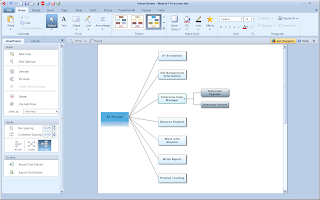
In the recent upgrade to SmartDraw VP you will now be able to format your mind map Center, All Right or All Left giving you new options for how your mind maps are displayed on the screen. I for one find that many people who are not familiar with mind mapping have an easier time when I present a mind map using the All Right formatting. Similarly, it is now really easy to create a mind map in SmartDraw VP by importing a text outline. I tried this feature by typing a simple outline into the Notepad and importing it into SmartDraw VP. After each main idea I pressed the Enter key and for each subtopic I used the Tab key to indent the text. Once I had my outline completed I used the new Import Text Outline feature and voila there I had a perfectly formatted mind map.If you are eligible I would highly recommend that you upgrade to the latest version of SmartDraw VP so that you can take advantage of these new mind mapping features. SmartDraw VP is a handy tool with lots of ways to help you become more productive in your working environment. If you haven't taken a look at SmartDraw VP, it has a good balance of tools that can give you the edge as you head down the path to becoming a better visual communicator. You can download a 30 day trial of SmartDraw VP by clicking on this link.
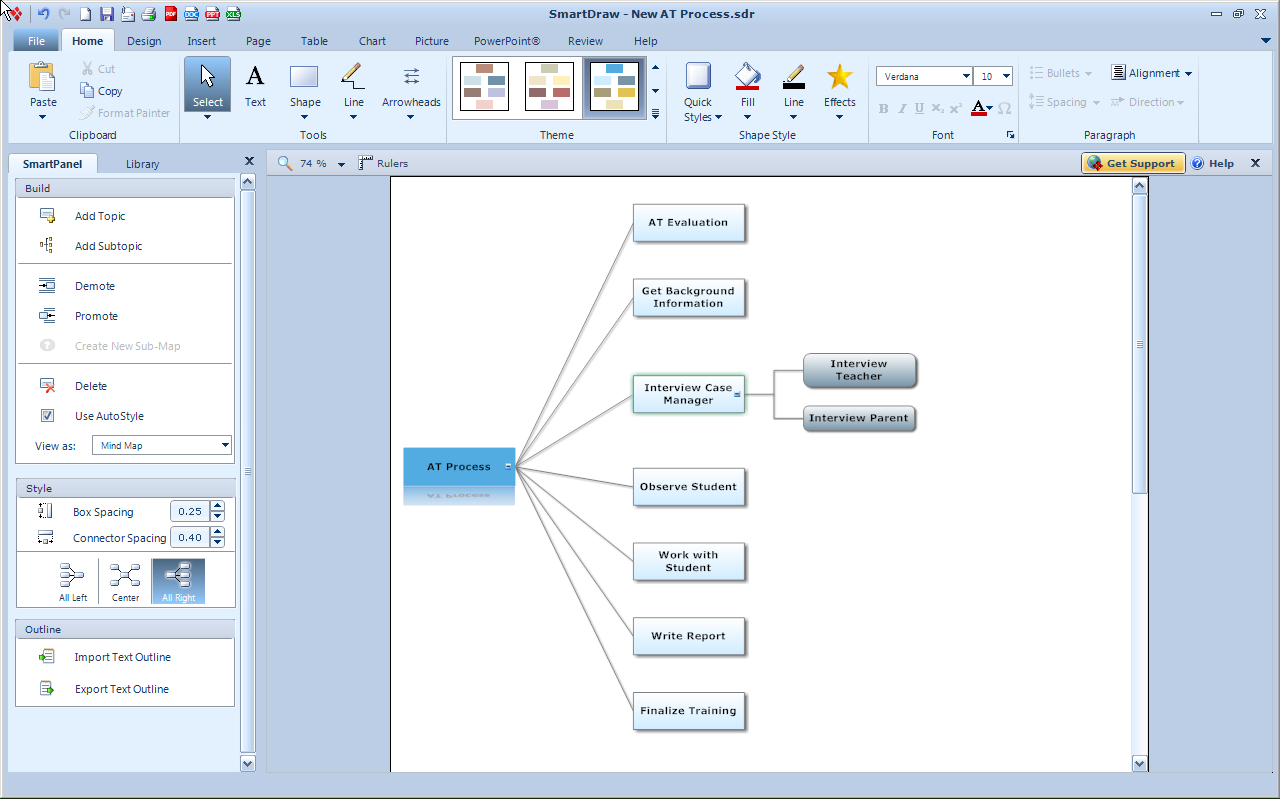
In the recent upgrade to SmartDraw VP you will now be able to format your mind map Center, All Right or All Left giving you new options for how your mind maps are displayed on the screen. I for one find that many people who are not familiar with mind mapping have an easier time when I present a mind map using the All Right formatting. Similarly, it is now really easy to create a mind map in SmartDraw VP by importing a text outline. I tried this feature by typing a simple outline into the Notepad and importing it into SmartDraw VP. After each main idea I pressed the Enter key and for each subtopic I used the Tab key to indent the text. Once I had my outline completed I used the new Import Text Outline feature and voila there I had a perfectly formatted mind map.If you are eligible I would highly recommend that you upgrade to the latest version of SmartDraw VP so that you can take advantage of these new mind mapping features. SmartDraw VP is a handy tool with lots of ways to help you become more productive in your working environment. If you haven't taken a look at SmartDraw VP, it has a good balance of tools that can give you the edge as you head down the path to becoming a better visual communicator. You can download a 30 day trial of SmartDraw VP by clicking on this link.
Working with PaperShow for Teachers in the Classroom

If you would like a free demo of PaperShow for Teachers please feel free to contact me
MindGenius 4 is Released
 MindGenius has been on the fast track with its development cycle and has released MindGenius 4 which is packed with some very useful features. MindGenius 4 adds a new Brainstorming mode which makes it very easy to record your ideas. MindGenius users will also like how the brainstorm session can be associated to a particular question n a Question set which can help to focus the session. Once you are done with the brainstorming session you can create a Question - Centric map based on what you brainstormed that is well organized using the questions as the primary node and the ideas the sibling nodes. This is an extremely useful feature and one that I know many mind mappers will find invaluable.
MindGenius 4 has now added a presentation mode to the product which makes it an ideal tool for developing and presenting your ideas. The Presentation view is easy to use and for those of us that have been PowerPoint to death- using mind maps for our presentations is a refreshing alternative. MindGenius had added lots of other features to the Project Management side of the software package which I will address in another blog post. But for now, download the free Trial of MindGenius and explore all of the new and exciting productivity features that have added to this new version.
Using Comapping for Creating a Classroom Agenda
One of the handiest tools that I use when I teach is Comapping- it has been a fantastic tool for developing the agenda for each and every class that I teach on campus. Comapping allows me to map out what I am going to cover with links and attachments that makes it very easy for my students to access and use. Once I have completed my agenda map for the classroom session, I simply Publish to Web from within Comapping and grab the embedding code that is generated. Once I have the embedding code I simply paste it into Moodle to generate the mind map. Here is an example below of a agenda map that I recently used in a class this week.
Using WebspirationPRO for Brainstorming Ideas

Once you start using WebspirationPRO you will swear that it feels just like a desktop application until you realize that you can now access your files from any computer connected to the internet that has a browser, and that is what makes this application really stand out. Having access to my files from any computer is the new law of the land for me. The more I work with the computers - the more I want my files available 24/7 to me from anywhere I am connected. In this sense applications like WebspirationPRO become even more important to me- now if it only worked on the iPad. But yes, I know it is on the road map!
PS: Coming Soon - information about a 1 day iPad Summer Institute to be held in New Jersey
Subscribe to:
Comments (Atom)