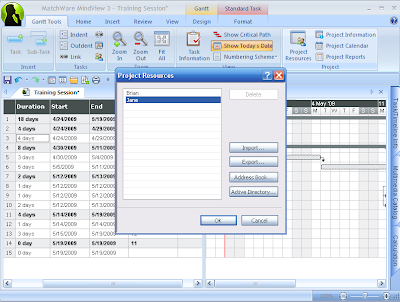
 First off, I would like to thank Reagan at A&R Edelman for providing me a review copy of the Adobe eLearning Suite. I had posted about the release of this powerful eLearning toolkit some months ago and have just got around to looking at some of the new features specifically in Captivate 4, which is one of the core rapid eLearning tools found within the suite. I have used Captivate 3 to create a number of training and simulation videos for the work that I do and wanted to dig my heals in and see what was new in Captivate 4. From the onset there are some small but significant changes to the interface when capturing your screenshots which gives the developer more freedom and control when you start a project. I found the new interface to be intuitive and really enjoyed the control it gave me when shooting my video. For the past couple of weeks I have been reviewing MindView 3, and wanted to see how I could create a training video for someone who was new to using the Gantt View. In the training video the user will be prompted on the screen to change the duration of a task, create resources and then assign the resources. Click on this link to view the training video.
One of the new features which was integrated into Captivate 4 is Text to Speech (TTS). As a consultant in the field of assistive technology I have been using TTS for some time now and was
 excited to learn that Adobe Captivate 4 would include this feature. Adobe now supplies the Kate and Paul voices from NeoSpeech, two high quality voices which I have used in the past with students. I wondered how I could use the TTS in the training module and was pleasantly surprised just how good the voices sounded in my video. Inserting text to speech was extremely easy to do- you simply type the text you want Captivate 4 to say in the Slide Note area, and click, on the Covert to Speech button. Once the text has been converted you can then instantly listen to the instructions from within Captivate 4 by clicking on the Play button. As I went through my slides I found that I could copy the text that Adobe Captivate 4 created when I set up the simulation and paste it into the Slide Note area to quickly transform the text to TTS. The speech sounds very clear and is a very fast way to at times, circumvent having to use voice narration. I will let you be the judge of that and I hope you will add comments with regard to how you found the TTS in the video.
One of the really nice feautres that you will not see is the way that Adobe Captivate 4 handles the production of the files. In the past if your video included real time video captures, Adobe Captivate 3 would create multiple videos which made it more of a challenge to upload and manage. With the release of Adobe Captivate 4, things have changed and now regardless of number of real time video captures there is only one final production SWF file. This is a great feature which I know you will enjoy. Likewise, with the release of Adobe Captivate 4 you can now output your training or simulation videos as a PDF file which will run perfectly with Acrobat Reader 9. This is truly a very powerful feature- being able to distribute your digital eLearning assets as a PDF file. In future posts, I will take a look at how you can incorporate Variables and Widgets into your Captivate 4 training videos and simulations. With the release of Captivate 4 as part of the Adobe elearning Suite once again Adobe has produced a quality software applicaiton for rapid elearning.


