With the imminent release of billion of dollars to the public schools for the purchase of assistive technology and professional development I saw an opportunity to reach out to my colleagues and give them some pointers and tips for planning for this event. During the past couple of years I have had the pleasure of being a presenter on several webinars but have never actually been the one in the trenches setting it up and marketing the event. I decided about a month ago to sponsor the free webinar on the President's Recovery & Investment Plan for 2009 and how it would impact on the work that we do under Individuals with Disabilities Education Act (IDEA). The initiative is clear that there is a priority for schools to have access to state of the art assistive technology devices and to provide intensive professional development for regular and special eduction teachers.
In order to pull this webinar together I had to do a fair amount of planning and make some decisions about the screensharing platform as well as the audio conferencing portion of the webinar. During the planning stages I was reviewing
MindView 3 and decided to take a look at how I could use the
Gantt Charts and
Timeline features to plan for the event. Using the Timeline feature really highlighted the series
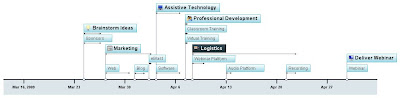
of steps that I needed to accomplish to pull off the event. Being able to go from the Gantt View to the Timeline View was very helpful in seeing the big picture. Having access to these tools allowed me to visually plan the event and keep me focused. Having used
Glance for some time now, I decided to go with this platform, which worked like a charm. In order to deliver the audio portion I decided to use the teleconference service that was provisioned to be used with Glance.
Prior to the event I did a run through using the teleconferencing service so that I woud know how to change the audio features when running the webinar. You can never be too over prepared for your webinar when anything could happen with the technology. It is important to consider having a back up computer ready in the wings when doing the webinar. As far as your audio equipment, I used a high quality headset that was plugged into my phone system so that my hands were free during the webinar. I also had my computer directly connected via the Ethernet port to ensure that my connection was as fast as possible when sharing my screen. These are some tips that I would pass onto anyone who is considering doing a webinar.
With this out of the way I could now focus on the content and the marketing of the event which made me look at some of the Web 2.0 technologies to help spread the word. I used my blog to jump start the marketing campaign and using my auto-responder from
A Weber, individuals could easily sign up for the webinar and would automatically receive a series of emails from me instructing them on how to log onto the webinar and other information that would be helpful on the day of the webinar. I decided to setup five different correspondences for the event and some reminders the day of the event that would automatically get broadcasted. Using
Twitter, I was able to share with those followers information and a link to my blog to about the event. I also decided to use Ning to get the information out. All told my marketing campaign did work and I was able to deliver my webinar as planned on April 29th. I consider it a big success and something that I will continue to do in the future as part of professional development services that I can
deliver to schools across the United States. There is certainly a lot of planning and things to consider when designing and delivering a webinar. I hope this gives you some insight into the process so that you can consider doing the same thing.
 of the project. It would seem that if you are not a professional project manager that reading Gantt Charts could pose a problem. There is a great deal of clarity that can be derived from looking at a Timeline and the information is much more digestible. In the original post I talked about how MindView 3 Business Edition from Matchware enables you to communicate the information in either a Gantt Chart, a Timeline or a Combination Timeline/Gantt Chart View. So depending on your audience you can decide how to share the information visually, that is best suited for your stakeholders.
 Office Products. It is my understanding that the Timeline will come in as Office Art shapes that will then allow you to format it to your hearts content. So I would like to believe that my post swayed the large Seattle company called Microsoft to add the Timeline view- but who am I kidding! In any case it is great to see that tools like MS Project 2010 will give users a flexible tool for communicating project information and status.
