It was great to read that there is a new version of Google Docs on the way. One of the areas that we will see a big improvement in is in the area of collaboration. There have been times when I am actively editing a shared document and some of the changes that my colleagues are making took a long time to show up. It looks like Google has remedied this and some other issues. Here is a video explaining some of the new features we can expect to see.
Keep you eye out for the release of this new version the first week in May.
Showing posts with label Google Docs. Show all posts
Showing posts with label Google Docs. Show all posts
Google Docs -Adds File Storage
 As I begin to use Google Docs for more and more of my work I am amazed by the feature set and the additional features that Google keeps adding to the application. Just last week, Google announced that it is now possible to upload and store all kinds of files in your Google Doc account. Google now gives you 250 MB of storage space for your files and you can purchase additional space if you need it. While you can upload just about any type of
  document, Google will only allow you to edit files with the following formats: .docx, .xlsx, .doc, .odt, xls, .ods, .ppt, .csv, .html, .txt, and .rtf.
So now if you need to store you files in native format it is easy to do- simply click on the Upload button and a way you go. Let me know how you intend to use this new Google Doc feature!
Google Docs Now Supports Microsoft Office 2007 Formats
 One of the features that I have wanted for a long time is the ability to Upload my Microsoft Word 2007 and Excel 2007 files directly to Google Docs. Today I learned that this feature is now available and I wanted to share that with you.
Using Google Form for Making Accessible Tests
It has been a very busy two weeks for me doing a number of Web 2.0 workshops and consulting to some of the schools that I regularly work with. The more I show Google Docs the more it resonates with teachers- giving them new ways to work with their students. In my workshops I have been showing off the capabilities of the various Google applications and while the teachers have been impressed with the word processing and presentation tool-many of them have just begun to think about how to use Google Forms with their students. Google Forms allows teachers to set up surveys and publish then on the web which can be completed by students. Once students enter their responses Google Forms will aggregate the data and provide you with both the individual student responses as well as a summary of their responses. In a nutshell that is how Google Forms works.
While I was sitting and working with a special education teacher last week in dawned on me that Google Forms could be a great tool to create an accessible test when paired with a text to speech tool. So what better way to test out my idea but give it a try and so I did. My colleague and I opened up a new form and we created a 3 question test and then published it to the web using Google Forms. Once we were given the URL for the form we opened Cast eReader which is what the schools uses and pasted the Google Forms URL into the browser window. Within seconds the form opened within Cast eReader and all of the questions on the test could be read by the program.
Here is an example of a simple current events quiz that can be created with Google Form. After you have completed the quiz click here to see the results added to the Google Spreadsheet.
When you have completed creating your test you can get the published URL and give that to your students so that they can access the test on the web. Using Kurzweil 3000, WYNN, Cast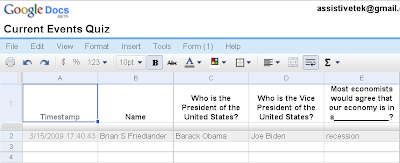 eReader, TextHelp, ReadOutloud, or NaturalReader you can give the students access to text to speech, making the test totally accessible to them. If you want to try taking the test with one of the aforementioned text to speech applications here is a link to the test on the web. Once your student's complete the quiz you can see their individual responses as well as the aggregated summary on the Google Spreadsheet. Give it a try and let me know how this solution works for your students.
While I was sitting and working with a special education teacher last week in dawned on me that Google Forms could be a great tool to create an accessible test when paired with a text to speech tool. So what better way to test out my idea but give it a try and so I did. My colleague and I opened up a new form and we created a 3 question test and then published it to the web using Google Forms. Once we were given the URL for the form we opened Cast eReader which is what the schools uses and pasted the Google Forms URL into the browser window. Within seconds the form opened within Cast eReader and all of the questions on the test could be read by the program.
Here is an example of a simple current events quiz that can be created with Google Form. After you have completed the quiz click here to see the results added to the Google Spreadsheet.
When you have completed creating your test you can get the published URL and give that to your students so that they can access the test on the web. Using Kurzweil 3000, WYNN, Cast
 eReader, TextHelp, ReadOutloud, or NaturalReader you can give the students access to text to speech, making the test totally accessible to them. If you want to try taking the test with one of the aforementioned text to speech applications here is a link to the test on the web. Once your student's complete the quiz you can see their individual responses as well as the aggregated summary on the Google Spreadsheet. Give it a try and let me know how this solution works for your students.
Subscribe to:
Comments (Atom)