I had a chance to try the Bookshare Web Reader, just today, and I am very pleased with how it worked. The installation of the Chrome extension was simple to do and by simply logging into a Demo Individual account, I could click on the Read Now link which automatically opened the Bookshare Web Reader. Bookshare Web Reader, has an easy to use tool bar at the top of the Browser which lets you navigate the book and start and stop the Text to Speech engine. By clicking on the Gear icon- it will pop up a dialog box that will allow you to change some of the reading and visual settings. Students can change the look and feel of the book and can determine just how fast they would like the text to be read. Working with the Bookshare Web Reader, I did not see a way to change the speech engine and I am guessing that the Bookshare Web Reader, uses a text to speech engine that is installed with the Web Reader Extension. If I had to make a recommendation, I would like to see a range of speech engines that students can select from in future releases of this product. Overall, Bookshare Web Reader makes accessing Bookshare books easy and straight forward and eliminates the need to have a full blown reading application installed on the computer. As we remove more and more friction from the reading experience, more students will find it second nature to utilize their Bookshare accounts with the Bookshare Web Reader to access their books- and in the end, that is what's really important.
Showing posts with label Bookshare. Show all posts
Bookshare Releases Bookshare Web Reader
Making text accessible for students with "Print Disabilities" has become one of the cornerstones of the work that I do day in and day out. By being able to provide students with accessible text, they can know with confidence that they will be able to keep up with the work load in their respective classes. Utilizing services like Bookshare has really made a significant difference in the lives of students that I have worked with, but it is still incredible when I realize just how many parents, students and educators are unaware of the service. As I continue to go out into the educational community and share this information one of the things I have learned in my years in the field of assistive technology is that: the technology has to be dead simple to use and access. If there are any kinks in the process there is a real likelihood that the technology just will not be utilized. In this respect with the release of the Bookshare Web Reader, Bookshare has taken the necessary step to make the process of accessing and reading books a simpler process for both students and teachers. Now students can log into Bookshare with their Individual account credentials-open the Google Chrome Browser and simply install the Bookshare Web Reader Extension and have immediate access to their books complete with text to speech support. Students will no longer have to download a separate application to access their books and by using the Google Chrome browser they can access their books on any computer through the browser.
I had a chance to try the Bookshare Web Reader, just today, and I am very pleased with how it worked. The installation of the Chrome extension was simple to do and by simply logging into a Demo Individual account, I could click on the Read Now link which automatically opened the Bookshare Web Reader. Bookshare Web Reader, has an easy to use tool bar at the top of the Browser which lets you navigate the book and start and stop the Text to Speech engine. By clicking on the Gear icon- it will pop up a dialog box that will allow you to change some of the reading and visual settings. Students can change the look and feel of the book and can determine just how fast they would like the text to be read. Working with the Bookshare Web Reader, I did not see a way to change the speech engine and I am guessing that the Bookshare Web Reader, uses a text to speech engine that is installed with the Web Reader Extension. If I had to make a recommendation, I would like to see a range of speech engines that students can select from in future releases of this product. Overall, Bookshare Web Reader makes accessing Bookshare books easy and straight forward and eliminates the need to have a full blown reading application installed on the computer. As we remove more and more friction from the reading experience, more students will find it second nature to utilize their Bookshare accounts with the Bookshare Web Reader to access their books- and in the end, that is what's really important.
Read2Go is Released in the Apple App Store
I have waited for some time now for the release of Read2Go App for the Ipad to be released by Benetech, Inc- and today it finally arrived in the Apple App Store. I quickly downloaded the app which is $19.99 in Apple's App Store and gave it a quick test drive. Once I downloaded the Read2Go App, I logged into my Demo Account and downloaded a couple of books directly to my iPad- which were quickly saved. I was able to configure the Font size as well as a host of various Visual Settings which was very straight forward.
Read2Go uses the popular Acapela Speech Engine and I had a choice of the text being read using Heather or Ryan.. It was easy using the slider to change the speed that the text was being read and highlighted. By default the sentence is highlighted in yellow and each word is then highlighted in green. Users can change the various colors of the highlighting by going into the Visual Settings menu. Read2Go makes it very easy to navigate to a Section, Page, or Bookmark. On first pass the Read2Go is very easy to use and the only problem that I had was I received a Low Memory dialog when reading a book that asked me to quit the other applications. Once I did that everything seemed to work fine. If you are not sure how to Quit apps - just Press your Home button twice and then hold down your finger on any app in the bottom of the window until the icons jiggle- now quit out of each app by Pressing on the Minus sign.
Read2Go looks great and I for one am going to highly recommend it to the students that I work with who have a "Print Disability." Please remember that you must have a Bookshare Account to download books to your iPad. Let me your thoughts about this new app that breaks new ground for students with reading disabilities.
Read2Go uses the popular Acapela Speech Engine and I had a choice of the text being read using Heather or Ryan.. It was easy using the slider to change the speed that the text was being read and highlighted. By default the sentence is highlighted in yellow and each word is then highlighted in green. Users can change the various colors of the highlighting by going into the Visual Settings menu. Read2Go makes it very easy to navigate to a Section, Page, or Bookmark. On first pass the Read2Go is very easy to use and the only problem that I had was I received a Low Memory dialog when reading a book that asked me to quit the other applications. Once I did that everything seemed to work fine. If you are not sure how to Quit apps - just Press your Home button twice and then hold down your finger on any app in the bottom of the window until the icons jiggle- now quit out of each app by Pressing on the Minus sign.
Read2Go looks great and I for one am going to highly recommend it to the students that I work with who have a "Print Disability." Please remember that you must have a Bookshare Account to download books to your iPad. Let me your thoughts about this new app that breaks new ground for students with reading disabilities.
DAISYtoEPUB to Kindle 3
In a previous post I shared my experiences using the Kindle 3 which to date is probably the best selling eReader in the marketplace. I'm sure that the Kindle 3 will be on top of the list for gifts this holiday season with nearly every big box store carrying it. One of the reasons why I had decided to buy the Kindle 3 was that it was the only dedicated eReader that has built in text to speech. Working with a lot of students with reading disabilities I wanted to see how the Kindle could be used by them, to access their books with text to speech support. While a lot of the publishers at their discretion can turn off the text to speech component it is still exciting to think of all the ways students can access text using this device. Now imagine the ramifications of your students who have access to Bookshare being able to read their NIMAS books on their favorite eReader the Kindle. Well it is now possible and let me share with you how you can do this.
Just this week Don Johnston released a new application for the Mac and Windows called DAISYtoEPUB that can convert DAISY (Digital Accessible Information System), NIMAS and Bookshare files to the popular ePub format.The ePub format is the most popular format for ebooks and is supported natively on the iPad, iPod Touch, iPhone, NOOK, and Sony Readers. If you are using the iPad, once the file is converted you can turn on VoiceOver and have the the book read aloud with the text to speech.
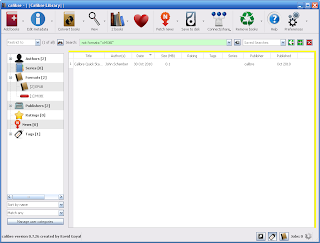
DAISYtoEPUB is extremely easy to use and within seconds the file is quickly converted. Once you have used DAISYtoEPUB to convert the file getting the books onto the various aforementioned devices is quite straightforward. This is not the case if you are using the Kindle. While the Kindle supports a number of different eBook formats, unfortunately it does not support ePub. However, not all is lost in the conversion. You see, using the free application Calibre, you can bring the ePub book into the Calibre library and convert it to the Mobi format which is in fact supported by the Kindle. Using Calibre you simply drag the ePub formatted book into the Calibre Library and using the Conversion tool save it as Mobi formatted file. From here I simply plugged my Kindle 3 into the computer and sent the file from the Calibre application to my Kindle 3. It really was that easy. Now when I opened my Kindle I had the NIMAS file in the Kindle and using the text to speech feature the Kindle could access and read the pages, complete with the graphics.
While it did take me a couple of steps to accomplish this - just imagine how useful a tool this can be for someone to be able to access their DAISY, Bookshare, or NIMAS files on a small and lightweight eReader like the Kindle 3. If you have any questions- please let know . I would be interested in your comments. So if you have the chance take a look at the Don Johnston's latest application- DAISYtoEPUB.
Just this week Don Johnston released a new application for the Mac and Windows called DAISYtoEPUB that can convert DAISY (Digital Accessible Information System), NIMAS and Bookshare files to the popular ePub format.The ePub format is the most popular format for ebooks and is supported natively on the iPad, iPod Touch, iPhone, NOOK, and Sony Readers. If you are using the iPad, once the file is converted you can turn on VoiceOver and have the the book read aloud with the text to speech.
DAISYtoEPUB is extremely easy to use and within seconds the file is quickly converted. Once you have used DAISYtoEPUB to convert the file getting the books onto the various aforementioned devices is quite straightforward. This is not the case if you are using the Kindle. While the Kindle supports a number of different eBook formats, unfortunately it does not support ePub. However, not all is lost in the conversion. You see, using the free application Calibre, you can bring the ePub book into the Calibre library and convert it to the Mobi format which is in fact supported by the Kindle. Using Calibre you simply drag the ePub formatted book into the Calibre Library and using the Conversion tool save it as Mobi formatted file. From here I simply plugged my Kindle 3 into the computer and sent the file from the Calibre application to my Kindle 3. It really was that easy. Now when I opened my Kindle I had the NIMAS file in the Kindle and using the text to speech feature the Kindle could access and read the pages, complete with the graphics.While it did take me a couple of steps to accomplish this - just imagine how useful a tool this can be for someone to be able to access their DAISY, Bookshare, or NIMAS files on a small and lightweight eReader like the Kindle 3. If you have any questions- please let know . I would be interested in your comments. So if you have the chance take a look at the Don Johnston's latest application- DAISYtoEPUB.
Subscribe to:
Comments (Atom)


