Pages

Showing posts with label brian friedlander. Show all posts

The iPad and More: Help Children Improve Communication, Cognition, Literacy and Learning


Speakers..
Joan L. Green, M.A. CCC-SLP and
Brian S. Friedlander, Ph.D

Saturday March 9th, 2013
9:00 a.m. – 3:00 p.m.
Holiday Inn in Hasbrouck Heights
          283 State Highway 17  Hasbrouck Heights, NJ 07604
COST: $175 per person including lunch
Space is limited  Group rates available

·         Some scholarships are available- contact Joan at Joan@innovativespeech.com
·         1st 10 registrants receive free copy of Joan’s book- The Ultimate Guide to Assistive Technology in Special Education: Resources for Education, Intervention and Rehabilitation


Joan Green is a speech-language pathologist from the Washington, DC area with many years of experience helping a wide range of children maximize progress with the help of cutting-edge affordable technologies. Dr. Friedlander is a school psychologist with expertise in the area of assistive technology. This is a great workshop for parents as well as education and rehabilitation professionals and anyone else who wants to learn more about ways to use an iPad or other iDevice to help children reach their goals faster, enjoy the process and enhance school success. Joan and Brian will be showing their top picks for speaking, reading, writing, thinking, organizing and enhancing the learning process. They will also review accessibility options, strategies for success and the nuts and bolts of using the iPad.

Participants are encouraged to bring their iPads and iPhones and to use them while shown an overview cutting-edge strategies and tools to use to help children with and without special needs.

For more information please go to www.ist.ticketleap.com

Bookshare Releases Bookshare Web Reader

Making text accessible for students with "Print Disabilities" has become one of the cornerstones of the work that I do day in and day out. By being able to provide students with accessible text, they can know with confidence that they will be able to keep up with the work load in their respective classes. Utilizing services like Bookshare has really made a significant difference in the lives of students that I have worked with, but it is still incredible when I realize just how many parents, students and educators are unaware of the service. As I continue to go out into the educational community and share this information one of the things I have learned in my years in the field of assistive technology is that: the technology has to be dead simple to use and access. If there are any kinks in the process there is a real likelihood that the technology just will not be utilized. In this respect with the release of the Bookshare Web Reader, Bookshare has taken the necessary step to make the process of accessing and reading books a simpler process for both students and teachers. Now students can log into Bookshare with their Individual account credentials-open the Google Chrome Browser and simply install the Bookshare Web Reader Extension and have immediate access to their books complete with text to speech support. Students will no longer have to download a separate application to access their books and by using the Google Chrome browser they can access their books on any computer through the browser.

I had a chance to try the Bookshare Web Reader, just today, and I am very pleased with how it worked. The installation of the Chrome extension was simple to do and by simply logging into a Demo Individual account, I could click on the Read Now link which automatically opened the Bookshare Web Reader. Bookshare Web Reader, has an easy to use tool bar at the top of the Browser which lets you navigate the book and start and stop the Text to Speech engine. By clicking on the Gear icon- it will pop up a dialog box that will allow you to change some of the reading and visual settings. Students can change the look and feel of the book and can determine just how fast they would like the text to be read. Working with the Bookshare Web Reader, I did not see a way to change the speech engine and I am guessing that the Bookshare Web Reader, uses a text to speech engine that is installed with the Web Reader Extension. If I had to make a recommendation, I would like to see a range of speech engines that students can select from in future releases of this product. Overall, Bookshare Web Reader makes accessing Bookshare books easy and straight forward and eliminates the need to have a full blown reading application installed on the computer. As we remove more and more friction from the reading experience, more students will find it second nature to utilize their Bookshare accounts with the Bookshare Web Reader to access their books- and in the end, that is what's really important.

From ConceptDraw MINDMAP 7 to Evernote- Seamless!

With each passing day, I am finding that Evernote is becoming a bigger part of my workflow and it is exciting to see how developers of other applications are taking advantage of this. Just today CS Odessa released an update to ConceptDraw MINDMAP 7 that seamlessly allows you to upload your mind maps to Evernote with a click of a button. If you have the Evernote application installed on your computer the upload takes place in the background and within seconds your outline and mind map are transferred to Evernote. For those of you who don't have the Evernote application, you can send your mind maps via an email client that you have installed on your computer. Since the Evernote application is free, I would highly recommend that you install it on your computer so that you can have this seamless experience uploading your mind maps to Evernote from within ConceptDraw MINDMAP 7. Watch the video below to see the Evernote options that are built-in to ConceptDraw MINDMAP 7.


The Summit 3000 from MyCharge to the Rescue

While having an iPhone 4S has made me much more productive, it seems that wherever I am, I am always looking to plug it in for a quick charge. One of the downsides to owning an iPhone4S is the battery life-make no mistake about that. If I'm traveling and away for the office it not unusual for my iPhone 4S to be down around 10%  by the end of the day. That is where an external battery charger come into play. I recently had a chance to review the Summit 3000, from MyCharge which is a 3000mAh Rechargeable Power Bank and have to say it did a great job of keeping my iPhone fully charged while I was on the road. According to MyCharge, the Summit 3000 will give you 13 plus hours of talk time and 10 plus hours of Browsing on your smartphone.

The Summit 3000 is about the size of the iPhone 4S only a little thicker. What is unique about the Summit 3000 is that all the connectors are built-in so there is no need to worry about toting your cables with you. The Summit 3000 comes equipped with the 30 pin Apple Connector, Micro USB and a full sized USB Port.The Summit 3000 is extremely well designed and pleasing to the eye and feels good holding it your hand. The Summit 3000 can be easily and quickly charged with the built-in ultra-fast wall charger. To check the battery level of the Summit 3000 simply press the button on the front panel and an array of five LED's will light up and the Summit 3000 will announce using text to speech the battery level- nice feature!  Once fully charged you can charge up to three devices at once making this ideal if you own other electronic devices in addition to the iPhone.

In my tests I was able to charge my iPhone 4S which was at 50% charge in two hours. After I had charged my iPhone 4S to full capacity, I checked the Summit 3000 which still had 50% charge, which meant that if I needed to I could have gotten another nice charge out of the battery. I also tested the Summit 3000 with my Kindle PaperWhite which was down to 50% and it took about hour and half to charge it to full capacity using the Summit 3000.

The Summit 3000 is an ideal rechargeable battery bank that can be used to charge not only your iPhone but your iPad and tablets as well. I know that from here on in, I will not leave my home without my Summit 3000 in my case. MyCharge makes a full line of rechargeable batteries with real innovative features- but having the built-in cords makes it an ideal battery for the  person on the go. So now, I always have my Summit 3000 in my bag wherever I go,  and have the confidence knowing that my iPhone and electronic devices can be easily charged when I am on the go. Go to MyCharge to take a look at the full line of rechargeable battery banks.

Voice Dream Reader- Awesome Reading Tool for IOS

I know I may be a little late to the party- but in any case, I do want to share with you an awesome reading app, Voice Dream Reader for the iPad and iPhone which has a number of unique features which makes it a real stand out. I also want to thank Winston Chen the developer for contacting me and giving me the opportunity to review Voice Dream Reader. I had a great conversation with Winston the other day and we had a chance to talk about Voice Dream  Reader and where he saw it going. Voice Dream Reader has been very well received in the assistive technology arena and offers users a number of wonderful features at a very low dollar entry point.  Voice Dream Reader can be purchased in the app store for $9.99

First and foremost, Voice Dream Reader is an excellent app for reading a whole host of different formatted files which include: PDF, ePub, Text, Word, PowerPoint, Pages, Keynote, RTF, and HTML. Voice Dream Reader comes standard with the Acapella Speech Engine installed with Heather. If you would like you can add additional voices for a nominal fee right from within Voice Dream Reader for $1.99, for each additional voice. Voice Dream Reader has a clean and fluid interface which should take minimal training to learn how to use. To have Voice Dream Reader read text simply click on the play button on the bottom of the screen. Voice Dream Reader supports a number of fonts as well as the Open Dyslexic font as well as giving the student the option to change the size of the font and the color theme.When Voice Dream Reader starts to read the controls fade into the background allowing you to simply concentrate on the text on the screen. Voice Dream Reader will select the a line of text and highlight each individual word in yellow. You can quickly move about the screen by double tapping at a new location to start Voice Dream Reader reading from that point in the text. You also have the option for start reading text from a chapter, bookmark or highlight. Students can look up definitions, bookmark and highlight text on the screen which makes it invaluable for when students need to utilize the tool for studying and reviewing material. Voice Dream Reader integrates with Dropbox, Pocket, Instapaper, and Bookshare.

What is most impressive is that Voice Dream Reader now supports both Personal and Organizational Accounts, giving students who need access to their books an economical way to access them. I had a chance to download a book from Bookshare and it worked flawlessly. I really like the way Bookshare is integrated into the app giving students access to their books when they need them right within the program. Likewise, having integration with Dropbox is ideal and one that I applaud. With so many students saving their work in the cloud it makes it really easy to access notes and files which can be read from within Voice Dream Reader. If you haven't already done so I urge you to take a look at Voice Dream Reader-it is a great app and a great entry point.

I have included a screencast to give you an overview of Voice Dream Reader


Livescribe Releases Firmware Update that Adds Sound Stickers

If you are a Livescribe SKY WiFi Smartpen user you will be happy to learn that Livescribe pushed out a firmware update that adds the Sound Stickers app to the mix. So now if you have some Sound Stickers around give it a try and you will see how wonderfully they work. Sound Stickers are a great tool for the classroom and now its even simpler to use. Updating your Livescribe SKY WiFi is extremely simple-you can go to the Inside Cover of your Starter Notebook and tap your pen on the Software Update icon. You will also find that your black ink looks smoother and bolder when it is viewed in the Livescribe Player. Similarly, the audio that is depicted by green ink looks bolder and seems to render much more smoothly. So if you have a chance update your  Livescribe SKY WiFi pen and begin to experience the difference!

Supporting Students with Special Needs in the Mainstream with the Livescribe Sky WiFi Smartpen

All of us are living in a time when technology is moving at a lightning speed, at times far out stripping our capacity to see how we can harness the power of the tools that are set before us. I have been working in the field of special education and assistive technology  for the better part of thirty years and have always felt that technology would be the one factor that would alter the way we instruct and the way we would reach students with special learning needs. To this day, I continue to educate and teach and believe more than ever that assistive technology tied with the right strategies can help students learn and help teachers differentiate their instruction. In many ways, the tools of the trade have gotten more robust, more plentiful and more multi-dimensional which causes us to have to reflect on how they can be best used. It wasn't that long ago that when we bought an application or piece of hardware it did one thing and did it well. You see many of the devices that we use today are multi-purpose which are only limited by time and our imagination. Such is the case with the Livescribe Sky Wifi Smartpen.

I have been using the Livescribe Smartpens since it was released and have recommended it to countless teachers and students to help support their learning. The ability to link audio to the ink on the page is really ingenious and is a wonderful tool for students who have difficulty listening to lectures and taking notes at the same time. With a simple tap of the pen on the paper the notes can be listened to which is a real game changer for students. With the introduction of the  Livescribe Sky WiFi Smartpen, archiving and syncing has changed; all accomplished via WiFi and a Evernote account. Now without having to think about it you can  do your work and your notes are archived in the cloud and accessible via any device connected to the internet. A dream come true for many us who want to have access to our notes. While there are other services that let you save notes in the cloud, the Livescribe Sky Wifi Smartpen gives you the ability to store your notes and audio in one place- which is fantastic. While there are lots of ways to use the Livescribe Sky WiFi Smartpen in schools, let me suggest one which could have powerful learning ramifications.
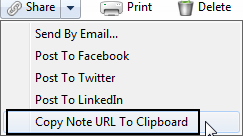
With the move to the least restrictive environment it is not unusual when looking at a child's I.E.P. to find that many students who are in the mainstream are being supported by a special education teacher or instructional aide in their general education classroom.  Having an extra pair of hands and eyes is a great accommodation for students who may need the extra support in the mainstream. Now what would happen if that special education teacher used the Livescribe Sky Wifi Smartpen to take notes for those students that have it in their I.E.P. as an accommodation? Now we are talking! The Livescribe Sky Wifi Smartpen can be used to share just the notes (ink) or the ink and audio- it all depends on how it is going to be utilized. Now that the  Livescribe Sky Wifi Smartpen syncs with Evernote-sharing the notes just got a whole lot easier! You see from within Evernote, with a click of the mouse you can make the note shareable via a URL. Once you have the URL you can post it on your website or portal and now every student that needs access to the note can access it from any browser connected to the web. Supporting students with notes just got a whole lot easier and enable you to provide the notes or the notes and associated audio. With you in control of the  Livescribe Sky Wifi Smartpen you can decide which makes the most sense and provide your students with a great digital support. Providing students with classroom notes just got a lot easier and one that I know your students will love to access. So if you are a special education teacher who is doing in-class support think about how you can use the  Livescribe Sky Wifi Smartpen to take note taking to whole new level- you will be glad you did!


Matchware Releases MindView 5

Without a lot of fanfare Matchware has recently released MindView 5, one of the leading mind mapping tools in the marketplace. Matchware, taking the lead from its customers, spent a great deal of time improving on the feature set of MindView in this current release. MindView 4 users will feel right at home using the latest version, knowing that the core of the product didn't change all that much. While some of the changes are rather subtle, make no mistake about it, they add a great deal of value to the existing application. While I intend to do a more in-depth review of the recent release, I want to highlight a couple of features which make the latest release of MindView 5 a great tool for students and those with disabilities.

Matchware over the years has made inroads with their mind mapping products to schools and has always had a keen interest in meeting the needs of students with learning disabilities. It is not everyday that a company considers incorporating the principles of Universal Design and Matchware should be applauded for including text to speech support, audio notes and a high contrast design for viewing the mind map on the screen. MindView 5 gives students access to wide array of views that can quickly be changed. Students can easily go from a mind map to an outline or to a timeline with a click of the mouse making it easy to visualize the information in many different ways.

Matchware has included a new feature in MindView 5 that lets users search the WorldCat catalog and insert a citation right within the mind map. The WorldCat catalog has million of entries and is a great tool for searching for articles that can be used for doing a research paper. Once you have used the WorldCat catalog and entered a citation you can then export your mind map and have MindView 5 automatically format your bibliography into one of the many standard outputs; notably APA, Chicago, MLA, Harvard, and ISO690. Having access to the WorldCat catalog right within MindView 5 really plays to the strength of MindView and its exceptional ability when exporting formatted Microsoft Word documents. I for one have come to rely on MindView to create RFP's and structured documents when I am delivering my proposals. When exporting MindView 5 mind maps to Word, the structure of the output is really exceptional and giving the end user the ability to navigate the document with the clickable table of contents works really well. When I prepare my proposals with MindView I often get great comments and my readers are impressed by how succinct and to the point my proposals are.

So if you like, give MindView 5 a try by clicking here for a free 30 day Trial


Livescribe SKY WiFi Pen Comes to the Rescue

It has been a long and tough week since our power went out last week due to Hurricane Sandy. My wife and I have been staying with family members who have had their power restored which can be a little disorienting- especially when your routine has been drastically altered. The college where I teach will be closed through Tuesday and hopefully I will get back the power before that- but who knows. Sandy has been devastating to our New Jersey towns! Trees are down all of the place and power lines are mangled and  strewn about.

Being displayed in the season of the general elections is a real problem for many people and recently our Governor announced that we would be able to vote via email or fax as long as we can get the Vote by Mail Ballot to the County Clerk's Office. With this in mind I set off to download the Vote by Mail Ballot from the website which I was able to save as a PDF file. Now how would I get a good looking signature on the ballot? Actually it was quite simple, since I had brought along my Livescribe SKY Wifi Pen with me to my sister's home. Now all I needed to do was to have my wife and I sign a page in the Livescribe notebook with the Sky WiFi pen and have it automatically uploaded to Evernote. Once the syncing was done, I was able to open up the page on my Evernote account and using the Snipping tool on my laptop, I saved each signature as a JPEG file. Now I was able to go back to the ballot which was saved in a PDF format and using the Signature Tool from within Adobe Acrobat X, I was able to import the image file and use it to digitally sign the ballot. The process took me less then 5 minutes and when I was done I used my eFax account to fax the ballots to the county clerk's office. The process was very quick and straightforward. I will give you an update when I hear back from the Clerk's Office. So remember to vote this Tuesday in the General Election!

Using Adobe Presenter 8 with Moodle

This semester I have had the opportunity to teach an online class for one student that needed the course to graduate. Fortunately for me, I have had access to Adobe Presenter 8 and Moodle to teach and thought that it would be a great way for me to deliver the course to my student. We are now half way through the semester and using these tools has made it easy for me to deliver learning modules to my student that he is able to work through. The beauty of using Adobe Presenter 8 is that I have plenty of PowerPoint presentations that I have done over the years which I have been able to convert to learning modules. Having access to the features found in Adobe Presenter 8 has allowed me to add video, audio as well as quizzes to my modules which really has enhanced the learning experience for my student. Adobe Presenter 8 is great at wrapping up your PowerPoint presentation and delivering them as a stand alone eLearning asset.

One of the features that has really worked well for me using Adobe Presenter 8 is the ability to create a SCORM (Sharable Content Object Reference Model)  compatible course from my PowerPoint presentations that I can then upload to Moodle. Using the Quiz feature found within Adobe Presenter 8, I am able to create a variety of different types of questions that allows me to assess what the student has learned during the session. It also provides a valuable way for my students to receive feedback after they have worked through the module. Creating the SCORM compatible file from your course is a cinch when using Adobe Presenter 8 which makes it really easy to upload to Moodle. From within the Quiz Manager select the Reporting tab and simply select the SCORM option. Now you simply have to Publish your course from within Presenter 8 and save the course using the Zip package format.

Now that you have saved the course in the zip package format it is time to upload it to your Moodle course. First select the week that you would like your students to have access to the learning module and from the drop down select SCORM activity. Upload your course that you saved in the zip format to Moodle and you are done. If you like you can customize and control how many times the students can attempt the course. That's all you need to do. Now when your students access the course and take the quiz Moodle will report the students score to you and whether they passed or not. Using Adobe Presenter 8 along with Moodle has been a really fantastic experience and has allowed me to quickly create courses and provide a way for my student to receive immediate feedback. As a professor, I am always looking for new ways to efficiently develop eLearning materials and using Adobe Presenter 8 really foots the bill!


Livescribe Sky WiFi Smartpen Soars to the Clouds


On Monday, Livescribe will release a new and improved digital smartpen called Livescribe Sky WiFi which will forever change the way we take and access our notes. While I have been a big fan of the Livescribe Smartpen the one downfall was the synching which you needed to do with a USB cable. But that all changes with the introduction of the Livescribe Sky WiFi which lets you sync your notes directly to Evernote via WiFi. This truly is a huge paradigm shift- giving me access to my notes on just about any device that has a browser or the Evernote app installed. Similarly, I can now log into Evernote from any computer and instantly have access to my notes which is very powerful. This feature is a truly a game changer for taking notes, and will give students access to their notes from anywhere they are connected to the web.

Getting started and setting up the Livescribe Sky WiFi to sync with Evernote was a cinch. I simply turned on the Livescribe Sky WiFi and tapped Scan for Networks icon which was printed on the inside cover of the Livescribe Starter Notebook. The Livescribe Sky WiFi immediately located my protected WiFi network and I was able to type in the password key to access it on my pen. Once connected to my Wifi network the Livescribe SkyWiFi  prominently displays the Wifi icon on the OLED display to let you know you are connected. Logging onto the Livescribe web site from my computer, I was able to setup my pen to access my Evernote account. The website and directions were well designed and it guided me through the process. Since I did have an Evernote account I was able to log in with my credentials to link my Livescribe Sky WiFi pen. For students who may not have an account there is an opportunity during the setup process to sign up for a free account. Once I completed the setup, I was ready to try the Livescribe Sky WiFi out. I opened the Livescribe Starter Notebook and wrote down a couple of ideas and then tapped the tip of the pen on the Sync Now icon. Once I did that I was able to watch the display as it moved through the syncing process  Once the synching was complete the OLED display read Done Syncing. Now for the moment of truth, I opened up Evernote from my laptop and lo and behold there was my note sitting in my Evernote account in a notebook configured A5 Wifi Starter Notebook. Audio recordings made during the note taking process show up in the note as green ink. When you are ready to listen to you note simply click on the note from within Evernote and the Livescribe player will open in your browser to access and listen to the recording.

Livescribe has really streamlined the process making it now possible to have access to your notes from any device connected to the web. Syncing via WifFi with integration with Evernote really is a game changer for students who need access to their notes. I for one am excited with the new impossibles that the Livescribe Sky Wifi pen has to offer in terms of sharing and accessing notes via Evernote.

Snagit- Best Kept Secret for Mac & Windows

I have been a long time fan and user of Snagit from TechSmith, Inc for many years now and I am always amazed at the features. One of the newer features is the ability to capture video from your screen which has really come in handy lately as I am developing some eLearning modules. While many of us will  initially think of using Snagit to capture screen images the latest version of Snagit can capture video along with audio and System audio making it indispensable tool for instructors and eLearning developers who are looking for a quick and easy way to capture video off of the screen. I recently created a short video using GoAnimate and wanted to save it in MP4 format to insert into an Adobe Presenter 8 module I was creating. Using Snagit's new ability to capture the GoAnimate video was a piece of cake and the quality of the video capture was outstanding. So take a look at Snagit and see how you might use it- it is one of the best kept secret and is available for Mac and Windows. Here is the example of what was captured using Snagit


Funding Kickstarter Projects

Over the past year or so I have jumped in and helped to fund several Kickstarter products which has been a lot of fun. In addition to knowing that I am able to help fund a new product I also get the advantage of being on the ground floor when the product is released. This past year I have funded the Touchtype, a case for the iPad and Apple Bluetooth Wireless keyboard, the Elevation Dock for the iPhone and the Hidden Radio. All of the products have exceeded my expectations and have made using my iPad and iPhone a real joy to use. Spending time working and sharing with educators the potential for these mobile technologies, it is great to have on hand these innovative products to show and demonstrate.

The Touchtype is the perfect solution for individuals like myself that want to use a full size keyboard but want to also be able to store the iPad in convenient and light weight case. The design of the Touchtype is fantastic and is light enough so that you don't really realize it is in an enclosure. While I have used a Zagg Portfolio with my iPad, I find that it adds way to much bulk and weight for my liking. Having access to the high quality Apple Bluetooth keyboard is a real pleasure when I am typing and the innovative Touchtype design makes carrying around the iPad a cinch.


The Elevation Dock makes charging my iPhone 4S really simple. The Elevation Dock is beautifully designed and the phone fits into the 30 pin dock like a glove. The dock is made from anodized aluminium and has the Applesque finish to it. The Elevation Dock looks great on my nightstand and is the  perfect accessory for charging my iPhone. The Elevation Dock is heavy enough so that when you take your iPhone out of the charging base it does not life up from the nightstand. The look and fit is really incredible!


The Hidden Radio is a really fantastic Bluetooth Speaker with innovative design. Once you pair it to your device you can turn it on by simply unscrewing the top. This not only turns it on, but as you raise the cover of the Hidden Radio the volume increases. The Hidden Radio produces some great sound and the volume is extraordinary. Check it out for yourself-you will be glad you did!


Being able to jump in and fund these projects has been a lot of fun and the products were worth waiting for. So if you get the urge find out what is happening at Kickstarter! who knows you just might find something fun to fund!

GoAnimate - Engaging Tool for Creating Videos

I had the pleasure of  presenting with my colleague Dr. Patricia Schall today at the New Jersey Council of Teachers of English Conference which was hosted at the College of St. Elizabeth. It was exciting to be part of this conference since I usually present at special education venues. The keynote speaker Andy Cohen who heads up the Bridge Film Festival at the Brooklyn Friends School shared with us some of the video's that students who participated in the file festival have crafted over the years. It was truly inspiring to listen and to watch the stories unfold on the screen. Andy shared that students used many tools to create the videos and shared one of then called GoAnimate, which he demoed for us. When I saw the ease of use and the potential of GoAnimate I signed up for a free account and gave it a whirl. Even with the free account you are able to create animated videos that are sure to capture your audience's attention.

Using GoAnimate, it is easy to create eLearning assets and engaging materials that can be embedded into your website or blog. If you upgrade your account you get to select more move makers and the ability to upload to YouTube. Having tried GoAnimate I have to say wow! it is extremely easy and intuitive to use. Within minutes I had created my first animated video which was so easy to do. I am definitely going to explore the possibilities of GoAnimate and look to use it in my graduate classes for projects. I was anxious to share GoAnimate with you and so I am embedding a short but unfinished video so you get an idea of what is possible. I hope to complete this one so stay tuned! Enjoy!

Accessible Books by AssistiveTek on GoAnimate

Animated Presentations - Powered by GoAnimate.

Using Adobe Presenter 8 for eLearning

Having used Adobe Presenter 7 to create eLearning material it was exciting to learn that Adobe had released a new version of Adobe Presenter with a slew of new and exciting features. I have had a chance to work with Adobe Presenter 8 for the past two months to learn the ins and outs of the program and am really impressed with the product and some of the new features that have been added. Adobe Presenter 8 remains a plug-in for PowerPoint on the Windows platform which when installed appears as a new Tab on the PowerPoint Ribbon. Once you click on the Tab you will see a host of features that are specific to Adobe Presenter 8 that you can utilize. To get started with Adobe Presenter 8 just open an existing PowerPoint, click on the Adobe Presenter Tab and you can then bring in video, record audio and build an eLearning module complete with navigation and quizzes. Subject matter experts will enjoy the easy to use interface and be creating modules in no time. One of the real strengths of Adobe Presenter 8 is the intuitive interface which will ensure a fast learning curve.

As more and more students are learning online it is essential that as subject matter experts that we have easy to use tools to create rich online materials. Using a HD webcam you can bring in high quality video into your eLearning courses with Adobe Presenter 8 and display it on a slide or on the Navigation pane.  Adobe Presenter 8 lets you customize the Navigation pane and gives you control over the color selection. In the current version of Adobe Presenter 8 you can have the Navigation pane inherit the color and theme of your PowerPoint presentation giving it a lot of pizzazz and visual appeal. Narrating your presentation could not be easier with Adobe Presenter 8. When using the recording feature you can import all of your Slide notes and have them ready to access as you add audio to your eLearning module. If you have animations on your slides Adobe Presenter 8 makes it easy to synchronize the animations to your audio thus ensuring that the audio and animation matches during playback.

Adobe Presenter 8 has added a host of new features like Interactions, Characters and Scenes which will make your presentations more compelling and interactive. It is now easy to add a scene to your PowerPoint presentation by selecting from any of the built-in scenes provided. You can then overly that with characters that have added to Adobe Presenter 8 to give your eLearning module a polished and professional look. To add more interactivity into your module you can now select from several new Interactions that have been added to Adobe Presenter 8. When the eLearning module has been published students can interact with the presentation making it a more dynamic experience.

What has always impressed me about Adobe Presenter 8 is the ease of use and the way that it can wrap up your material up complete with navigation to make for a very professional looking course. Since so many professionals have legacy PowerPoint presentations-having access to Adobe Presenter 8 makes sense for those of you who are considering putting together online courses. Adobe Presenter 8 eLearning courses can be published to your Adobe Connect account,  or as a PDF that can be viewed with the Adobe Acrobat Reader 9 or above. Adobe Presenter 8 can also be viewed on an iPad using the Presenter App. Please note there are some limitations viewing eLearning courses on the iPad.

One of the most innovative new features in Adobe Presenter 8 is the addition of the Video Creator tool. Now it is possible to create highly engaging material with high quality video without the need for an expensive video creation application. Using a high quality webcam like the Logitech 920D-it is now possible to produce great videos right within Adobe Presenter 8. After hitting the record button you have the option to record within your PowerPoint presentation or you can use it to demonstrate any software application that you have access to on your computer. The editing tools are easy to access and use and the published video allows you to be on the right or left side of the screen as you demonstrate whats on your computer screen. Once you have finished creating your video you can easily output and share it via Vimeo or YouTube right from Adobe Presenter 8.

While creating engaging material for your online courses is one of the goals of Adobe Presenter 8, when it comes time to assess your students, Adobe Presenter 8 includes the ability to create Quizzes which can capture what they have learned. Adobe Presenter 8 supports AICC and SCORM making it easy to connect to existing Learning Management Systems (LMS). I have used this feature within Moodle which worked well and provided me reports as to how my students performed on the learning module. Adobe Presenter 8 allows designers and teachers to include True/False, Multiple Choice, Fill in the Blanks, Short Answer, Hotspots, Likert Scale, Matching and Sequence style questions. Adobe Presenter 8 will automatically create a summary slide to provide feedback and scores to the students.

Adobe Presenter 8 hits that sweet spot for individuals that are comfortable using PowerPoint and have made an investment in creating presentations over the years. Utilizing Adobe Presenter 8 gives them the ability to quickly convert their legacy presentations into interactive presentations that can be uploaded and utilized within a LMS or published to a server. Users will appreciate the easy to use interface and now having access to the Video Creator adds a new dimension to the program allowing users the ability to create high quality video demonstrations without the need for expensive equipment. You can download a trial version of Adobe Presenter 8 and kick the tires- you will be glad you did.

ConceptDraw Mindmap- Great Tweeting Tool

One of my favorite features in ConceptDraw Mindmap is the ability to plan out my tweets for Twitter. Using a simple mind map, I can structure the map by the week and add my tweets. When I'm ready to send the tweets it is as easy as going to the toolbar and pressing the Tweet button. Using ConceptDraw Minmap I can get a perspective on my tweets, and better yet it even shortens attached URL's. If you are planning a tweet campaign you should really take a look at ConceptDraw Mindmap to help you strategize and deliver your tweets. ConceptDraw Mindmap gives you the option of tweeting the topic, map or screen which is a nice touch. The only thing I would like to see developed in ConceptDraw Mindmap is a feature by which you could set each of the tweets to be sent on a specific date and time. Happy tweeting with ConceptDraw Mindmap.


Haiku Deck- Elegant Presentations from Your iPad

I recently had a hand at trying a new app called Haiku Deck which is a new presentation tool for the iPad and am very impressed with the results. Haiku Deck is free and is a worthwhile app for anyone who is considering doing a presentation on the iPad. If you are trying to move away from PowerPoint and bulleted points then you are really going to like Haiku Deck. Haiku Deck is ideal for creating beautifully designed presentations that comes with multiple themes that you can select from. Select a theme, add a slide and watch the magic happen as you add pictures and some text. To add a picture you simply type a keyword and Haiku Deck goes out and searches for Creative Common pictures for your use. Add some text and voila you are done. Once you create your Haiku Deck it is easy to share your presentation with others by embedding it, by providing your participants with a link or allowing them to download it as a PDF. I recently created a presentation that I will use this weekend to give you and idea of what is possible. Give it a try and let me know what you think.  Click here to view the presentation


LabQuest 2 from Vernier- Connected Science System

It has been a couple of years since I last reviewed the Labquest from Vernier, so when I was able to get my hands on the LabQuest 2, I was really excited to find out about all the new enhancements in this new handheld connected science system. The LabQuest 2 is about the size of large cell phone with a high contrast screen that is powered by a high capacity rechargeable Lithium battery. The Labquest 2 has a great design and feels very solid in your hands as you use the device. The high resolution touch screen is great for viewing when you are using it outside in the field. Vernier did not skimp on the processing power in this device and you will find it very responsive when you are collecting or analyzing data on the device. The LabQuest 2 supports all of the Vernier sensors making it easy for schools who have invested in their devices and probes. The LabQuest 2 now includes both WiFi and Bluetooth which opens up all kinds of possibilities which I will discuss later in the post. Additionally, the LabQuest 2 has built-in accelerometers as well as GPS which can be utilized with other sensors for recording such data. I should mention that the LabQuest 2 is compatible with both Mac and Windows computers.


LabQuest 2 Screenshot
But no matter how good the hardware is-how does the LabQuest 2 hold up when in use? This is where this device really shines! Teachers will find that the LabQuest 2 is a dream to use-just plug in the sensor which will be automatically detected by the LabQuest 2 and press the Collect button to get started. Instantly students will be able to see their data being displayed on the screen. Once the data is collected students can spend their time using the analytic tools built in or transfer the data to a computer. Teachers can also have students email the data, graph, or screenshot directly from the LabQuest 2, that was captured, which makes it easy to include in a lab report. The LabQuest 2 supports analysis with linear and curve fits and allows students to record their notes on the device, with the on-screen keyboard. Teachers will enjoy the fact- knowing that the LabQuest 2 comes with over 100 experiments that are pre-loaded on the device which students can access. If teachers would like to customize the labs, Vernier has a handy Lab Creator Tool that is available to teachers that allows you to tweak the lab to your liking. 


Vernier Data Share on iPhone 4S
In this age of bring your own device (BYOD) Vernier has taken this model to heart and created the "connected science system," allowing anyone with a browser to view and interact with the collected data. This enables students with iPhones, Android Phones, iPod Touches, and iPads, to launch their browser and view the data live as it is being collected. All the students need to to do is go to their Settings and make sure that their device and the LabQuest 2 is on the same wireless network. Now simply launch the browser and enter in the IP address or name of Network and voila you are ready to view the data being collected in real time. I have tested various browsers, using my iPhone, iPad, and Kindle Fire with the LabQuest 2 and in each case the data was instantaneously available for me to preview in real time. For a richer set of tools, teachers can purchase the Graphical Analysis for iPad app from the App Store.

With the LabQuest 2, Vernier has transformed the way teachers need to think about teaching science in the classroom and provided them with an easy and powerful solution for capturing data in real time. Utilizing their "connected science system" with the LabQuest 2 it is now possible to extend their set of tools to students, so that they can collaborate in real time-by simply launching a browser. For teachers that want to create more interactive science lessons and give students the opportunity to collect data the LabQuest 2 is certainly an outstanding tool you should include in your classroom. Giving students the opportunity to both visualize and analyze data is at the heart of science and what better way to make it hands-on than with the LabQuest 2. For ore information about the LabQuest 2 you can click here.

If you are considering using the LabQuest 2 in your classroom Vernier will be offering free 4 hour workshop sessions in the Fall. For more information about the workshops click here.

Clicker 6 - A Whole New Game!

I have been meaning to write about Clicker 6 for some time now, but it has been an incredibly busy spring and summer and I didn't get a chance to sit down and reflect on the latest release. Truth be told I have been a big fan of Clicker for a long time now and with the current release I am even more excited with the potential of this program with students with a wide range of abilities. Having worked with a lot of assistive technology over the years one of the key criteria for me is that it has got to be easy to use. If it takes me awhile to learn how to use a software program then I know that it is doomed in the classroom. The latest release of Clicker 6 now includes Activity Wizards which make using the program a real dream. Just this morning I had the chance to use Clicker 6 with a student I was working with who had underlying cognitive and language disabilities and within seconds of selecting a Talk About Wizard I had developed a picture based activity that he could use to tell a story about the pictures on the screen. It was incredible just how engaged the student was and how exciting it was to see the expression on his teacher's face as he told his story. Using the Activity Wizard the activity was created within 15 seconds. In today's, fast paced classroom having tools at your disposal that can create rich curriculum based materials is more important than ever.

After I created this Talk About activity, I decided to create a picture to word matching activity to see if the student could match the pictures to the word. To create this activity, I selected the Matching Wizard, followed the on-screen prompts and selected the pictures that I had downloaded to a folder on my desktop. Again within 10 seconds my matching activity was up and running and the student could give it a try. The teachers were very impressed and were able to see just how easy it was to create the activity. Clicker 6 provides students with high quality text to speech supports and with the integration of the webcam, audio and multimedia it is my go to program for students that have a wide range of learning challenges. If you have not looked at Clicker for awhile I would urge you to take a look at the current release which has a lot to offer. I am planning another post to talk about the other supports that are now integrated into Clicker 6 namely, word prediction, switch support, and drawing tools. So watch for another post about Clicker 6 to be coming soon!


Are You Thinking About a Mindmapping Conference?

It has been a number of years since I had initiated putting together a mind mapping conference here in New Jersey, and today I was talking to my good friend and visual mapper Wallace Tait about the possibility of setting up a mind mapping conference so that we convene and share ideas. With the economy in its current state we need to bring innovation and ideas to the work that we do whether it is in the public or private sectors. What better way to  kick-start this year then by planning to convene interested participants who want to explore how we can put mind mapping to use in the work that we do.

I have spoken to Wallace about the idea for an Unconference -whereby we pick a time and place and build the agenda the day of the conference based on your needs. This model has worked really well in the educational marketplace and is one that could work well for us. At the Unconference we could learn about new and innovative ways that people are using mind mapping in the work that they do, whether it is academic, personal, or business related. In this spirit, it would be great to have some corporate sponsorship that could take care of some of the expenses and be a host for the day. I for one think that a mind mapping conference is long overdue and hope that some of the leading companies in this arena will find value in this idea and step up to the plate to make this a reality. I know that Wallace and I are willing to put the time in to see that it happens. If you are interested in making this a reality please feel free to contact me.  All the best and Happy Mind Mapping!