Pages

Showing posts with label screen sharing. Show all posts

Screenleap Easy Screen Sharing

Using screen sharing software for a webinar is always a leap of faith. What do I mean by that? If you have ever attempted to host a webinar with one tool or another then you probably have experienced just how frustrating it can be to connect. Many of the screen sharing applications ask you to download plug-ins which can make the experience even more frustrating for those users who may be less technically inclined. That is why I was so glad to learn about a new screen sharing tool called Screenleap which I started to use last week.

First off, the screen sharing service is free, and if you are joining a session there is no software to install. It doesn't get any easier that this. I demonstrated Screenleap this week in my graduate class and within a minute all 20 of my students were viewing my screen. Great way to publish the teachers screen to your students in a classroom. All my students had to do was go to Screenleap and enter a 9 digit number that I posted- to begin the session and within seconds they were able to view my screen. This worked without a hitch and the ease of use was fantastic! 

 During the class one of my students wanted to share her screen so that she could demonstrate a math web site- so she initiated the screen sharing session and at the instructors station I entered the 9 digit code and then I was able to see her screen which was projected in the classroom for all the other students to see. Screenleap works as stated and probably is one of the easiest screen sharing applications I have ever used. So if you get the chance check out Screenleap you will be glad you did.

Creating Handouts from Adobe Captivate 4

I have been creating a lot of training videos in Captivate 4 lately for some of my upcoming workshops and one of the features which is often overlooked is the ability to quickly create printed handouts for your participants. This coming week I will be doing a training on how to create a blog using Blogger. For the workshop I created a video that demonstrates how to setup the Commenting features in Blogger . In order to address the various learning styles, I decided to provide my participants with a handout so that they can jot down notes and give them another reference point when I do the demonstrations.

While I have published a number of posts about creating demonstration and simulations in Adobe Captivate 4, you will find it very easy to create handouts from your demonstration videos- with a just a couple of clicks. Since Adobe Captivate 4 merely takes screen shots it is very easy for the Captivate 4 to create a Word document by formatting the screen shots and text captions as you will see. I put together this short video demonstration about how to create printed handouts in Adobe Captivate 4 with a click of the mouse. Let me know what you think!

Providing Support with Glance

It has been exciting being able to use Glance to provide my students with support when they are not able to make it to class. Just last week I had two students who could not make it to class and they had a project due on a software application called ClozePro, from Crick Software. Since this is a hybrid course, I decided to use Glance to provide them with a webinar that I could demonstrate to them how to use the software, without anyone having to leave their home. We all agreed on a time and we decided to use Skype to deliver the audio portion of the webinar. Once we were connected I sent both my students the Glance link via the Skype chat and we were off an running.

One of the really great features of Glance is its simplicity. I know that there are more screen sharing applications out there that have a host of features, but one thing that is critical for new users of this technology is their ability to simply click and see your screen. For this reason Glance is on the top of my list for ease of use. For the presenter there is very little behind the scene work that you have to do. Just initiate the session and let you guests connect. As the presenter you can really focus on the content- after all, isn't that the reason you initiated the session? Glance is just simple to use! . Give it a try and let me know about your experience.

Screensharing and More with Glance

Over the years I have used Glance to do webinars and for screen sharing sessions. One of the things that I like most about Glance is the ease of use and the lack of complexity. This is crucial especially when you are supporting others who may not be technically inclined. With Glance you simply select, Start a session and you are provided with your Glance.net URL and a session key that you provide to your client. It is just that simple- your client goes to the URL address provided, enters the session key you provided them and within seconds they see your screen. Like I said before, if you are working with clients that are new to this type of support it is crucial that the process is streamlined and easy. In the case of Glance, I have to say it is as easy as it gets.

Just yesterday, I received an email from Glance that they released a beta of the Glance application so that now you will be able to view your clients screen and take remote control to help provide support. To provide remote support using Glance it is as simple as selecting Start session - view guest's screen. You will be prompted if you want to just initially view or if you would like to view and take remote control of your clients computer when they log in. Again you simply provide your client with your Glance URL address and the session key. Once this accomplished they will be prompted to download a small viewing application. Having tested it out this past week the download and installation went very quickly. Once installed you will now be able to view your clients screen and remotely control their computer. This is a great tool for providing webinars and now for doing remote support without having to leave the office.

Glance starts at $49.95 a month or $499 dollars for a full year for a Glance Personal account. The program is cross platform and I have used it with my PC and my Mac with excellent results. For the Glance Personal account you can host an unlimited number of sessions and can have up to 100 users online with you- which is great for webinars. There are Glance Corporate accounts as well which you can find out more information about on their website. Some of the new features like sharing your clients screen and remote access are only available at this time on Windows. Hopefully this will change. Glance has been really good about adding support for Macintosh, so I will assume that it is just a matter of time.

In these tough economic times, tools like Glance are going to make a real difference in allowing consultants and trainers to provide high quality services without the need to travel. If you are looking for online training in Captivate 3, MindManager 7, JCVGantt Pro, Adobe Presenter or Adobe Acrobat 9 Extended give me a holler. Imagine how much time can be saved by doing training in the privacy of your home or office using tools like Glance. Glance is very easy and powerful tool that simply delivers! So if you have the opportunity download the application and give it a try, you will be glad you did.

Croosloop Revisited

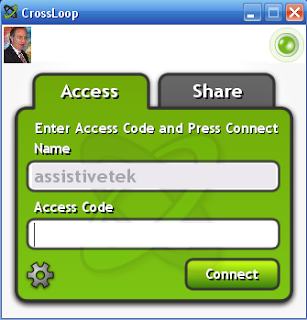
While I have talking about Web 2.0 for some time now, the real benefit of these technologies is the ability to collaborate over the web. Just yesterday evening I was collaborating with my colleague and fellow visual mapper Wallace Tait on a visual map. Using Crossloop and Skype we were able to collaboratively work on the visual map as if we were in the same room. The speed and clarity of the screen was really unbelievable. Using readily available Web 2.0 technologies made this collaboration possible at no cost to either myself or Wallace. Using Skype for the audio and Crossloop for the screen sharing session was a real winner all around.

Using these technologies it is now possible to provide high level support, training, and collaboration wherever you may reside. All you need is high speed internet and a free Skype and Crossloop account. If you are looking for training and support in the comfort of your home or office just drop me a line to find out how we can get started. This type of support and training is ideal when you get in a pinch and need someone to turn to. I offer free estimates and would be glad to speak to you over Skype about your training or support needsor feel free to email me.

Interested in trying Crossloop?

I recently came across a free screensharing tool called Crossloop that lets you share your computer screen and take control of the other person's computer. I am interested in trying it out with someone to see how well it works. To get started you need to download a free copy of Crossloop from their website. It was easy to download and install. Once you have it downloaded shoot me an email so we can see how well it works.